
When you launch Kaizen OCR, the dashboard presents every feature as a tile. Click any tile to jump into that tool. The license status banner at the top shows whether you're on Free, Pro, or Premium.
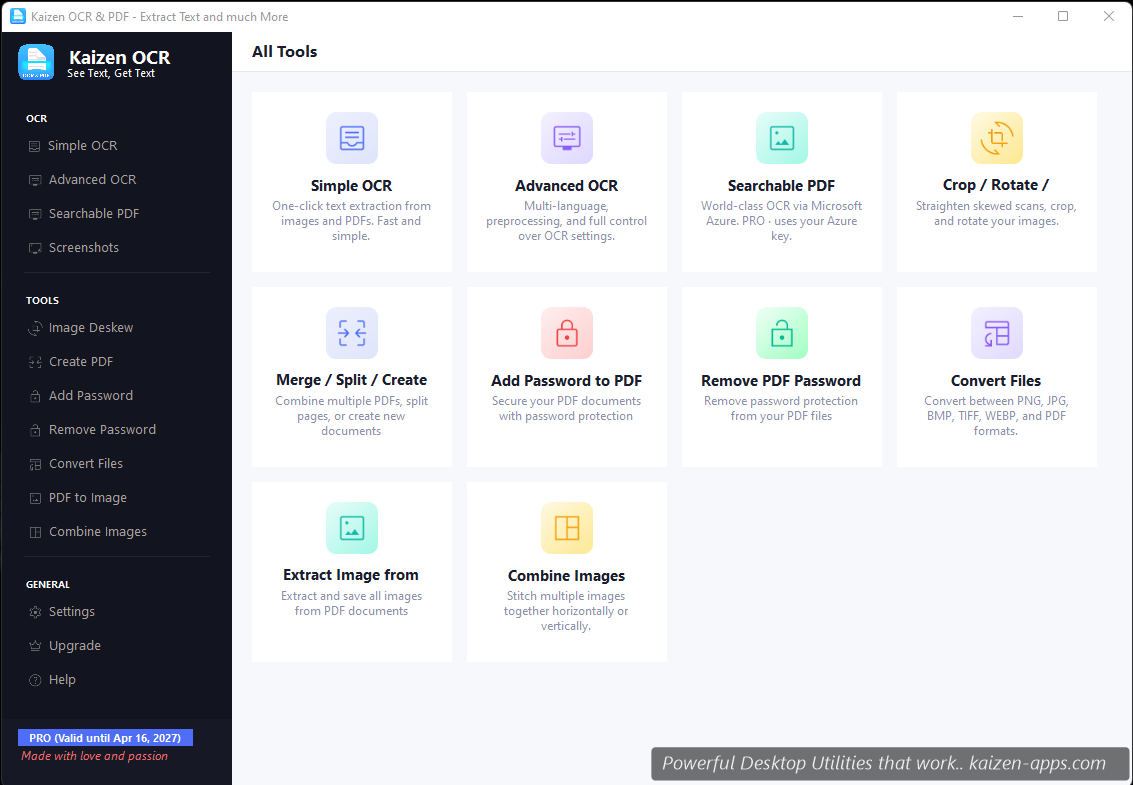
The 13 tiles
OCR section
- Simple OCR — one-click text extraction from a single image or PDF
- Advanced OCR — batch processing with preprocessing options
- Searchable PDF — Azure-powered searchable PDF generation (Premium)
- Screenshots — view and OCR the captures your global hotkeys have produced
PDF section
- Create PDF — combine files into a custom PDF with reorderable pages
- Merge / Split — combine multiple PDFs or extract pages
- PDF to Text — bulk text extraction (direct, Tesseract, or Paddle modes)
- PDF to Image — export every page to PNG/JPG/BMP/TIFF/WEBP
- Extract Images — pull embedded images out of PDFs
- Add Password — AES-encrypt a PDF
- Remove Password — strip password protection from PDFs you own
Image section
- Image Deskew — auto-straighten skewed scans (OpenCV perspective transform)
- Combine Images — stitch multiple images horizontally or vertically
- Convert Files — swap between image formats and PDF
The sidebar
The left sidebar shows your license status, a quick link to Settings, and a tray-control toggle. You can minimize the app to the system tray at any time — the global hotkeys keep working in the background.
License status banner
At the top of every page, a small banner tells you:
- Your current tier (FREE, PRO, or PREMIUM)
- How many Free-tier operations you've used of the 7-per-feature allowance (only shown on Free)
- An Upgrade button if you're on Free
Next: run your first OCR
Start with Simple OCR — drop an image or PDF, click Extract, done.
Kaizen OCR & PDF
Extract text from any image or PDF, edit, convert and OCR — fast, accurate and fully offline on Windows.
Get Kaizen OCR & PDF →Free download