
What this feature does
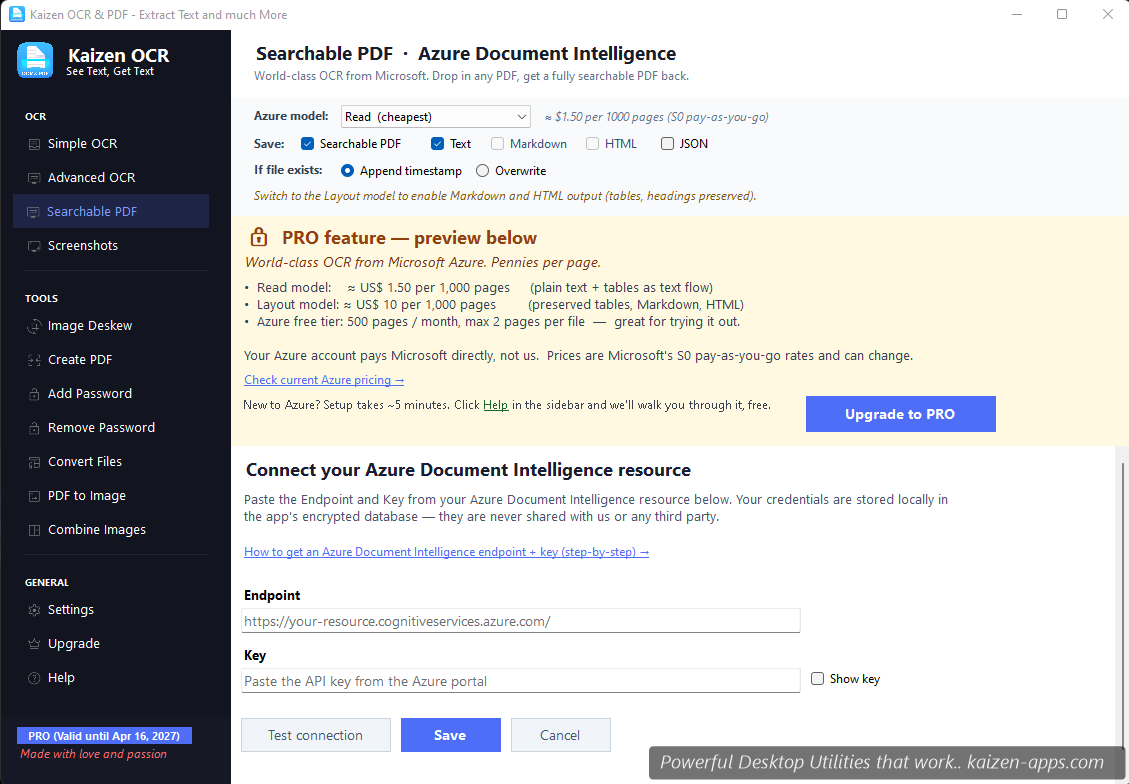
Searchable PDF takes a scanned PDF (where text is an image) and produces a new PDF where the text is searchable and selectable. Under the hood it calls Azure Document Intelligence using your own Azure subscription. We don't route anything through our servers.
Why Azure? Document Intelligence is Microsoft's purpose-built OCR for business documents — it's substantially better than any local engine at preserving layout, reading tables, and handling messy handwriting. The trade-off is that it's a paid service (with a generous free tier).
Prerequisites
- A Pro or Premium license for Kaizen OCR — this feature is gated behind licensing.
- An Azure Document Intelligence resource with a key + endpoint. If you haven't got one, follow our 7-step setup guide.
First-time setup
- Open Kaizen OCR and click Searchable PDF from the dashboard.
- In the Azure credentials panel at the top, paste your Endpoint and Key.
- Click Test connection. Wait for the green tick.
- Click Save. Your credentials are stored encrypted in a local SQLCipher database — they never leave your machine.
Generating a searchable PDF
- Drop a PDF or image(s) into the file area.
- Pick a model:
- Read — $1.50 per 1000 pages. Extracts text and detects tables. Best for most scanned documents.
- Layout — $10 per 1000 pages. Preserves formatting, columns, and table structure. Best for contracts, forms, and complex layouts.
- Pick your output formats. Searchable PDF is always generated; you can also produce plain text, Markdown, HTML, or JSON in the same run.
- Click Generate. Progress is shown per page. When done, the result opens automatically and is saved next to the source file.
Understanding the output
- Searchable PDF — a new PDF where every page has an invisible text layer behind the image. You can Ctrl+F / search, select, and copy text like any born-digital PDF.
- Plain text (.txt) — just the recognized text, in reading order.
- Markdown (.md) — formatted text with headings and tables (Layout model only).
- HTML (.html) — like Markdown but browser-renderable (Layout only).
- JSON (.json) — structured data with per-block coordinates, confidence, and table cells. Useful for building on top of the output.
Cost management
You're billed directly by Microsoft. To keep an eye on spend:
- Azure Portal → your subscription → Cost Management. Set a monthly budget alert.
- The F0 (free) tier gives you 500 pages/month at zero cost — great for personal use.
- If you exceed F0, requests fail with a 429 error until the quota resets. Kaizen OCR surfaces that error clearly.
Key management
- Keys are stored encrypted on your machine. They never leave your computer unless you explicitly paste them into an Azure API call.
- To rotate: regenerate the key in Azure Portal, then paste the new one in Kaizen OCR and re-save.
- To disconnect: clear both fields and click Save. Searchable PDF will become unavailable until you re-connect.
Troubleshooting
“Test connection” fails
- Check the endpoint URL — it should start with
https://and end with/. - Confirm you pasted the whole key (they're 84 characters long).
- Make sure your machine has internet access to
*.cognitiveservices.azure.com.
“Rate limit exceeded”
You've hit your Azure tier's rate limit. Wait a minute (F0 resets monthly; S0 has per-second limits) or upgrade the tier in Azure Portal.
Pages come out blank
Usually means the source PDF is encrypted. Run it through Remove Password first.
Kaizen OCR & PDF
Extract text from any image or PDF, edit, convert and OCR — fast, accurate and fully offline on Windows.
Get Kaizen OCR & PDF →Free download