
Why combine before OCR?
Many scenarios produce multiple images that logically belong together:
- Long receipts — scrolled and captured in several phone shots
- Chat logs — screenshot series covering a conversation
- Multi-part scans — a document split across two scanner passes
- Magazine articles — pages captured individually
OCR works better on one image than many — table structures, paragraph flow, and column detection all benefit from seeing the whole document.
Workflow
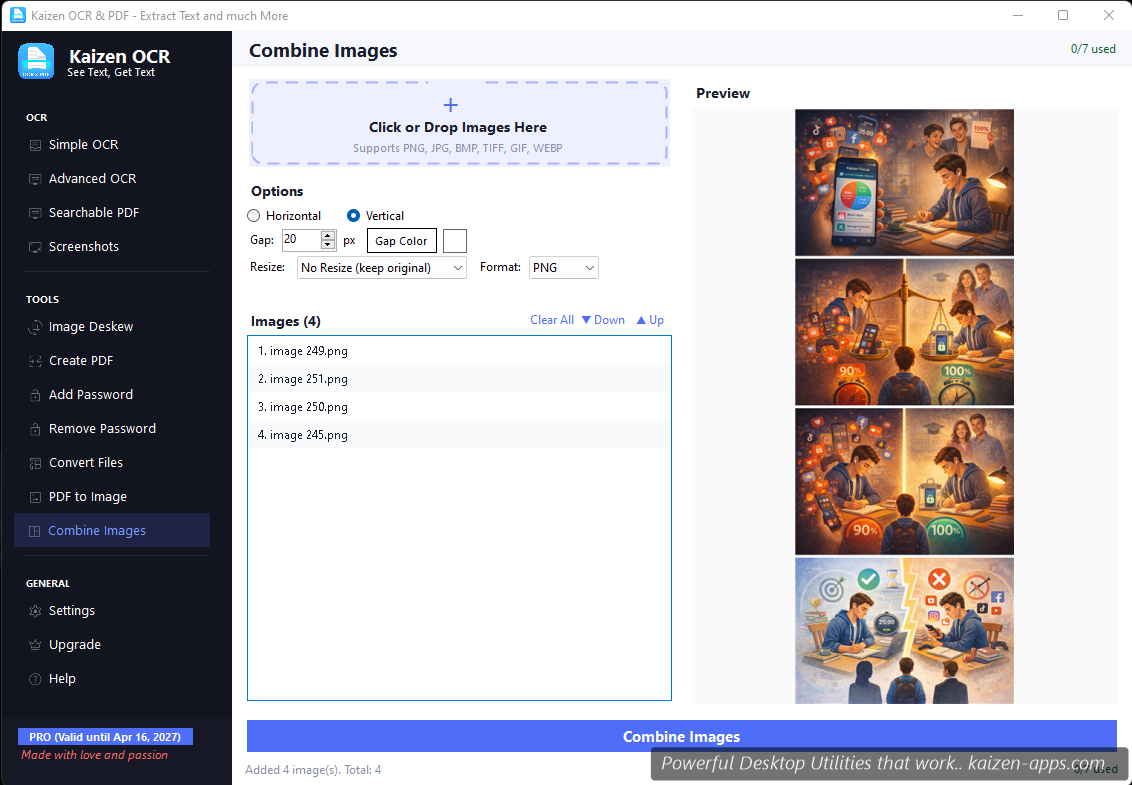
- Drop the images in the order they should appear.
- Pick Direction: Vertical (most common — each image stacks below the previous) or Horizontal (side-by-side).
- (Optional) Adjust alignment — for images of different widths, pick Left, Center, or Right.
- (Optional) Adjust spacing — add a few pixels of gap between images if you want visual separation.
- Click Combine. A preview of the result appears; click Save to write it.
Output format
Save as PNG (default, lossless), JPG, BMP, TIFF, or WEBP. PNG is recommended if you're going to OCR the result — no compression artefacts.
Tips
- Make sure the images are the same width (or close) for clean vertical stacking.
- For receipts, crop each image before combining to remove phone UI, hand shadows, etc.
- After combining, the result is a normal image — feed it straight into Simple OCR.
Free tier
7 runs on Free.
Kaizen OCR & PDF
Extract text from any image or PDF, edit, convert and OCR — fast, accurate and fully offline on Windows.
Get Kaizen OCR & PDF →Free download