
What the hotkeys do
Kaizen OCR registers six optional global hotkeys that work even when the app is minimized to the system tray. Each one captures a screenshot and either runs OCR on it immediately or saves it for later.
| Hotkey | Default | What it does |
|---|---|---|
| Scan Full Screen | Ctrl+Shift+F6 | Captures the full screen and runs OCR immediately (routed to Simple or Advanced based on your setting) |
| Scan Full Screen (Delayed) | Not set | Waits N seconds (configurable), then captures + OCR. Use for menus and tooltips. |
| Scan Region | Not set | Lets you draw a rectangle on the screen, then OCRs just that area |
| Scan Region (Delayed) | Not set | Delayed region capture |
| Screenshot Full Screen | Not set | Captures without OCR — just saves the image |
| Screenshot Region | Not set | Region capture without OCR |
Configuring hotkeys
- Open Settings → Global hotkey & tray.
- Tick Enable global hotkey.
- For each of the six actions, click the input field and press the keyboard combination you want. Common combos:
Ctrl+Shift+letter,Ctrl+Alt+letter, function keys. - Click Save. Hotkeys take effect immediately.
Ctrl+Alt+Del, Win+L), Kaizen OCR will reject the binding. Try a different combo.
Where captures go
Each hotkey has a configurable output folder:
- Simple OCR screenshots — captures sent to the Simple OCR feature
- Advanced OCR screenshots — captures sent to Advanced OCR
- Tray screenshots — raw captures (no OCR)
In Screenshot destination, you choose whether each grab goes to Simple or Advanced.
Auto-cleanup
Tick Auto-delete tray screenshots after 1 hour if you don't want the folder to fill up — useful if you're using hotkeys heavily for quick lookups.
Capturing menus and tooltips
Ordinary hotkeys close menus the moment you press them. Use the delayed variants instead:
- Set your delay (1–10 seconds) in Settings → Tray options.
- Press the delayed hotkey.
- Open the menu or tooltip you want to capture.
- Wait for the countdown, capture happens automatically.
Viewing past captures
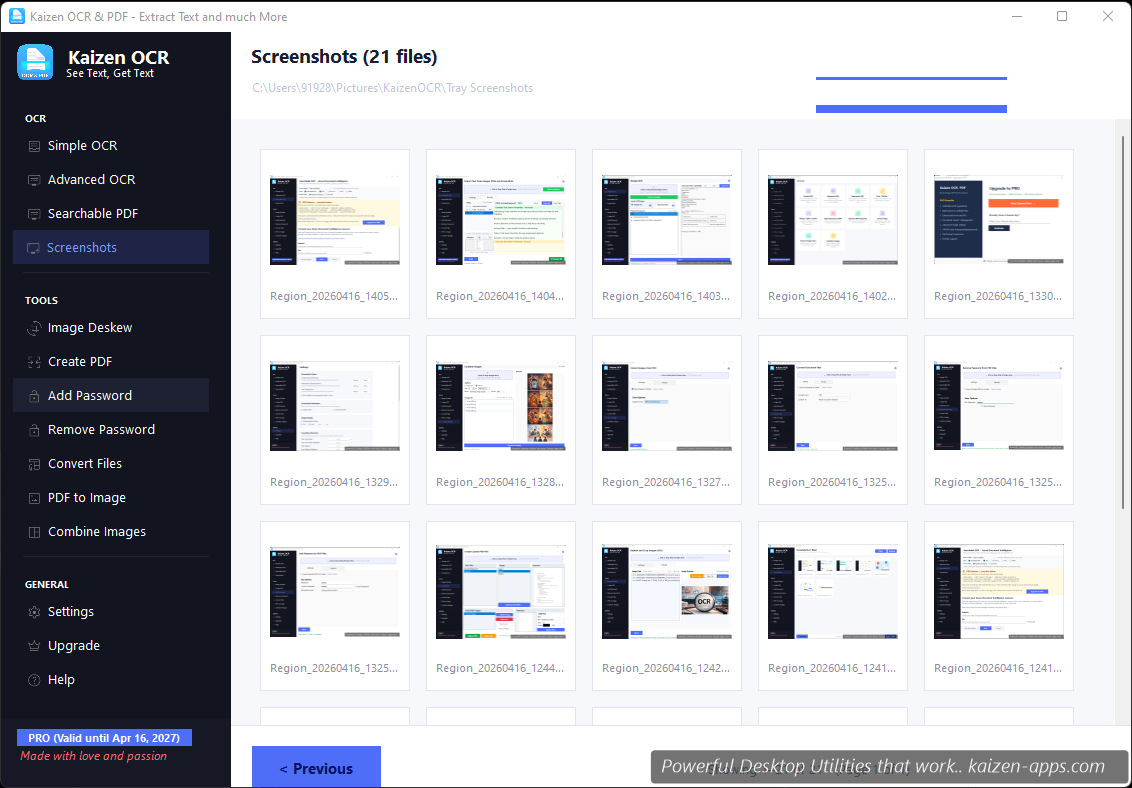
From the dashboard, click Screenshots to open a gallery of all your recent captures with metadata (date, size, resolution). Double-click any image to re-OCR it.
Tray menu
Right-click the Kaizen OCR tray icon to access all six capture actions without needing hotkeys — handy on machines where hotkeys conflict with other software.
Extract text from any image or PDF, edit, convert and OCR — fast, accurate and fully offline on Windows.
Get Kaizen OCR & PDF →Free download