
Before you start: You’ll need a Microsoft account and a credit card. Azure won’t charge you unless you exceed the free tier (typically 500 pages/month on F0). We never see your key — it stays encrypted on your machine in a local SQLCipher database. Your key safety is your responsibility.
Log in at portal.azure.com and follow the seven steps below. The whole process takes about 5–10 minutes.
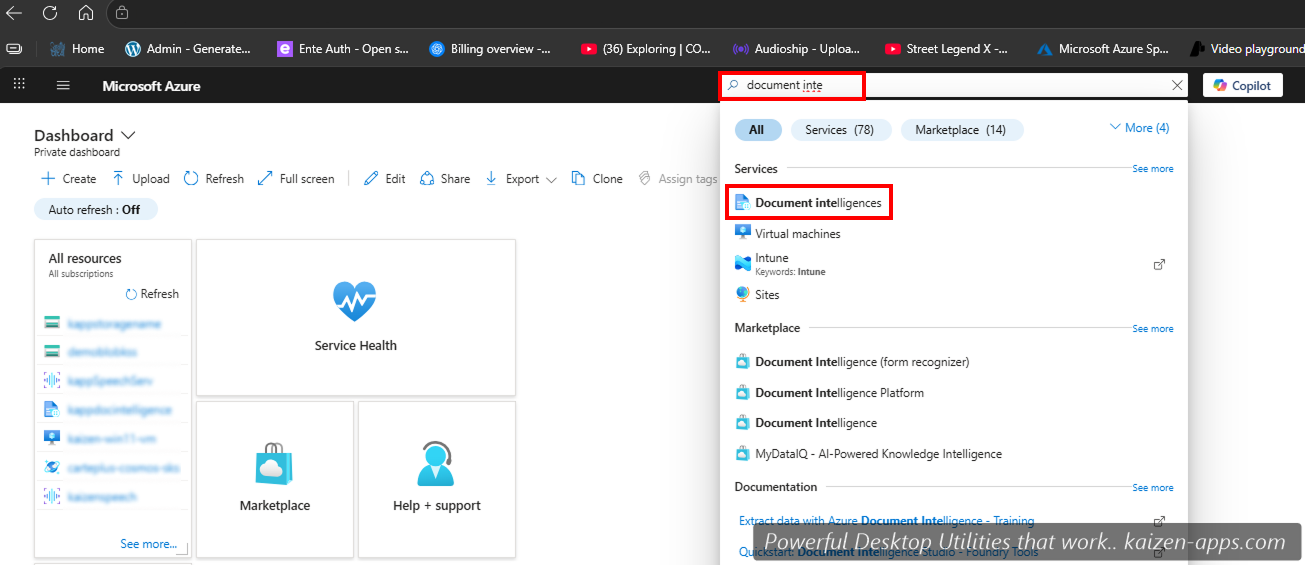
Search for “Document Intelligence”
In the Azure portal, click the search bar at the top. Type Document Intelligence and choose Document Intelligence from the dropdown suggestions.
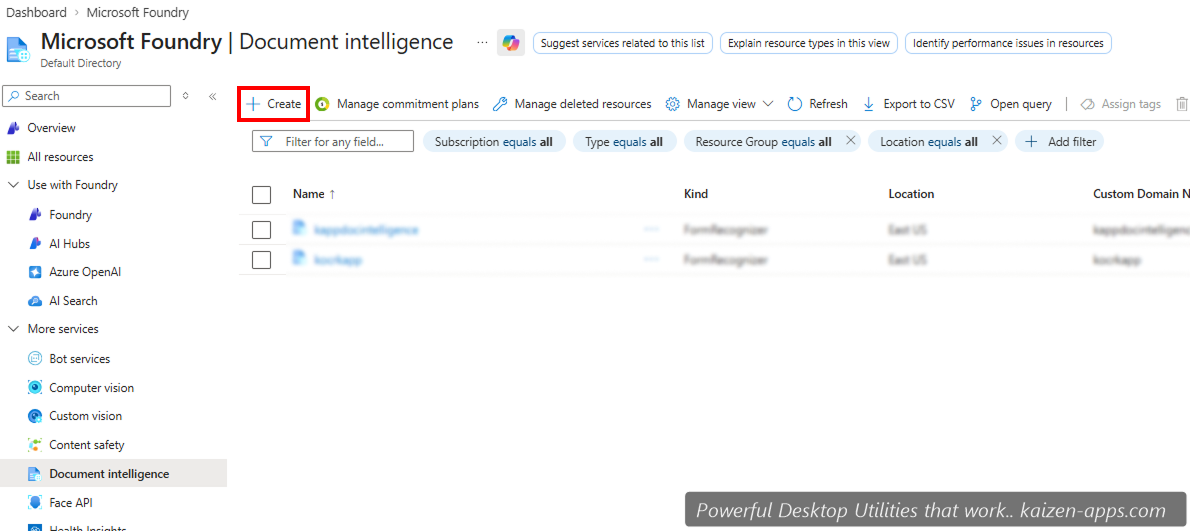
Click “Create”
On the Document Intelligence overview page, click the Create button.
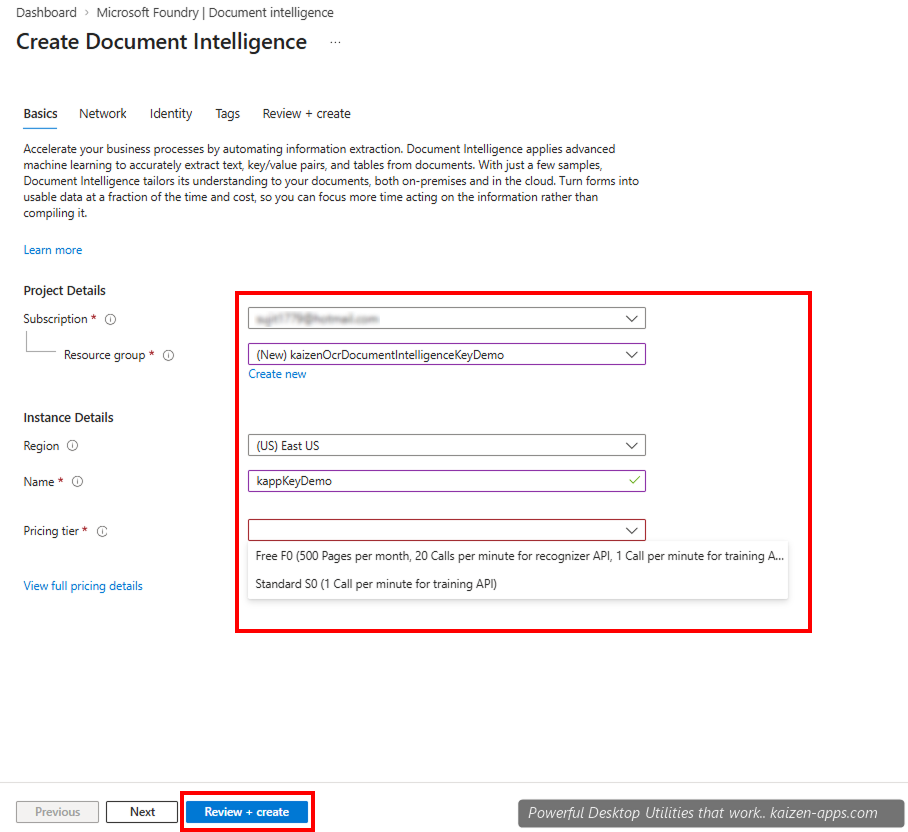
Fill in the resource details
Azure will ask you for a few things:
- Subscription: your default Azure subscription
- Resource Group: pick an existing one or create a new one (any name works, e.g.
kaizen-ocr) - Region:
East USis recommended - Name: anything meaningful, e.g.
kaizen-docintel - Pricing tier:
F0 (Free): 500 pages/month, zero cost — good for personal use.
S0 (Standard): pay-as-you-go: $1.50 per 1000 pages (Read) or $10 per 1000 pages (Layout). Pick this if you’ll process more than 500 pages a month.
Click Review + create.
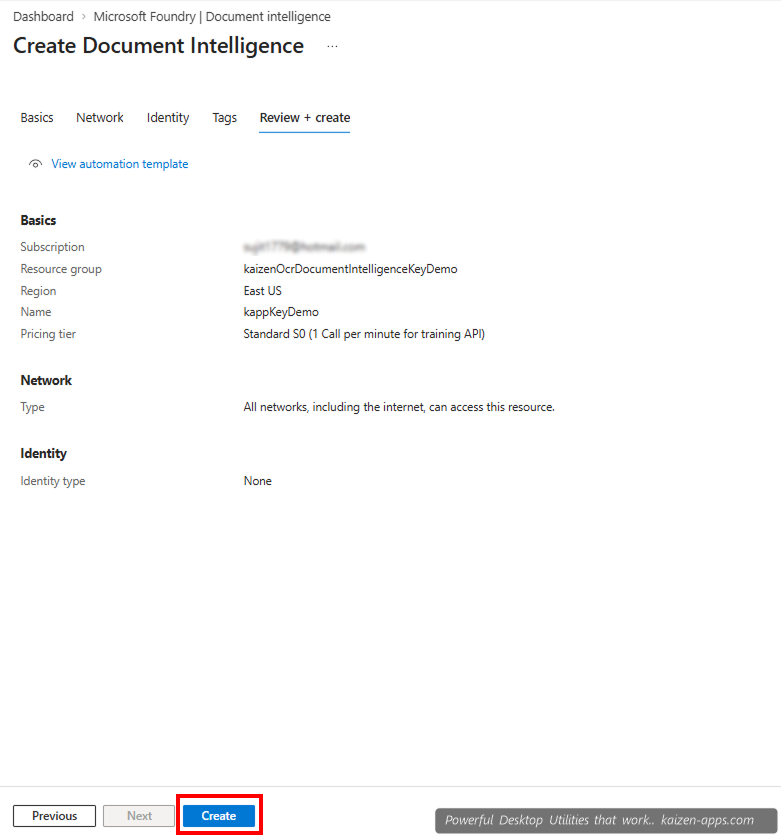
Review and create
On the review screen, verify the region, pricing tier, and name are correct. Click Create. Azure will spin up the resource — usually takes 30–60 seconds.
Go to the resource
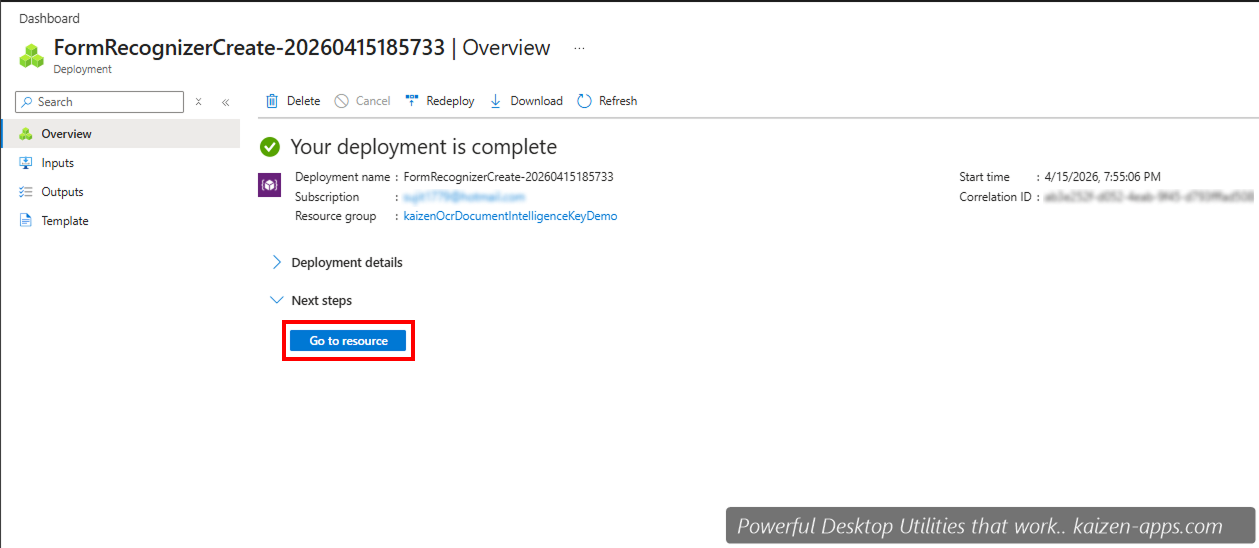
Once deployment finishes, you’ll see a “Your deployment is complete” screen. Click Go to resource.
Copy your key and endpoint
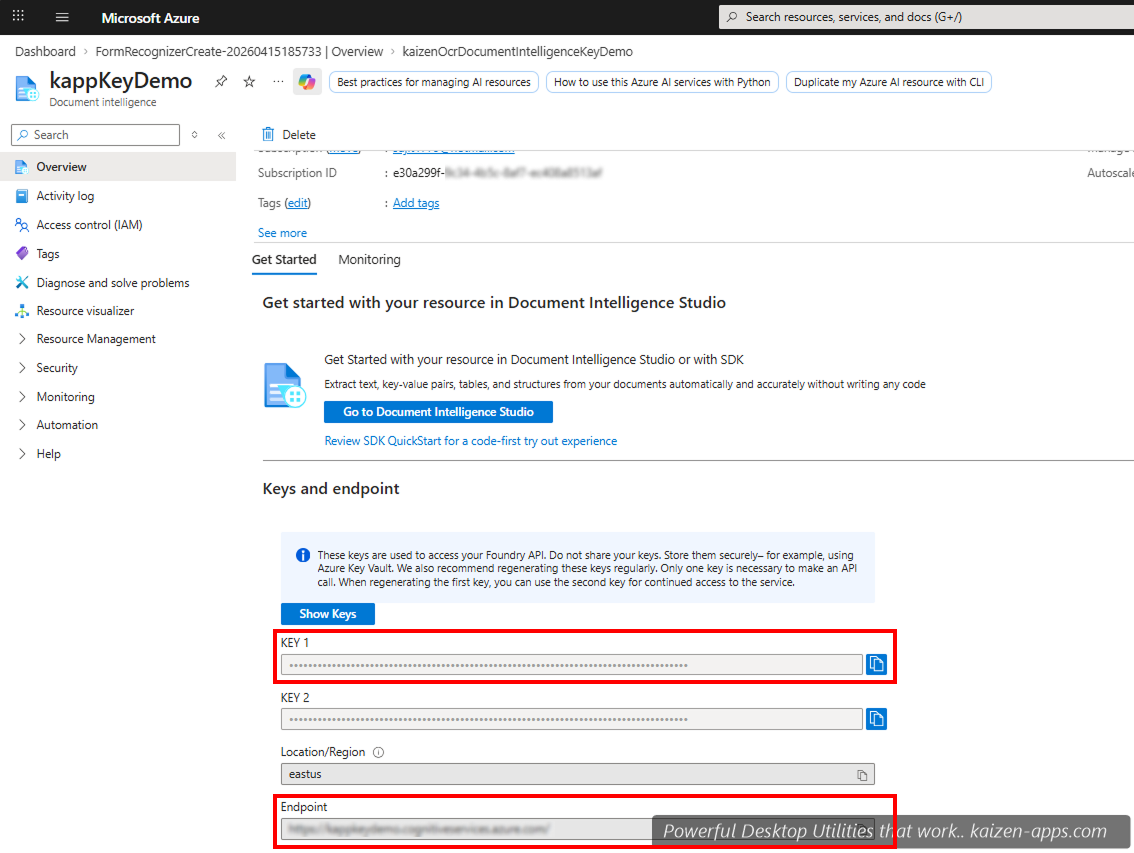
In the left sidebar of your new resource, click Keys and Endpoint. You’ll see:
- KEY 1 and KEY 2 — either one works. Click the copy icon next to whichever one you want.
- Endpoint — something like
https://<yourname>.cognitiveservices.azure.com/. Copy this too.
Paste into Kaizen OCR
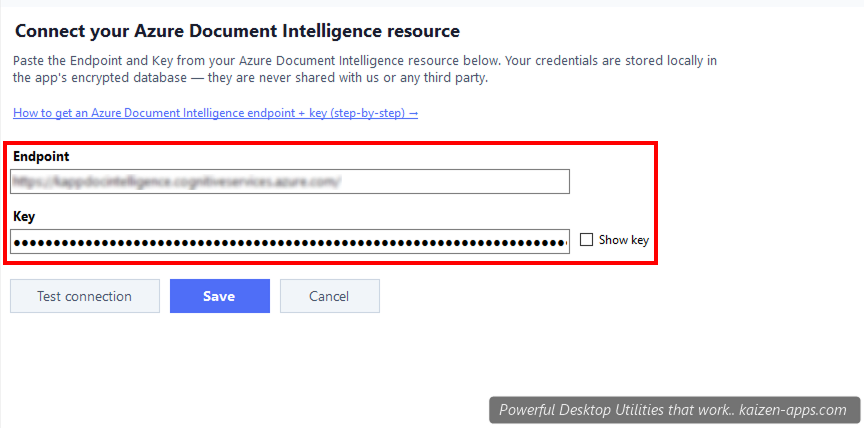
Open Kaizen OCR and go to Searchable PDF. You’ll see a panel with two fields:
- Endpoint — paste the URL you copied in step 6
- Key — paste KEY 1 (or KEY 2)
Click Test connection first. If it shows a green success indicator, click Save. You’re now ready to generate Searchable PDFs.
https:// and end with /) and make sure you copied the whole key (they’re long — 84 characters).
You’re all set
Head to Searchable PDF in Kaizen OCR, drop in a scanned PDF, pick the Read or Layout model, and hit generate. Your output will have fully selectable text, and Azure will bill your subscription based on the pages processed.
Frequently asked
Extract text from any image or PDF, edit, convert and OCR — fast, accurate and fully offline on Windows.
Get Kaizen OCR & PDF →Free download