
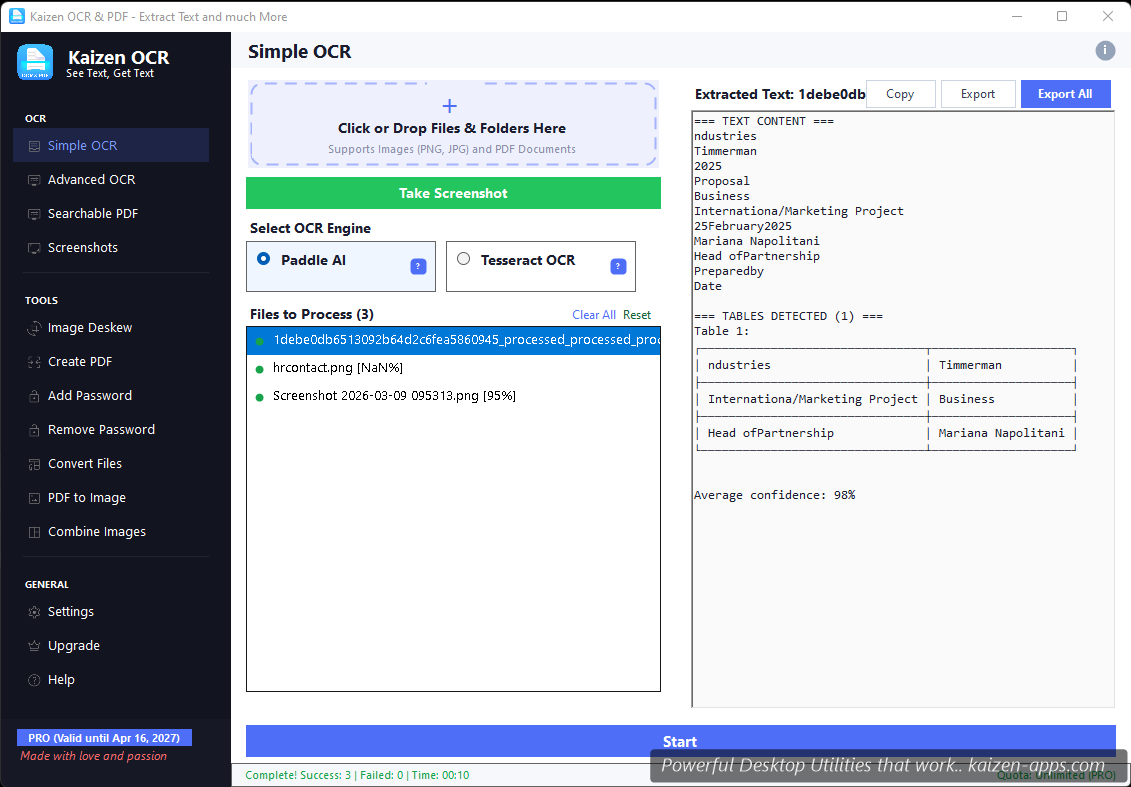
When to use Simple OCR
Reach for Simple OCR when you have one file you want to read, and you want results now. It's optimized for speed — no preprocessing, no batch queue, just input → text.
Workflow
- Drop or pick a file. Drag an image or PDF into the drop zone, or click Browse. Accepts PNG, JPG, JPEG, BMP, TIFF, GIF, WEBP, and PDF.
- Pick your engine. The engine toggle at the top of the page switches between Paddle AI (fast, great on clean text) and Tesseract (better for older scans).
- Click Extract. Results appear on the right, with confidence scores and (if tables are detected) a
TABLES DETECTED (n)banner. - Do something with the text. Copy to clipboard, save to a
.txtfile, or copy just the selected portion.
Engine choice cheat sheet
| Source document | Recommended engine |
|---|---|
| Modern PDF or clean screenshot | Paddle AI |
| Scanned paper document | Tesseract |
| Photo of a whiteboard / sign | Paddle AI |
| Old typewriter or faded text | Tesseract |
| Handwriting | Consider Searchable PDF (Azure) for best results |
| Mixed languages on same page | Paddle AI |
Confidence scoring
Every recognized block has a confidence score (0–100%). Blocks above 85% are rendered in black; blocks 60–85% in amber (review-worthy); blocks below 60% in red (likely wrong). Use these as a quick visual sanity check before trusting the output.
Table detection
Paddle AI includes table detection — if your image contains a tabular layout, you'll see a TABLES DETECTED banner and the table cells will be extracted as a grid. You can copy the table as tab-separated text (paste-friendly into Excel) or as plain text.
Free tier limits
Troubleshooting
Text comes out garbled
Usually means the source is low-resolution or skewed. Try (1) running it through Image Deskew first, (2) switching engines, or (3) for tough cases, use Searchable PDF with Azure.
“Paddle CPU warning” dialog
Paddle AI runs best on CPUs with AVX2 instruction support. If your CPU lacks AVX2, Paddle will still work but slower; you can dismiss the warning or suppress it permanently in Settings → OCR engine.
Extract text from any image or PDF, edit, convert and OCR — fast, accurate and fully offline on Windows.
Get Kaizen OCR & PDF →Free download