
When to use Advanced OCR
Reach for Advanced when you have a folder full of scans, need preprocessing before OCR, or want to review and edit recognition output before exporting.
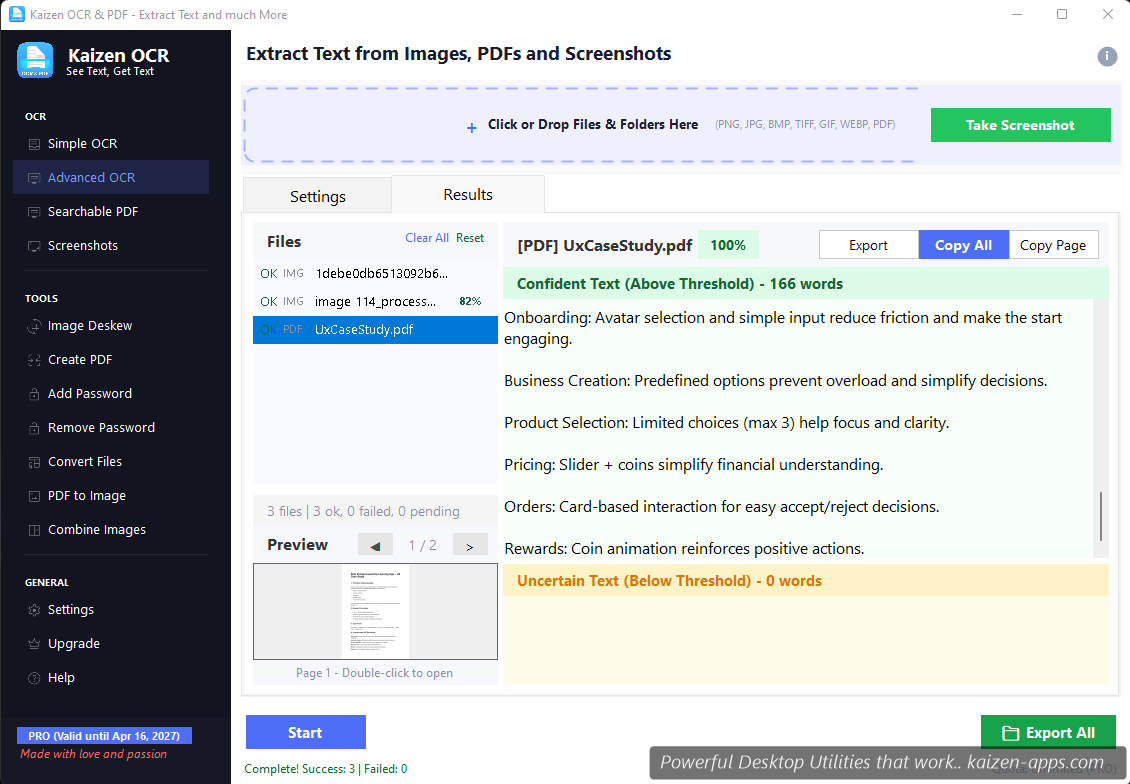
The three panes
- File list (left) — drop in multiple files or a folder. Each file shows its status (Pending, Processing, Done, Failed) and confidence percentage.
- Preview (center) — the selected file's image with OCR boxes overlaid. Click a box to highlight that line in the text pane.
- Text (right) — extracted text with confidence-threshold colouring: green for confident, yellow for uncertain, red for likely wrong.
Workflow
- Click Add files or drop files into the list.
- (Optional) Open Settings on the left to configure preprocessing and engine.
- Click Run OCR. Files process one at a time with a progress bar; you can cancel mid-batch.
- Review results file-by-file. Edit the text directly if you spot errors.
- Export: Save all as text, Copy all, or per-file actions.
Preprocessing options
Before OCR runs, Advanced OCR can clean up the source. Pick any combination:
- Remove alpha — flatten PNGs with transparency to a white background
- Denoise — reduce image noise (good for phone photos of paper)
- Deskew — auto-rotate pages that are slightly crooked
- Rotate — fixed 90/180/270 rotation (for landscape scans)
- Crop — trim borders / white margins
- Threshold — binarize for high-contrast output (helps on very light scans)
Confidence-threshold highlighting
The text pane colours each block based on recognition confidence. You can adjust the thresholds in Settings → Display — defaults are:
- 85% and above → green (trust it)
- 60–85% → yellow (eyeball it)
- Below 60% → red (likely wrong — reprocess or fix manually)
Language selection
By default, OCR runs with English + auto-detected languages. For non-English documents, pick the specific language under Settings → Language to boost accuracy. See the full language list.
Batch tips
- Keep batches under 50 files for best responsiveness — the UI stays snappy.
- For huge batches (100+ files), consider splitting into multiple runs and saving output in between.
- Mixed file types (images + PDFs) work fine in the same batch.
Free tier limits
Advanced OCR has a quota of 7 runs on the Free tier. A “run” is one click of Run OCR, regardless of how many files are in the batch — so you can OCR dozens of files per run on Free and still get a lot of value.
Kaizen OCR & PDF
Extract text from any image or PDF, edit, convert and OCR — fast, accurate and fully offline on Windows.
Get Kaizen OCR & PDF →Free download