
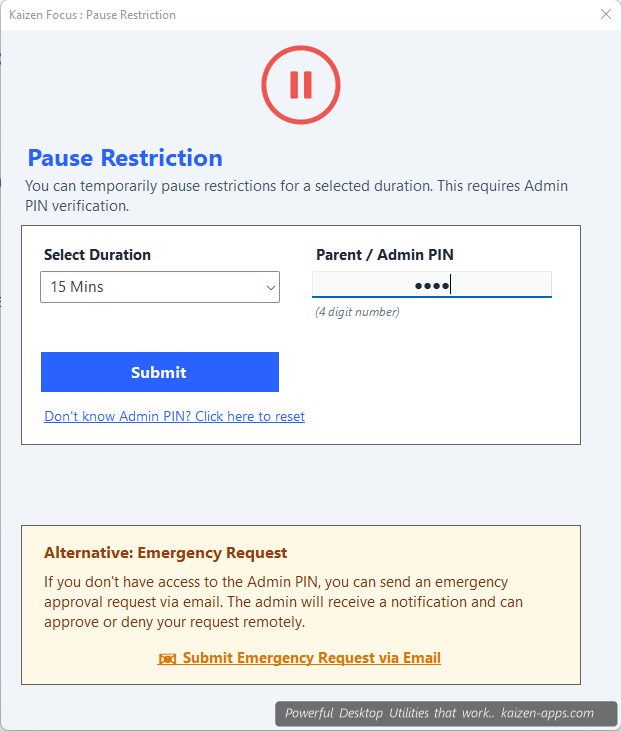
Two ways to pause
- With admin PIN — admin users can pause their own restrictions instantly.
- Via email approval — kids and employees don't have the PIN, so they send a pause request to the admin's email. Admin clicks Approve or Deny in the email; the decision is acted on within a minute.
Durations
Preset durations: 15 minutes, 30 minutes, 1 hour, 2 hours. Custom lengths available in Pro.
Workflow — Self mode
- Click the Pause Restrictions button.
- Pick a duration.
- Enter your admin PIN.
- All restrictions lift for the duration. Focus tray icon turns from green (active) to grey (paused).
- When the duration expires, restrictions resume automatically.
Workflow — Parent/Employee mode
- The kid / employee clicks Request pause.
- They enter a reason in the dialog (required — keeps it from being frivolous).
- An email goes to the admin's inbox with Approve / Deny buttons.
- Admin clicks a button. Decision is pushed to the user's machine within ~60 seconds.
- If approved, restrictions lift for the requested duration. If denied, a notification shows on the user's screen.
Pause tracking
Every pause is logged with timestamp, duration, and reason. Reports show pause frequency — useful for spotting patterns (e.g. “kid is pausing 10 times a day” = maybe restrictions are too tight).
Kaizen Focus
Block distracting sites & apps, set daily limits and schedule downtime on Windows — for yourself, your family or your team.
Get Kaizen Focus →Free download