
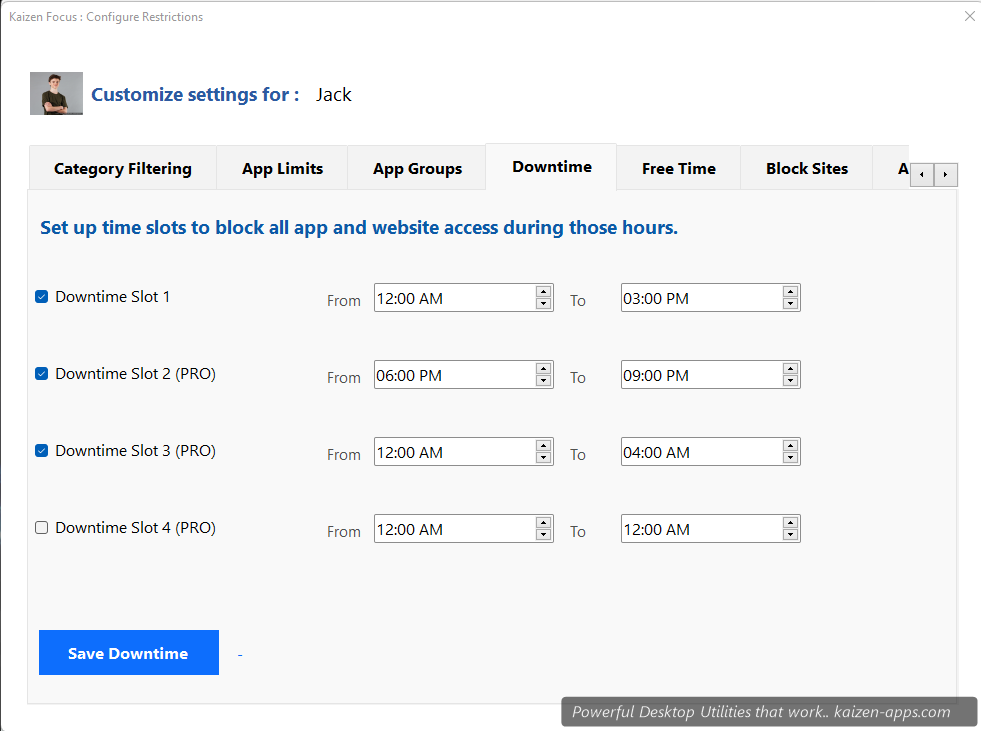
What Downtime does
During your configured hours, every blocked site and every app past its daily limit is enforced hard. Try to open YouTube at 10pm during your 22:00–07:00 Downtime? Lock screen, period — no partial credit for “just checking one thing”.
Setting up Downtime
- Open My Rules → Downtime.
- Enter From and To times for slot 1.
- Pick which days the slot applies to (all days, weekdays only, custom).
- Click Save, enter PIN.
Multiple slots
Free: 1 slot. Pro: up to 4 slots, so you can have:
- Slot 1: 22:00–07:00 every day (sleep)
- Slot 2: 09:00–12:00 weekdays (deep work block 1)
- Slot 3: 14:00–17:00 weekdays (deep work block 2)
- Slot 4: 06:00–07:30 every day (morning routine)
Downtime vs App Limits
- App Limits = “you get 60 minutes of YouTube per day, whenever you want.”
- Downtime = “during this time window, nothing on the blocklist works, regardless of remaining budget.”
They stack: during Downtime, even unused App Limit budget doesn't help you.
Free Time exceptions
Need to allow a specific app during Downtime? Don't edit the Downtime window — use Free Time to whitelist the app for that window.
What the user sees
When a user tries to open something blocked during Downtime, they get the Focus lock screen: full-screen modal, can't Alt+F4, taskbar hidden, audio muted, with a message like “Downtime is active. This resumes at 07:00.”
Block distracting sites & apps, set daily limits and schedule downtime on Windows — for yourself, your family or your team.
Get Kaizen Focus →Free download