
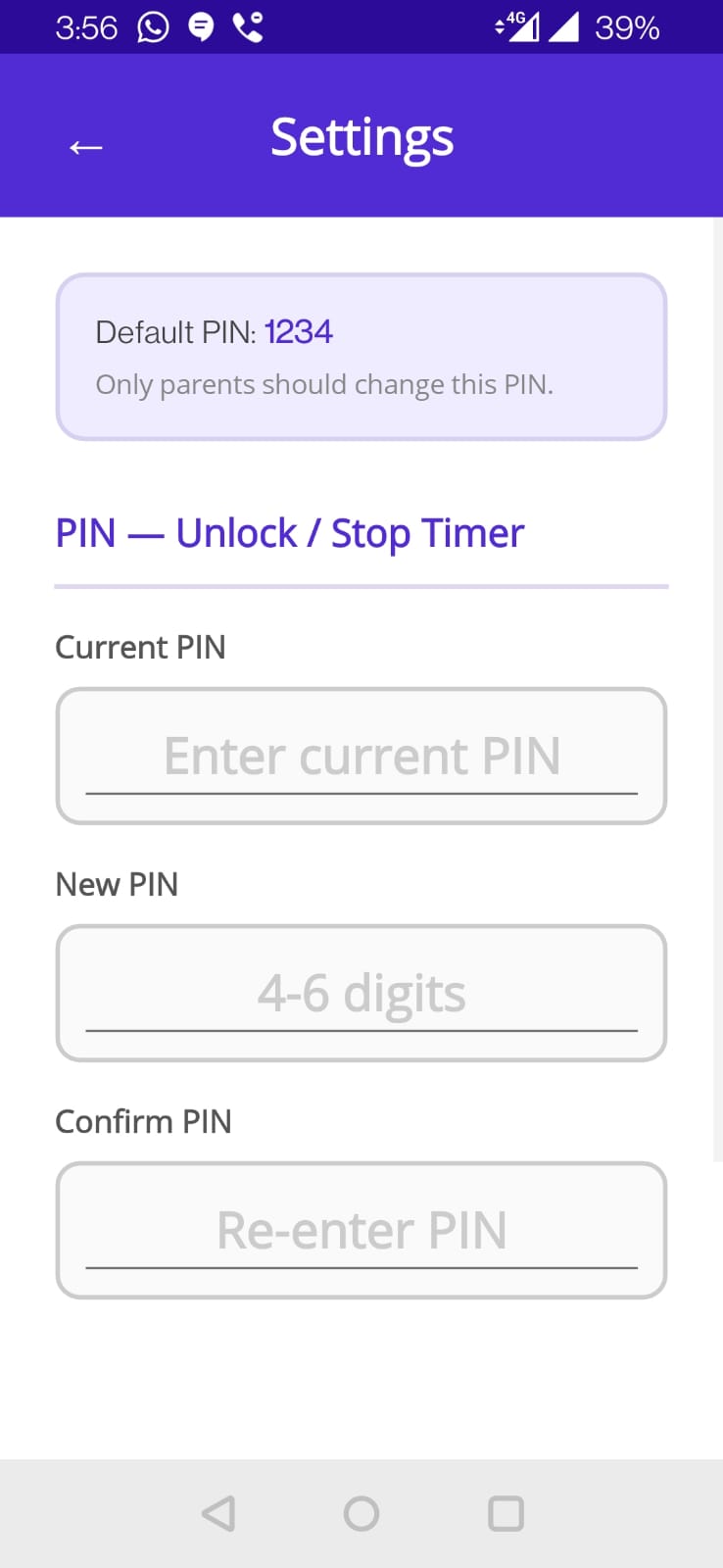
Default PIN
Kaizen Timer ships with a default PIN of 1234. This is meant to be a placeholder, not a real PIN. If you don't change it, your kid can trivially unlock the screen.
Changing the PIN
- Open Kaizen Timer.
- Tap the Settings icon (top-right on the home screen).
- Tap Change PIN.
- Enter your Current PIN (start:
1234). - Enter your New PIN (4–6 digits).
- Re-enter it in Confirm PIN.
- Tap SAVE.
Picking a PIN
Don't use an obvious PIN.
1234, 0000, your birth year, your child's birthday — these all defeat the point. Pick something your kid can't guess but you can remember.
Good PIN strategies:
- A 6-digit number that's personally meaningful but not obvious (not a birthday)
- A number tied to something your kid doesn't know (ATM PIN, old phone number)
- A random number you wrote down somewhere secure
What the PIN unlocks
- Dismissing the time-up lock screen
- Changing the PIN itself
- Enabling biometric unlock
- Other future admin-only settings
If you forget your PIN
Uninstall Kaizen Timer from Android Settings → Apps. Reinstall from Play Store. Your Pro license (if any) is tied to your Google account, so you don't re-pay. PIN resets to default 1234 — change it again immediately.
Usage stats are also reset on reinstall. Not a backup path for lost stats — only for regaining access.
PIN length
Minimum 4 digits, maximum 6. Longer = more secure but more hassle to type.