
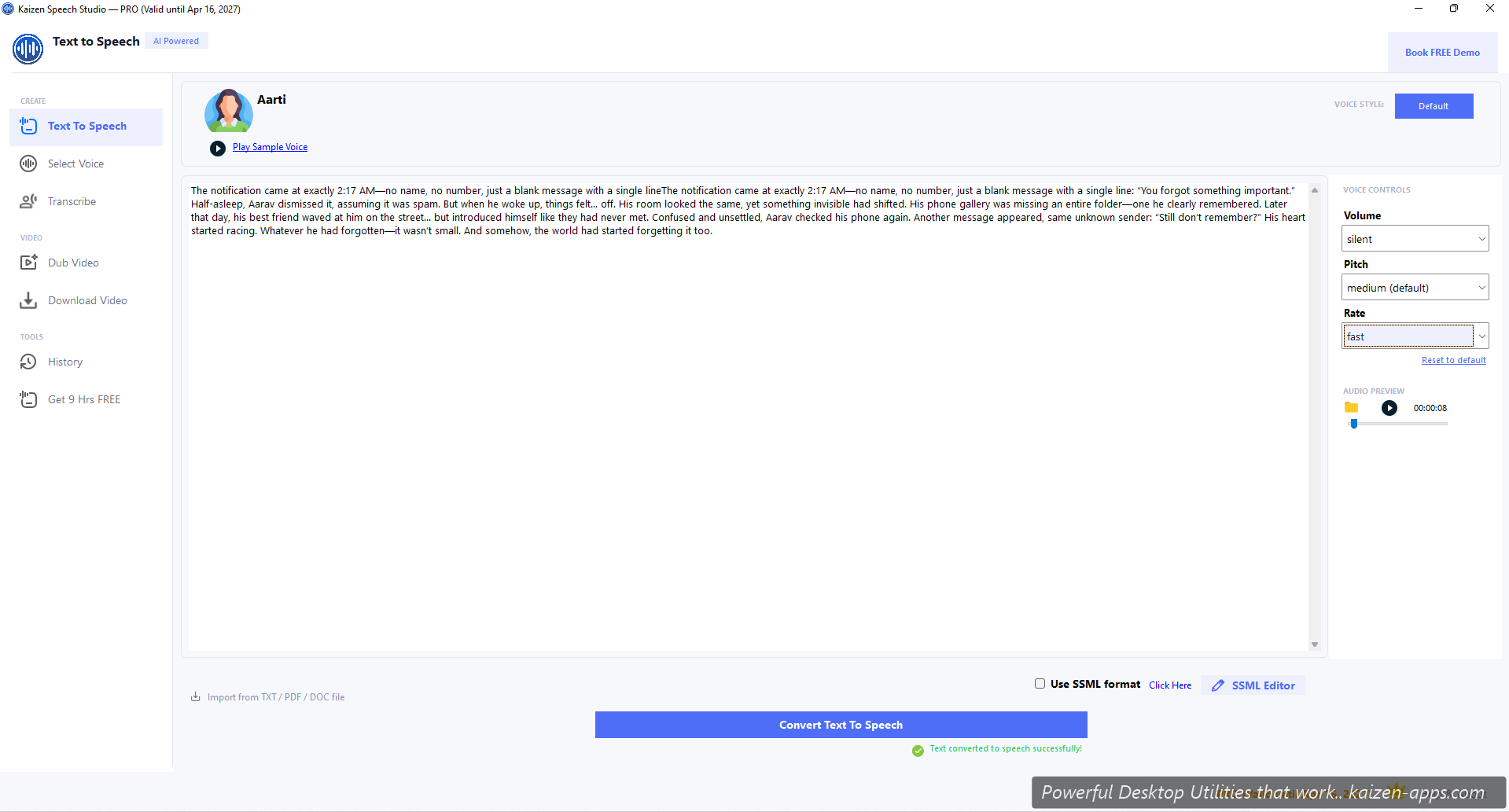
Basic flow
- Paste text into the main editor (up to 250,000 characters on Free, unlimited on Pro).
- Pick a voice from the dropdown or open the voice picker.
- Adjust Rate / Pitch / Volume if needed.
- (Optional) Pick a Style (cheerful, serious, etc.) — not all voices support all styles.
- Click Convert Text to Speech. Audio appears in the player at the top.
- Click Save as MP3 or Save as WAV.
Prosody controls
- Rate — speed. Slow, x-slow, default, fast, x-fast, or custom percentage.
- Pitch — higher / lower. Default, low, x-low, high, x-high, or custom.
- Volume — relative loudness. Default, soft, x-soft, loud, x-loud, or custom.
Voice styles
Many voices support style tags for emotional tone:
cheerful— upbeat, friendlyserious— measured, professionalcustomerservice— supportive, helpfulnarration— audiobook-style- Plus dozens more — check each voice's profile in the picker
File import (Pro)
Click Import from TXT / PDF / DOC in the editor footer. Kaizen Speech Studio extracts the text and loads it into the editor. See file imports for details.
SSML mode
Toggle Use SSML format to switch from plain-text mode to SSML. The editor becomes an SSML editor with visual inserts for voice, style, prosody, breaks, and language switches. See SSML editor.
Output
- MP3 — best for sharing, good quality/size tradeoff
- WAV — lossless, larger files
- Copy audio file path to clipboard (for feeding into other tools)
- Open in Explorer (jump to the saved file)
Free tier
The Free download includes a $1 test credit and a 250,000-character input cap. Add your own Azure key (Pro) to lift both — on Microsoft’s F0 tier that gives you 9 hours of TTS per month free.