
Log in at portal.azure.com and follow the 8 steps.
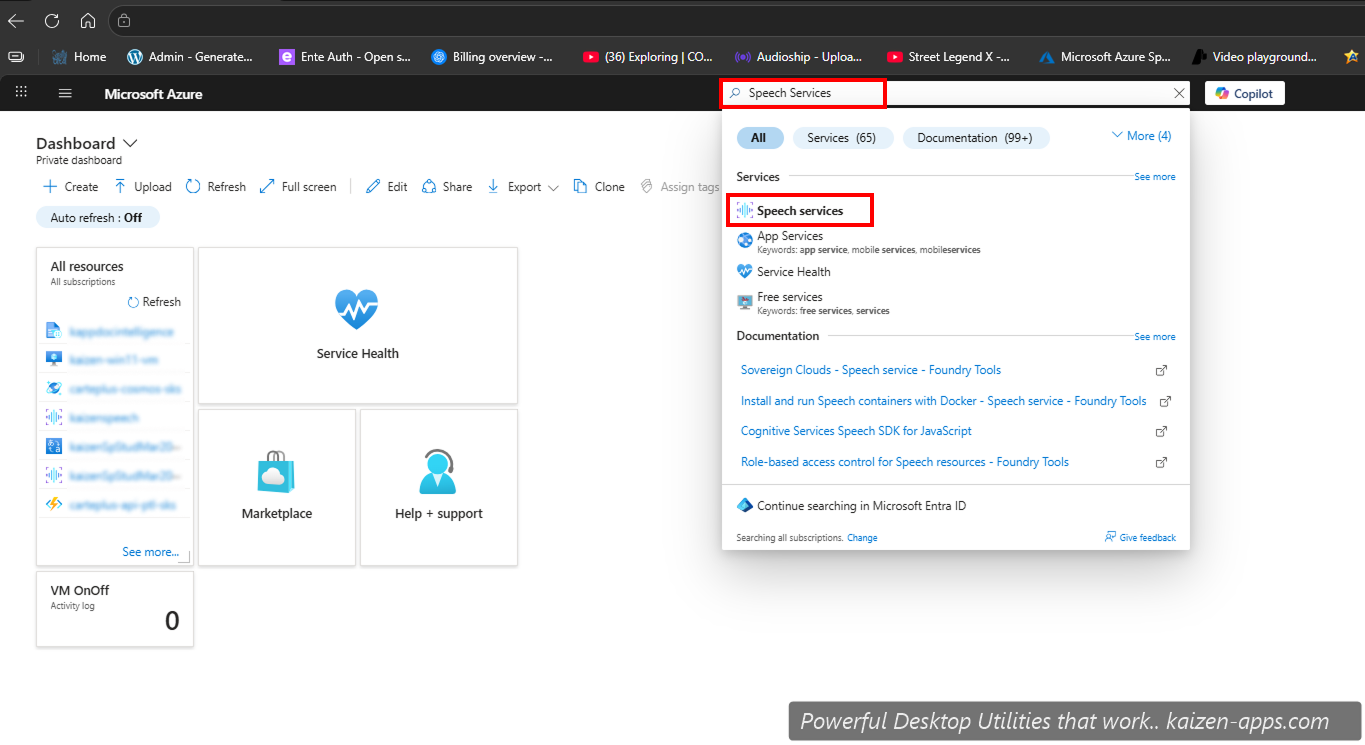
Step 1: Search for “Speech Service”
Click the search bar at the top of the Azure portal. Type Speech Service and pick Speech Service from the dropdown.
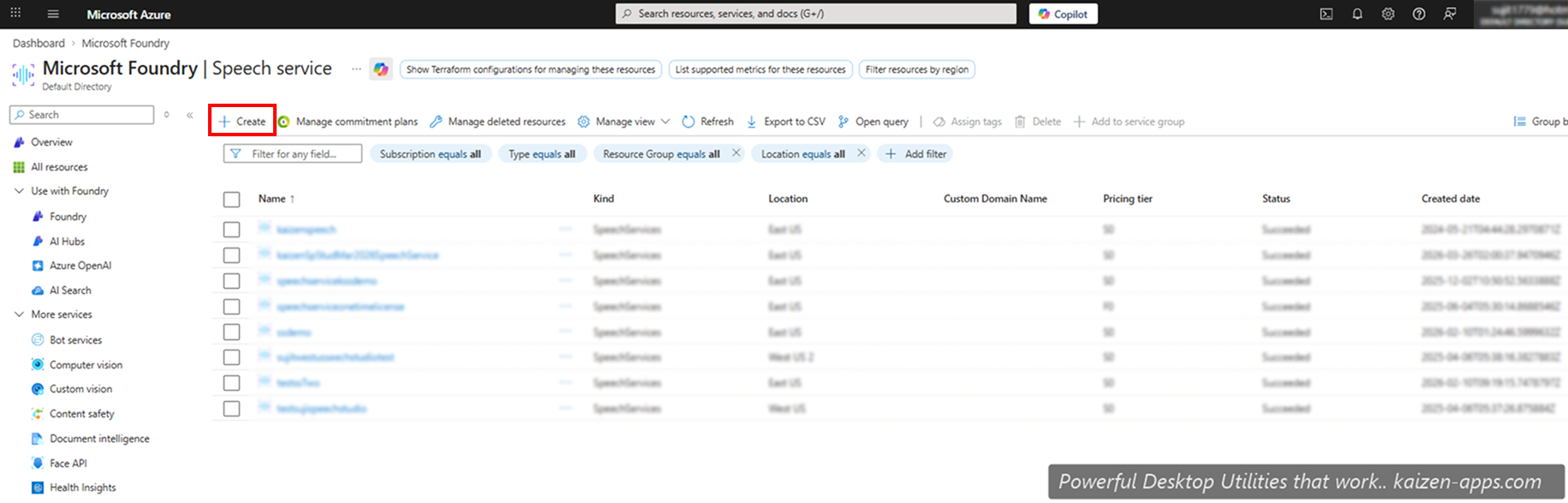
Step 2: Click Create
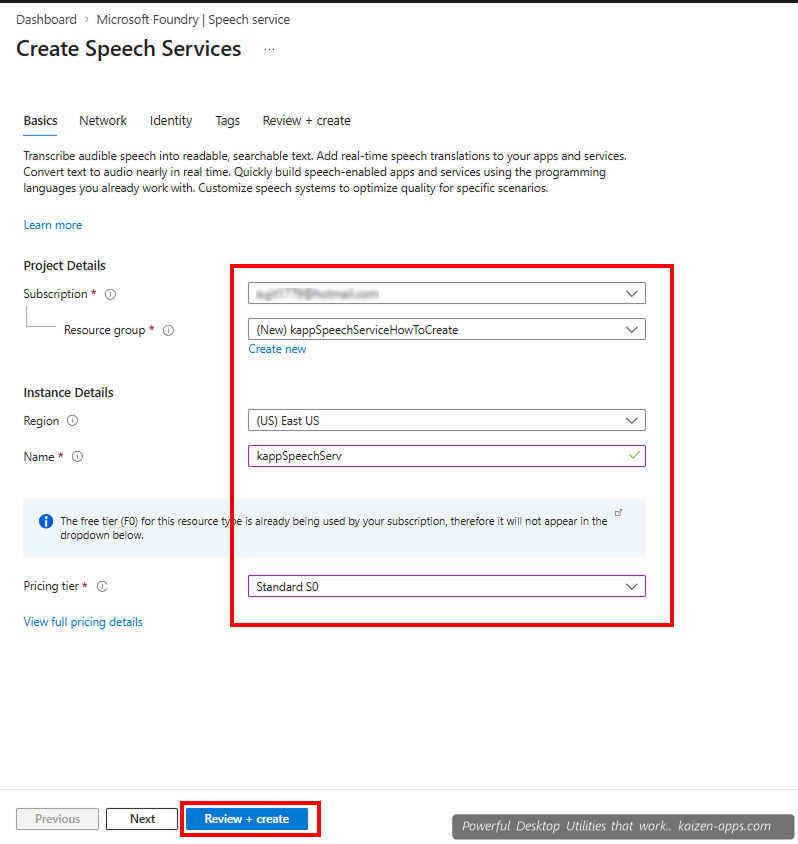
Step 3: Fill in resource details
- Subscription: your Azure subscription
- Resource group: pick existing or create new (e.g.
kaizen-speech) - Region:
East USis required — currently the only supported region for Speech Studio - Name: anything meaningful, e.g.
kaizen-speech-01 - Pricing tier: choose
Free F0— 500,000 standard Neural characters (≈9 hrs) per month at $0, renewing monthly. Only pickStandard S0if you want pay-as-you-go: S0 has no free allowance and bills every character from the first one.
Click Review + create.
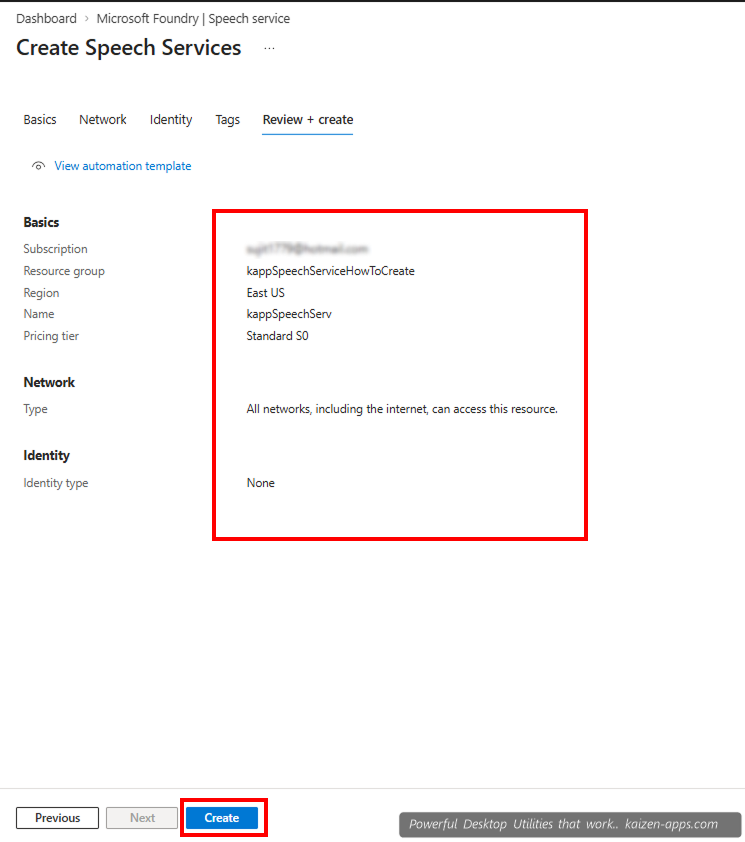
Step 4: Create
Review the summary, click Create. Wait for Azure to provision the resource (usually <60 seconds).
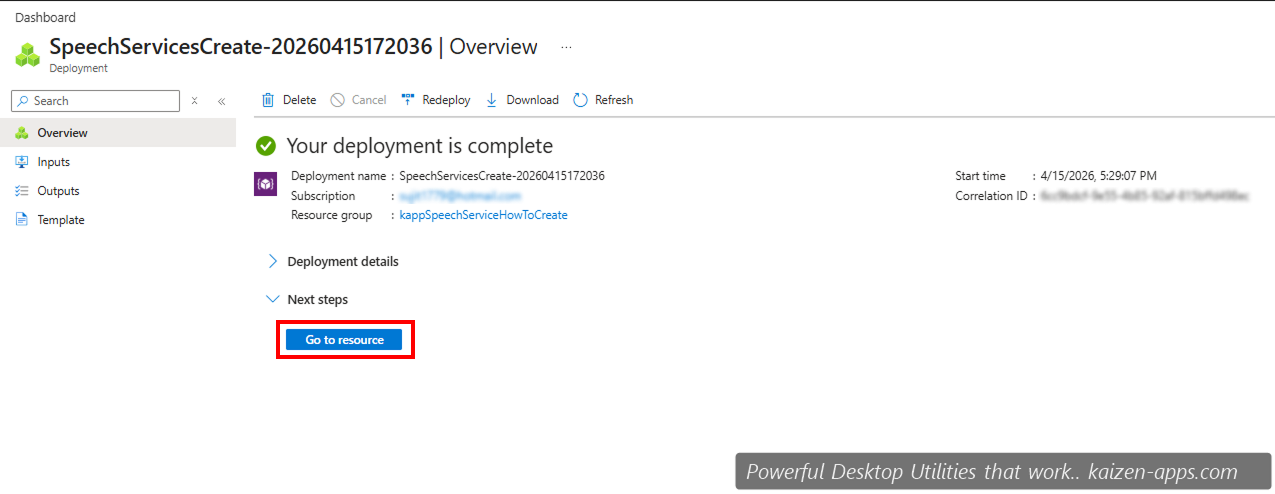
Step 5: Go to resource
Step 6: Open your resource
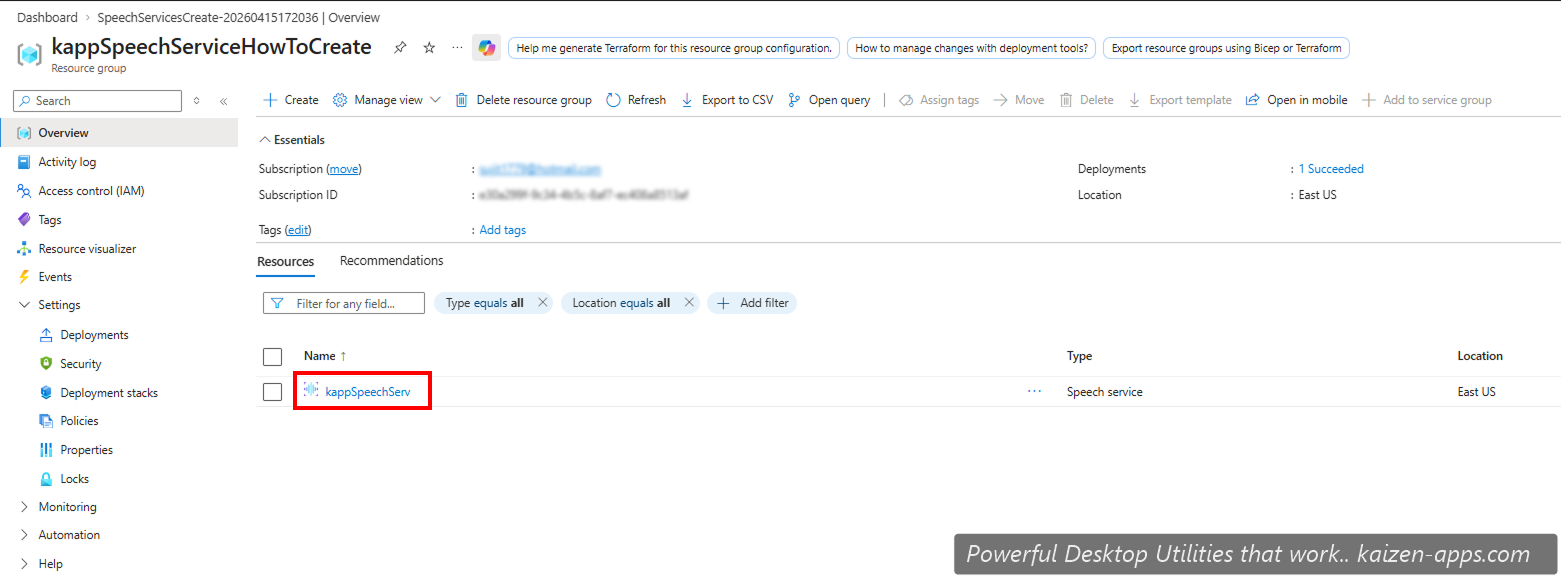
If the deployment panel took you to a summary list, click through to your resource.
Step 7: Copy key and endpoint
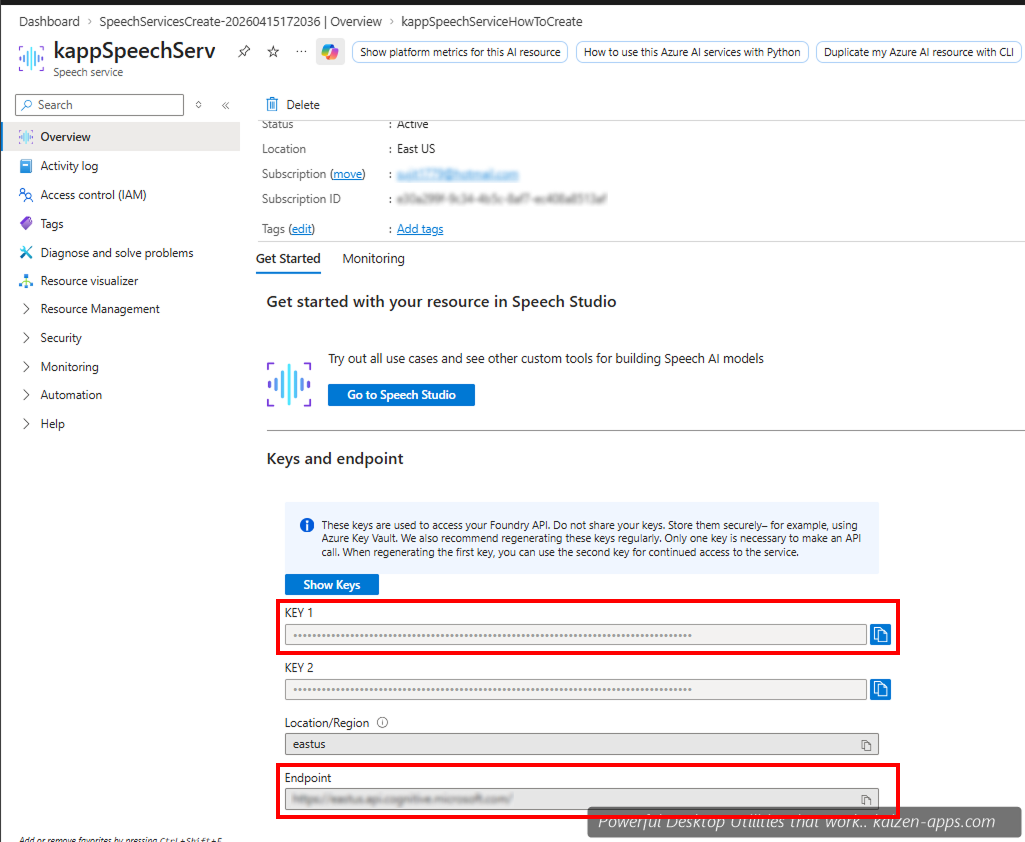
In the left sidebar, click Keys and Endpoint. Copy KEY 1 (or KEY 2 — either works) and note the Location/Region (should be eastus).
Step 8: Paste into Speech Studio
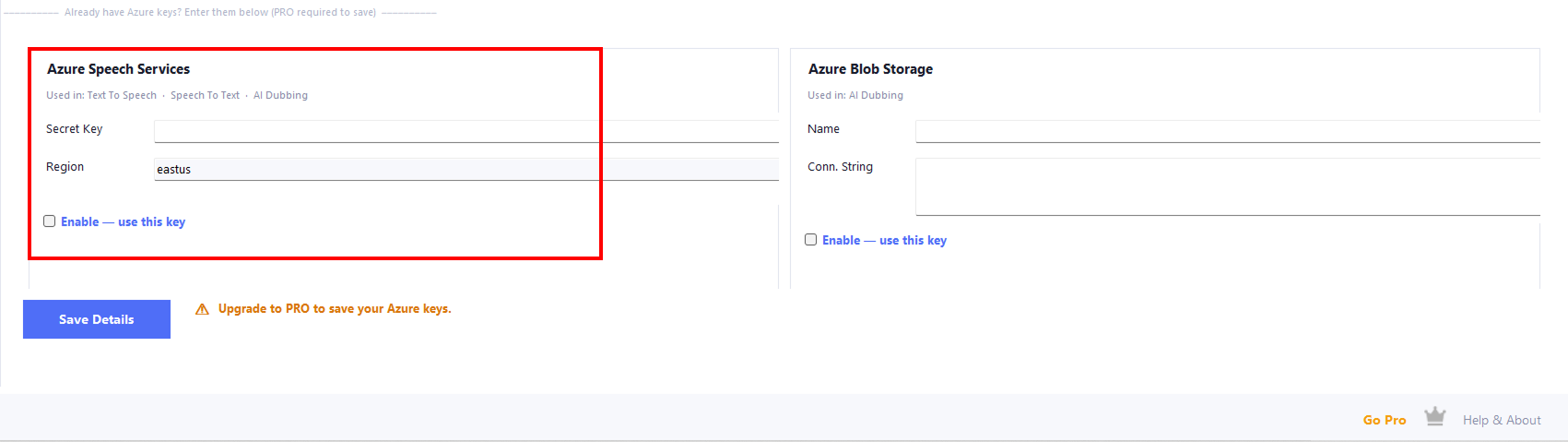
In Speech Studio, open the Get 9 Hrs FREE / Azure tab. Under Azure Speech Services:
- Paste KEY 1 into Secret Key.
- Region should already be set to
eastus. - Tick Enable — use this key.
- Click Save Details. (Requires Pro license to persist the key.)
Already created an S0 resource? Fix it in 2 minutes
If you're being billed for TTS, your Speech resource is almost certainly on S0. Azure doesn't let you downgrade a Speech resource from S0 to F0, so:
- Repeat Steps 1–4 and pick Free F0 this time (same region, East US).
- Copy the new resource's KEY 1 (Step 7) and paste it into Speech Studio (Step 8), replacing the old key.
- Delete the S0 resource (Azure Portal → the resource → Delete) so nothing can bill against it.
Charges already billed on S0 are between you and Microsoft. If you want to dispute them, use the billing-support link printed on your Azure invoice. Our license fee does not include or cover Azure usage.
Next: Blob Storage (only if you want dubbing)
For AI Video Dubbing, you also need Azure Blob Storage. See the Blob Storage guide.