
Who needs this? Only users who want to use AI Video Dubbing. For plain Text-to-Speech and Transcription, you can skip this whole page.
Log in at portal.azure.com and follow the 11 steps.
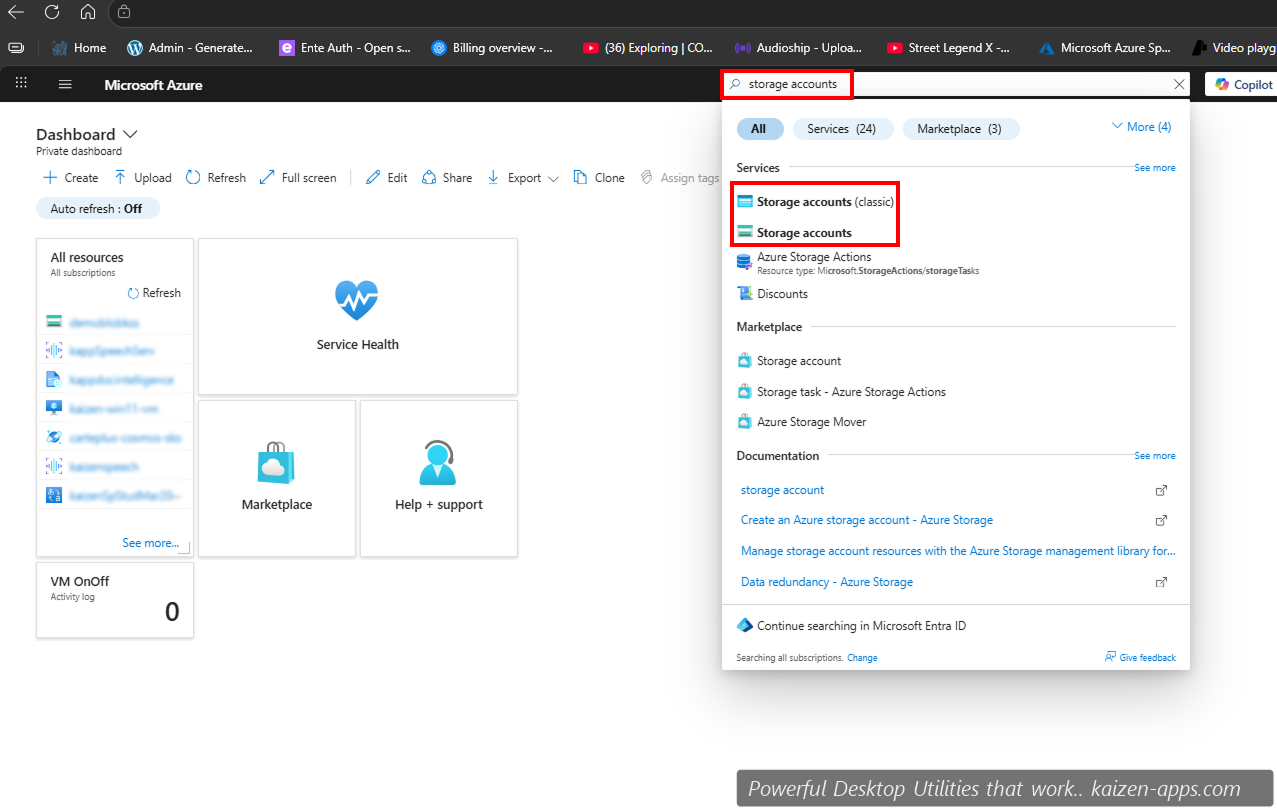
Step 1: Search for “Storage accounts”
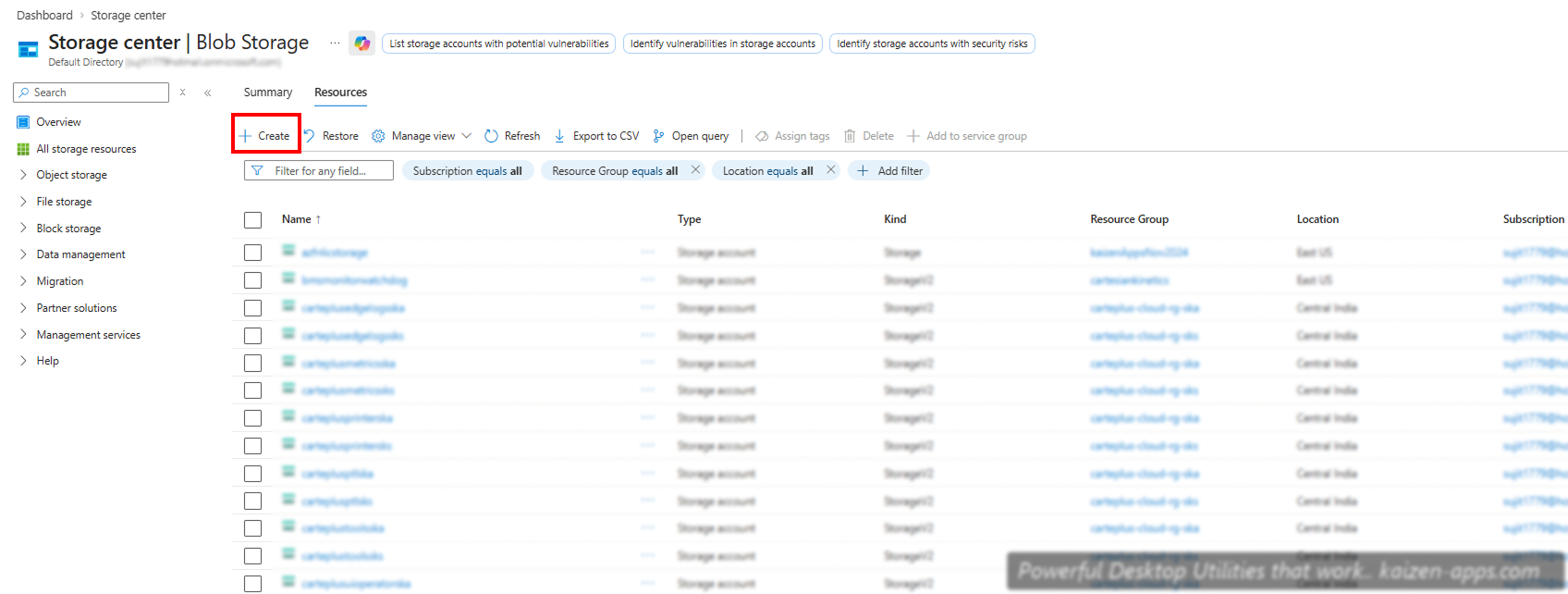
Step 2: Click Create
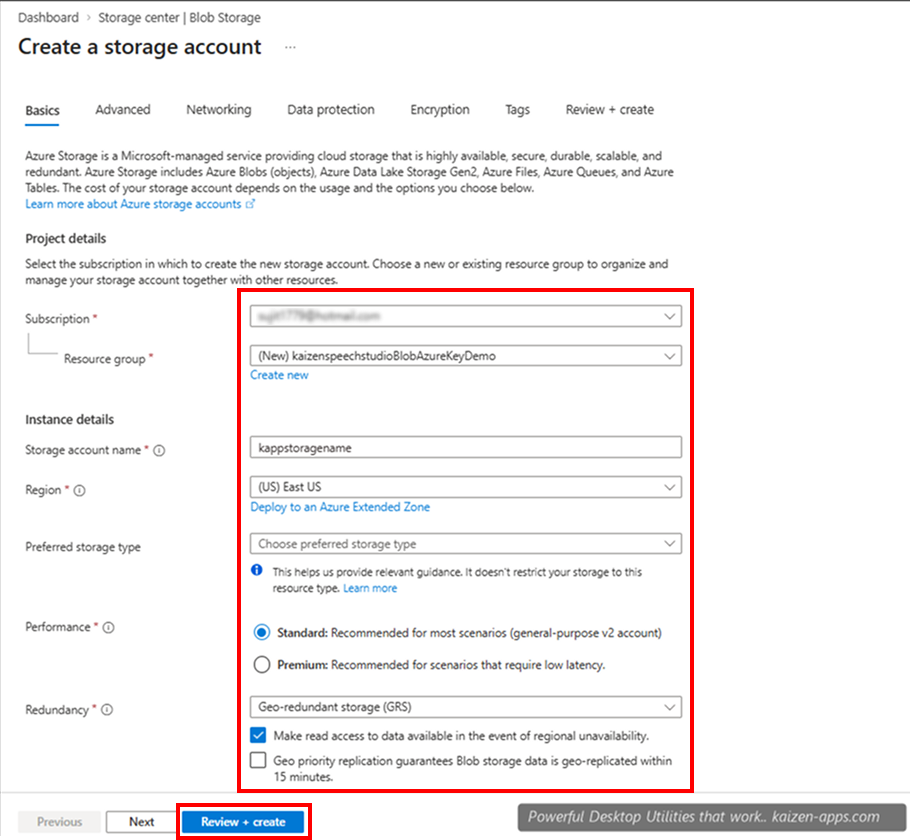
Step 3: Fill in details
- Subscription / Resource group: same as your Speech Service
- Storage account name: globally unique, lowercase, e.g.
kaizenstorageXYZ - Region:
East US(must match your Speech Service) - Performance: Standard
- Redundancy: Locally Redundant (LRS) is cheapest and fine for this use
Click Review + create.
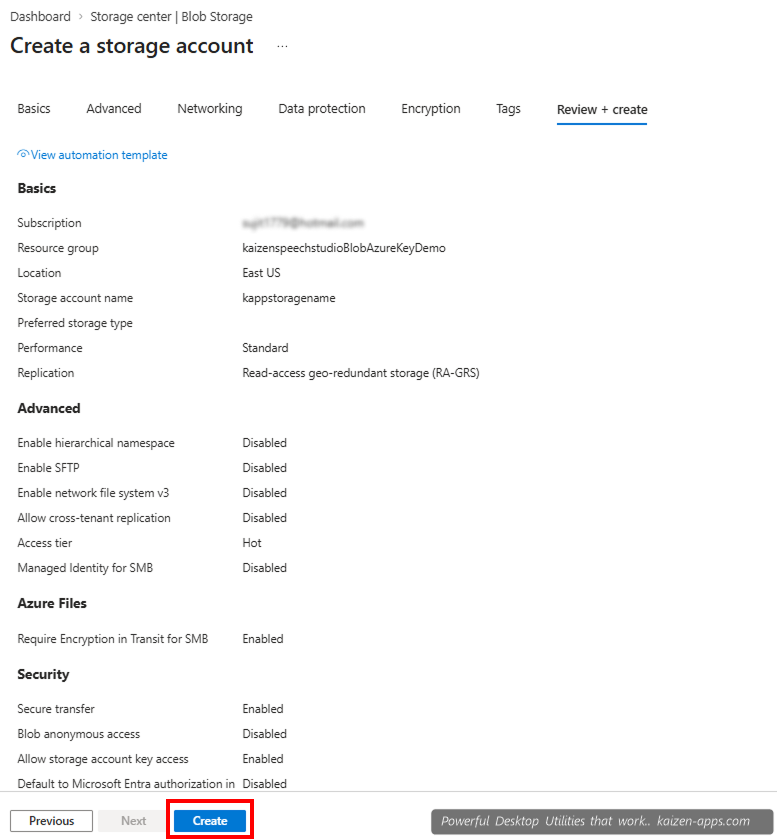
Step 4: Create
Step 5: Go to resource
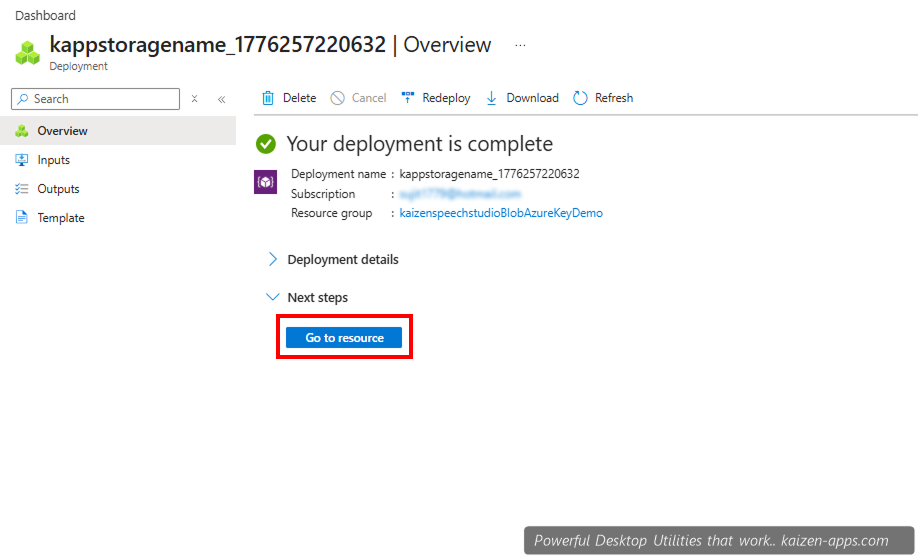
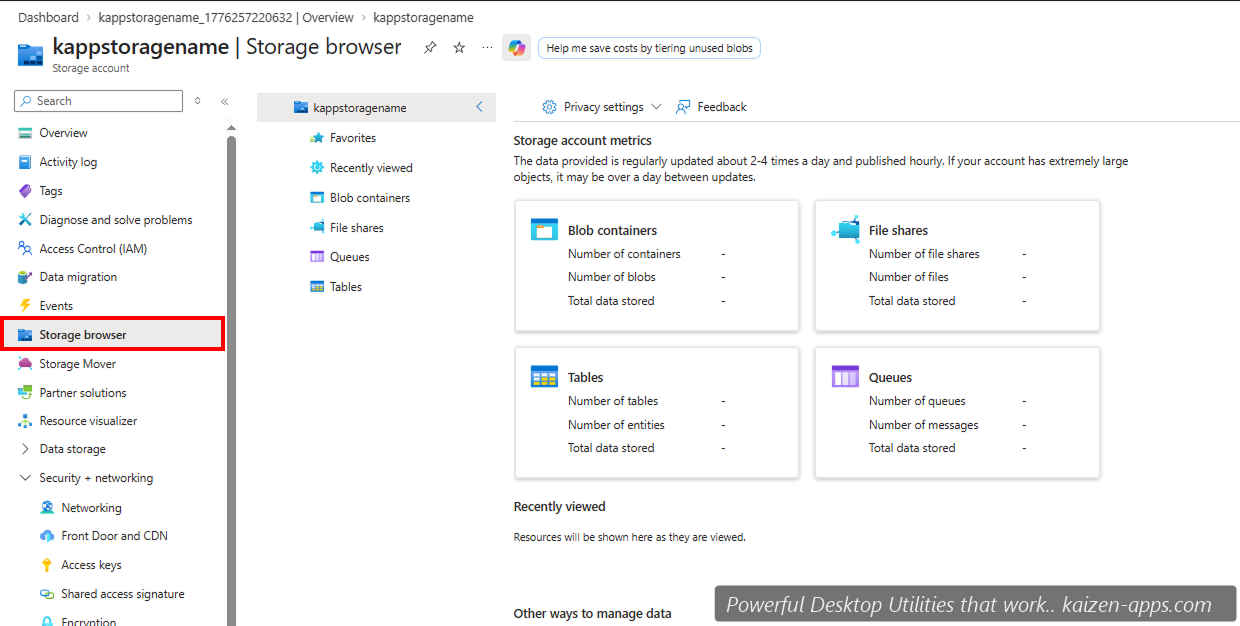
Step 6: Open Storage Browser
In the left sidebar of your new storage account, click Storage Browser.
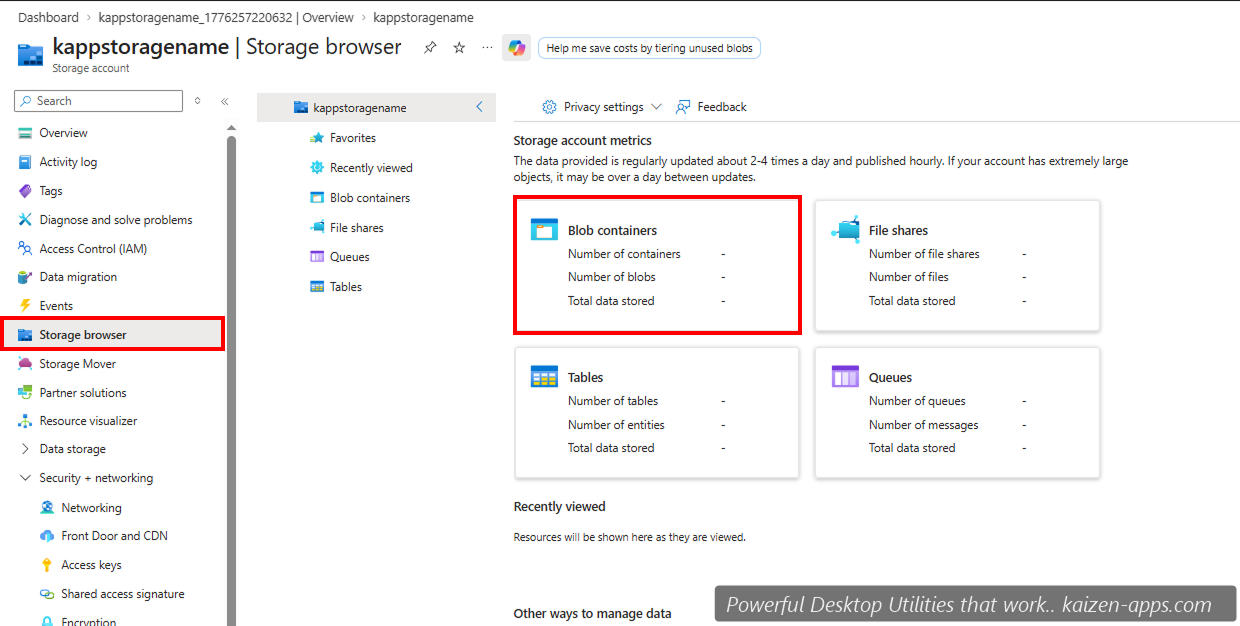
Step 7: Go to Blob Containers
Step 8: Add Container
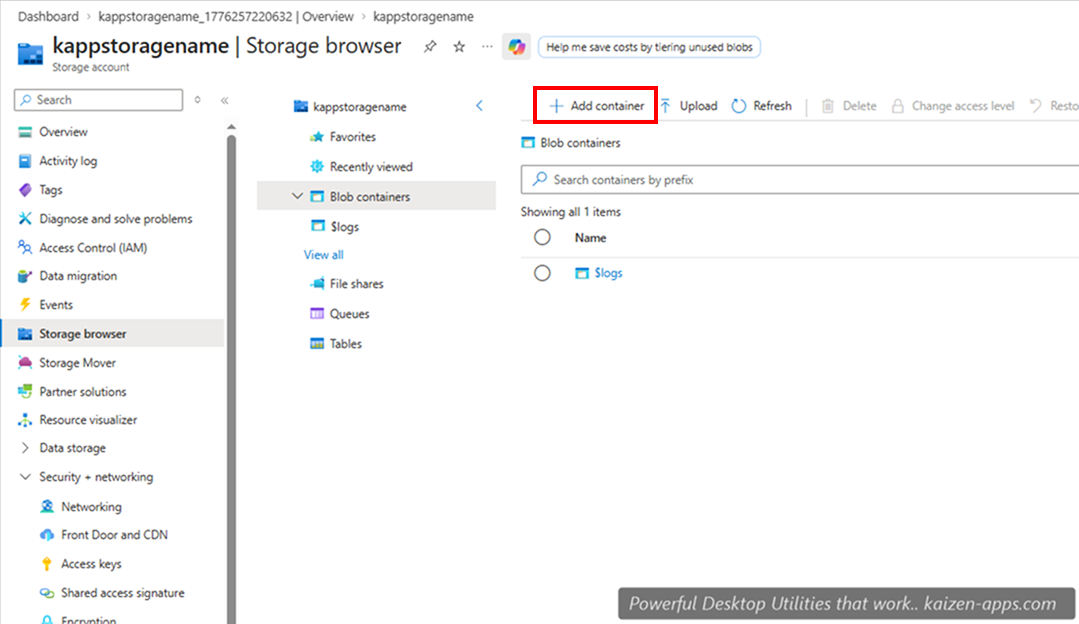
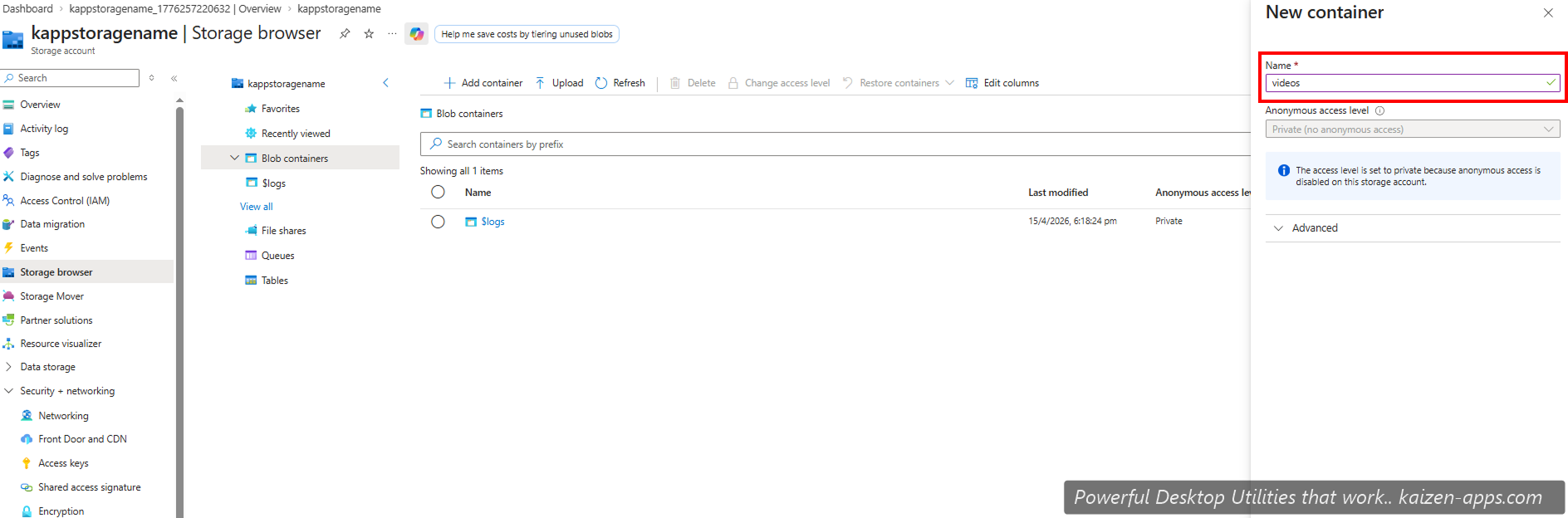
Step 9: Name the container “videos”
Name: videos (exactly this — Speech Studio expects it). Public access level: leave as “Private (no anonymous access)”.
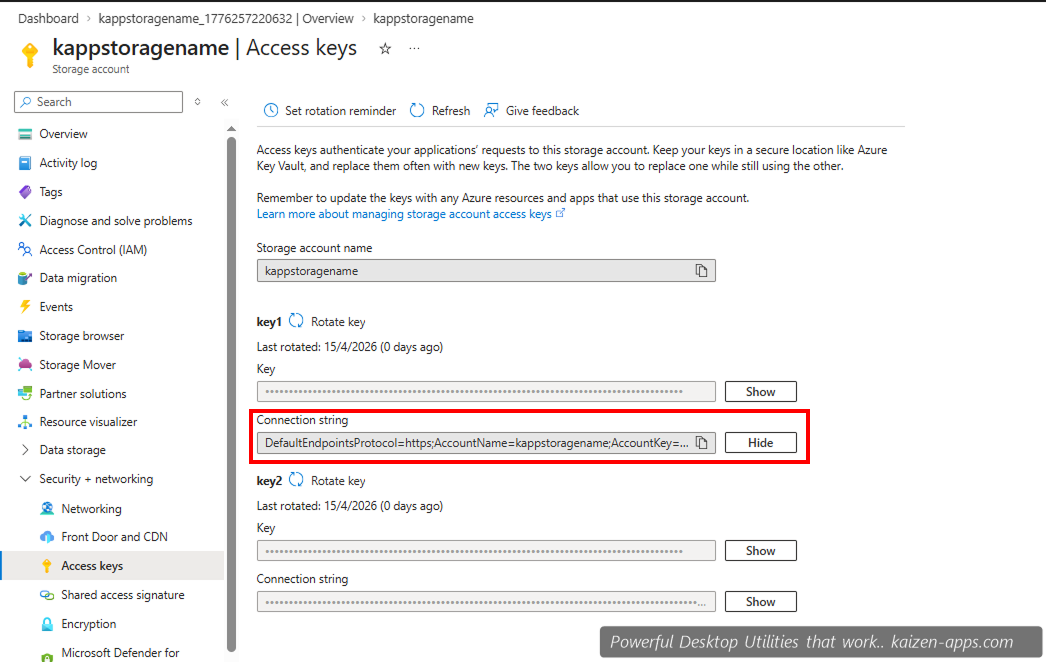
Step 10: Copy the connection string
In the sidebar, click Access Keys. Reveal and copy Connection string under key1.
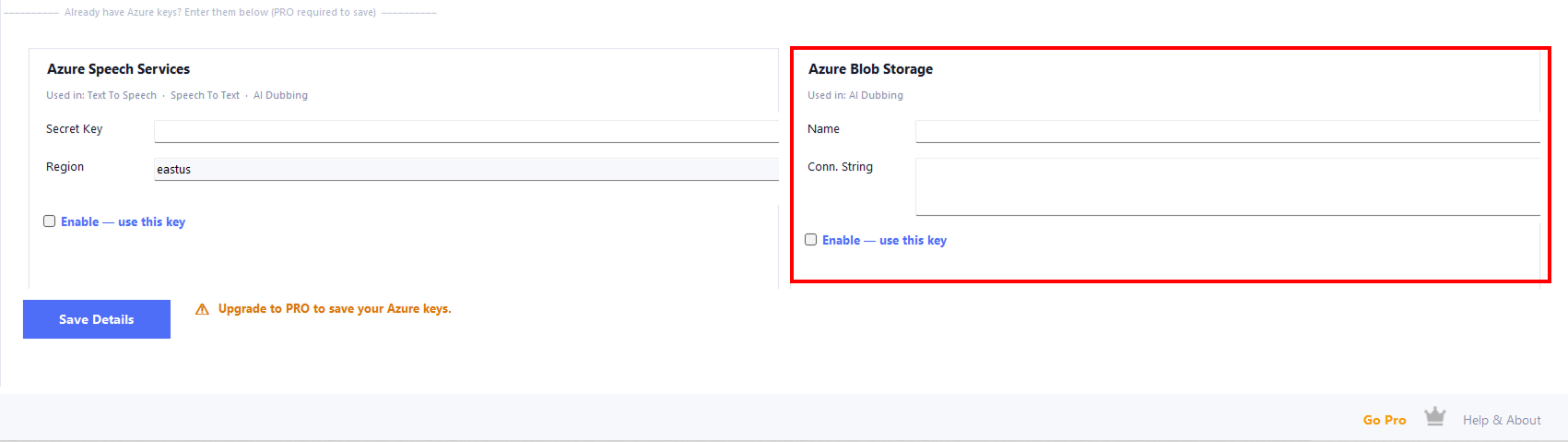
Step 11: Paste into Speech Studio
In Speech Studio's Azure tab, under Azure Blob Storage:
- Paste the connection string into Connection String.
- In Name, enter
videos. - Tick Enable — use this key.
- Click Save Details.
Done. AI Video Dubbing is now unlocked. Give it a try on the Dub Video feature.
Kaizen Speech Studio
700+ neural AI voices, transcription and AI video dubbing on Windows — one-time purchase, works offline.
Get Kaizen Speech Studio →Free download