
How to Block TikTok on Windows
TikTok's endless scroll of short videos, algorithm-driven content, and social engagement features can lead to excessive screen time addiction. Learn how to block or limit TikTok on your child's Windows PC with Kaizen Focus.
Why Parents Want to Block TikTok
TikTok is one of the most addictive apps for children and teens. Here is why many parents choose to block it.
Screen Time Addiction
TikTok's algorithm is designed to keep users scrolling endlessly. Children can spend hours watching short videos without realizing how much time has passed.
Inappropriate Content
Despite content moderation, TikTok exposes children to inappropriate or harmful content, dangerous challenges, and age-inappropriate trends.
Privacy Concerns
TikTok collects extensive data including location tracking, device information, and browsing habits. This raises serious privacy concerns for children.
Mental Health Risks
Comparison culture, cyberbullying, and pressure to create viral content can negatively impact children's self-esteem and mental well-being.
Predatory Interactions
TikTok's comment and messaging features can expose children to contact with strangers, including potential predators.
Academic Impact
Excessive TikTok use has been linked to reduced attention spans, lower academic performance, and difficulty concentrating on schoolwork.
How to Block TikTok with Kaizen Focus
Follow these simple steps to block or limit TikTok on your child's Windows PC.
Step 1: Install Kaizen Focus
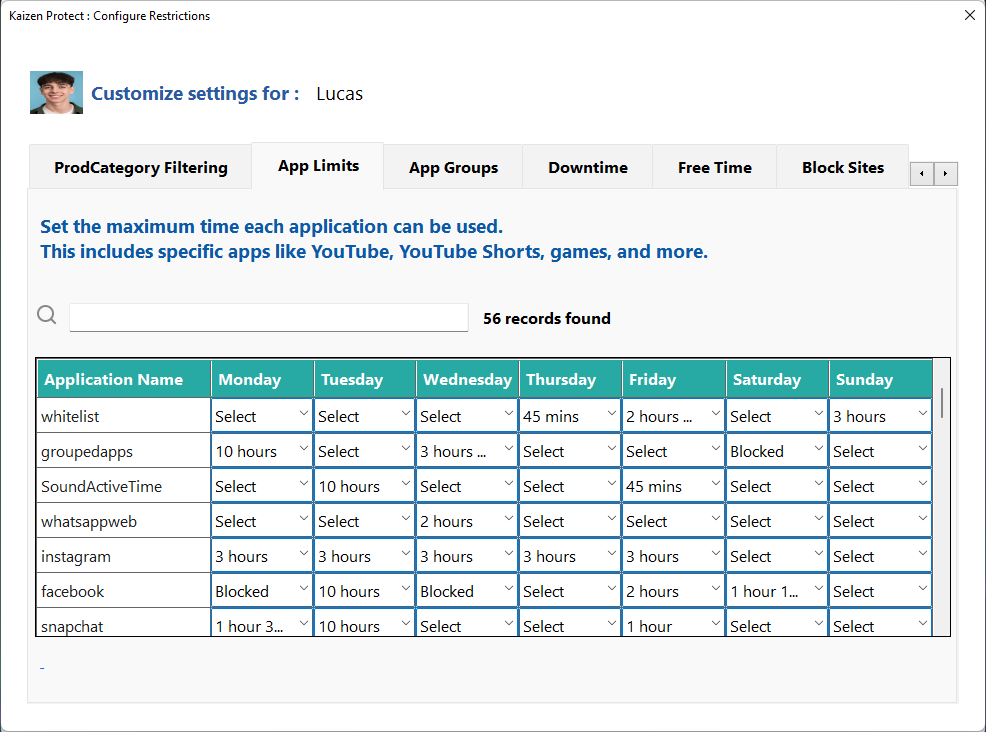
Download and install Kaizen Focus on your child's Windows PC. The setup takes less than 2 minutes. Once installed, set your admin password to prevent your child from modifying the settings.
Step 2: Navigate to App Limits
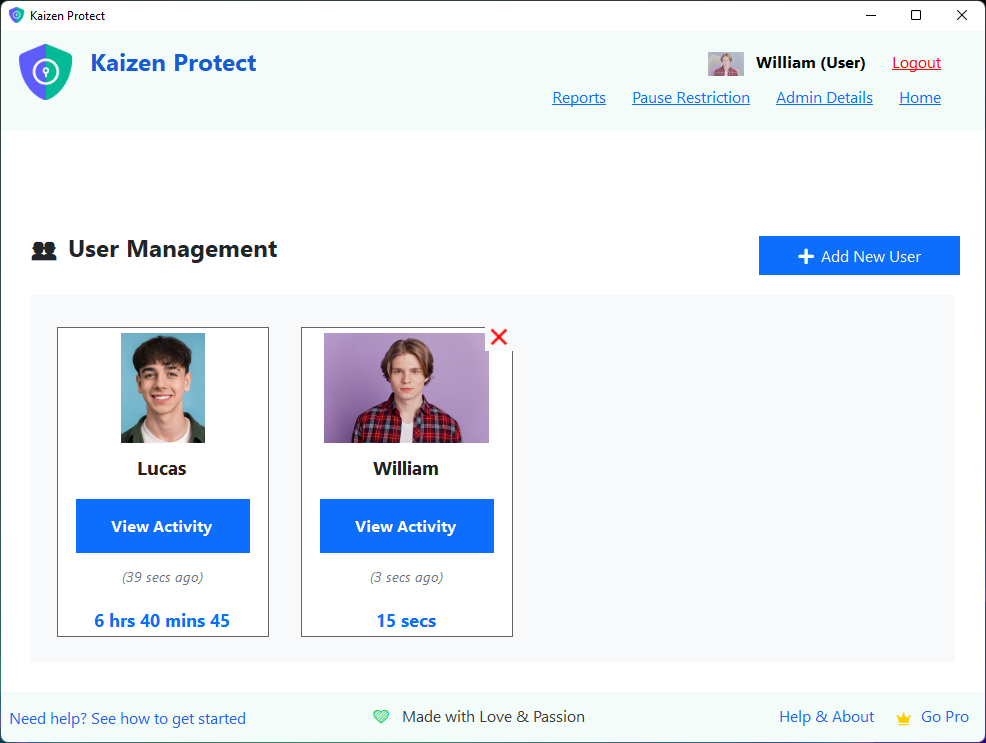
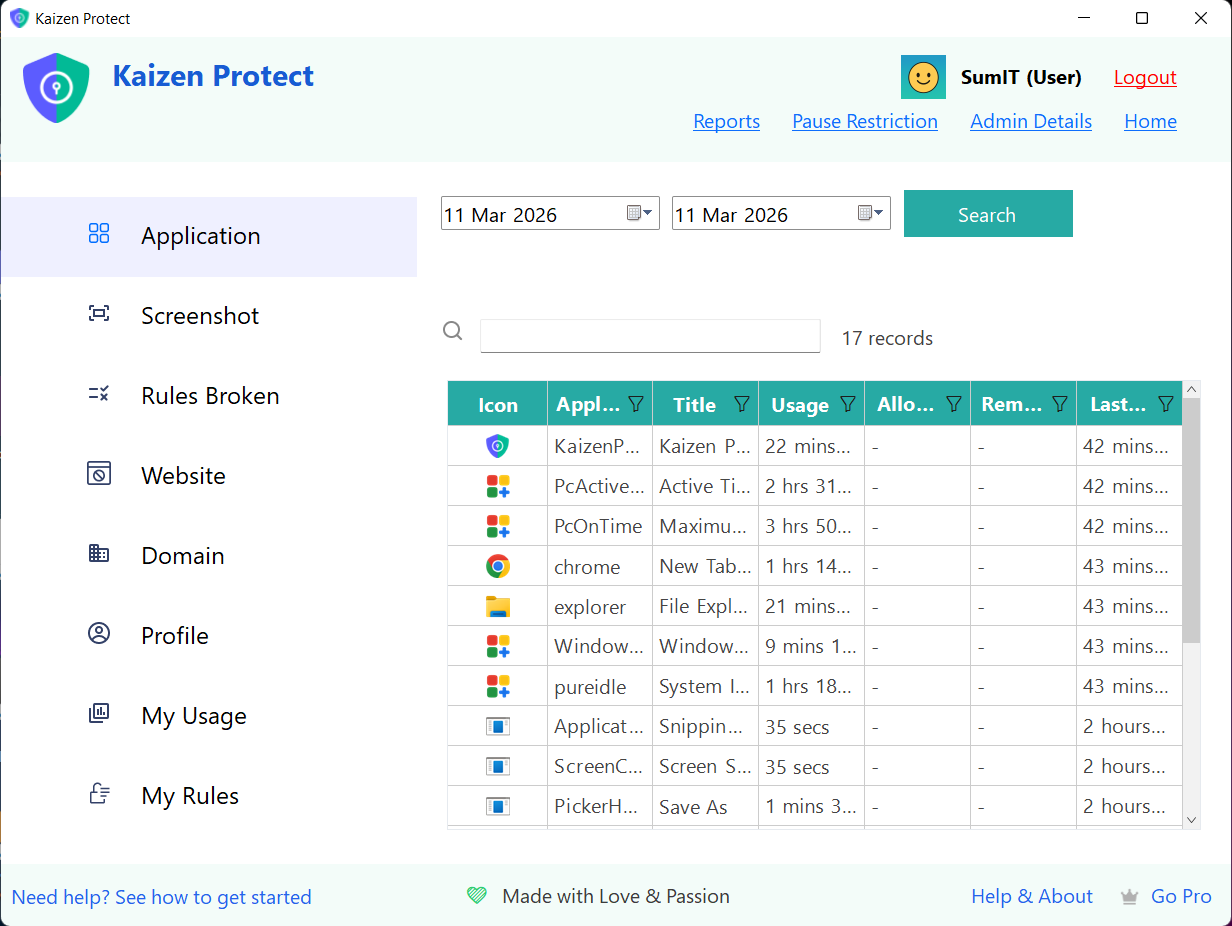
Open Kaizen Focus and go to the My Rules section. Click on App Limits from the menu options. This is where you can control which applications are allowed, blocked, or time-limited.
Step 3: Find TikTok & Set Restrictions
Scroll down to find "TikTok" in the application list. Click "Select" under the day(s) you want to block. Choose "Blocked" from the dropdown menu to completely block TikTok, or select "Time Limit" to set a daily usage cap (e.g., 30-60 minutes).
Step 4: Block TikTok Website Too
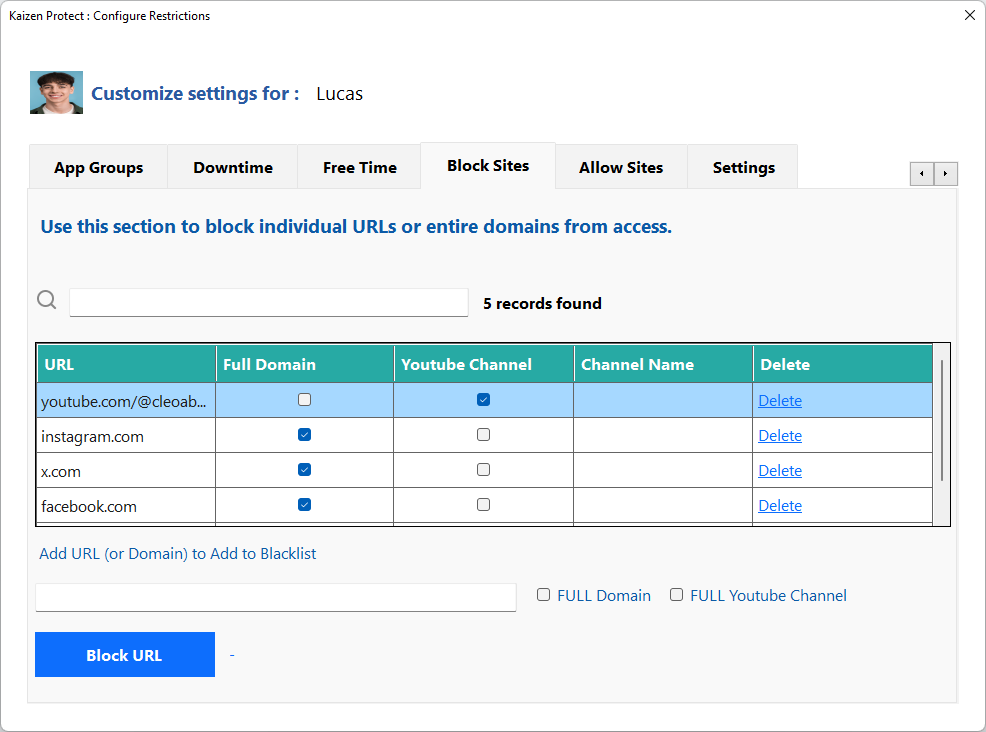
To ensure complete protection, also block the TikTok website. Go to My Rules > Block Sites and add tiktok.com to the blocked list. This prevents your child from accessing TikTok through a web browser.
Additional Tips for Managing TikTok
Block All Social Media at Once
Use the Category Filtering feature to block the entire "Social Media" category. This blocks TikTok along with Instagram, Snapchat, and other social platforms in one step.
Set Time Limits Instead
If a complete block feels too strict, set a daily time limit of 30-60 minutes. This teaches your child to use TikTok responsibly while preventing excessive screen time.
Use Bedtime Scheduling
Set up downtime schedules to automatically block TikTok during bedtime, homework hours, and family time. Configure recurring schedules in My Rules > Downtime.
Monitor Usage Reports
Enable email reports to receive daily summaries of your child's TikTok usage. This helps you understand their habits and make informed decisions about restrictions.
Block Other Popular Apps & Sites
Explore more guides to protect your child from distracting and harmful content.
Block YouTube
Learn how to block or limit YouTube access
Block Instagram
Restrict Instagram browsing and the app
Block Snapchat
Prevent Snapchat access on Windows
Block Facebook
Block Facebook website and Messenger
Block Roblox
Manage or block Roblox gaming time
Block Reddit
Restrict Reddit access and browsing
Frequently Asked Questions
Block TikTok on Your Child's PC Today
Download Kaizen Focus and block TikTok in under 5 minutes. Free trial included.