How to Block Instagram on Windows (2026)
Whether you are trying to stay focused while you study or keeping Instagram off a child's PC, here are the realistic ways to block it on Windows — the quick hosts-file and router tricks, why they leak, and how to make the block actually stick with Kaizen Focus.
Your options at a glance
There are three common ways to block Instagram on a Windows PC. Two are free and quick but easy to undo. The third holds up.
Windows hosts file
Point instagram.com to 127.0.0.1 in the hosts file. Free and built in — but anyone with admin rights edits it back in a minute, and it is ignored the moment a VPN or DNS-over-HTTPS is on.
Router / DNS block
Block Instagram in your router or a DNS filter. Covers every device on that one Wi-Fi — but only that network. Switch to mobile data or another connection and the block disappears, and it can't touch the desktop app or set a time limit.
One network onlyKaizen Focus
A dedicated Windows blocker. Blocks the Instagram app at the process level and the site across every browser, adds schedules and daily limits, and locks settings behind an admin PIN so the block actually stays put.
Hard to bypassWhy people block Instagram on a PC
Instagram is built to keep you scrolling. Reels autoplay one after another, the Explore page never runs out, Stories quietly pile up and notifications pull you back in the moment you put the phone or laptop down. On a computer you also use for work or study, that is a constant tax on your attention. The two reasons people search for a way to block it usually come down to:
- Focus and study. If you are revising for exams or trying to finish deep work, even a quick "let me just check Instagram" breaks your concentration and the next thing you know an hour of Reels is gone. Blocking Instagram during study hours removes the temptation entirely instead of relying on willpower.
- Parental control. Instagram's endless feed, DMs from strangers and the body-image pressure of a perfectly filtered Explore page worry a lot of parents. On a shared family PC, blocking the app and the website keeps a younger child off it — Reels, Stories and all — without you having to police the screen every evening.
The goal in both cases is the same: make Instagram genuinely unavailable on that Windows machine, in a way that can't be undone in thirty seconds.
The quick free methods (and where they fall short)
Before installing anything, it is worth knowing why the two "free and built-in" tricks rarely hold up.
1. Editing the Windows hosts file
The hosts file at C:\Windows\System32\drivers\etc\hosts lets you redirect a domain to nowhere. Add lines pointing instagram.com and www.instagram.com to 127.0.0.1, save the file as an administrator, and most browsers will fail to reach the site. It costs nothing and takes two minutes.
The downsides are real, though. Anyone with administrator access — which often includes the very person you are trying to limit — can open the same file and delete those lines just as quickly. The hosts file is also bypassed the instant someone turns on a VPN or enables DNS-over-HTTPS in their browser, both of which route around it completely. And it does nothing about the Instagram desktop app, which connects to Instagram directly rather than through a domain you blocked.
2. Blocking Instagram on your router or DNS
Most home routers let you block a domain for the whole network, and free DNS filters can do the same. This is better than the hosts file because it covers every device on your Wi-Fi at once. But it is tied to that one network: the moment a laptop switches to mobile data, a phone hotspot, or a friend's Wi-Fi, the block is simply gone. Router blocking also can't enforce a daily time limit — it is all-or-nothing — and like the hosts file it can't reach into Windows to stop the Instagram app itself.
Both methods are fine as a casual speed bump. If you want a block that survives a VPN, a network change, and a determined teenager, you need something that runs inside Windows.
The robust way: block Instagram with Kaizen Focus
Kaizen Focus is a screen-time and blocking app for Windows 10 and 11. Instead of relying on DNS, it sits on the PC and enforces the rules locally, so the usual workarounds don't apply. Here is how it handles Instagram specifically.
Block the app at the process level
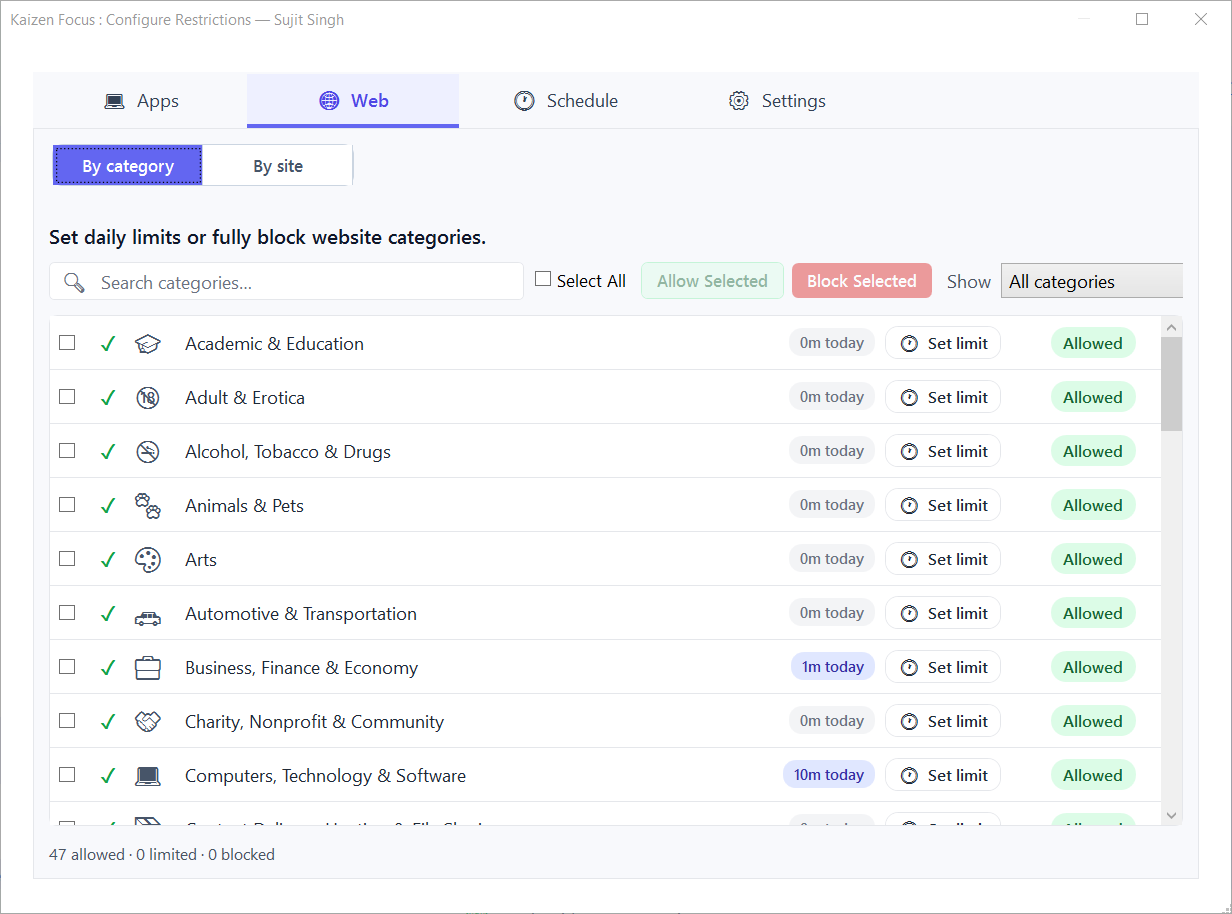
This is the part the free tricks can't do. Add Instagram to the app blocklist and Focus blocks it at the process level — if the app is opened during restricted hours, Focus closes it. There is no domain to whitelist and no browser to switch to. For desktop apps, this is what makes the block stick.
Block the website across every browser
For the web version, add instagram.com to the site blocklist. Focus reads the active URL from every supported browser — Chrome, Edge, Firefox, Brave, Opera, Vivaldi and more — using the Windows UI Automation API. Because the whole site sits on one domain, blocking it shuts down the feed, Reels, Stories, Explore and DMs in one move. There are no extensions to install and no "just open a different browser" loophole, which is exactly how a browser-extension blocker gets beaten.
Scheduled lock and downtime windows
You rarely want Instagram blocked literally 24/7. Focus lets you set a downtime window that hard-blocks it during set hours — say 9 am to 4 pm for school, or 9 pm to 7 am for bedtime — and these windows can wrap past midnight. The free version includes one downtime window; Pro raises that to four for multiple cut-offs a day.
Per-app and weekday time limits
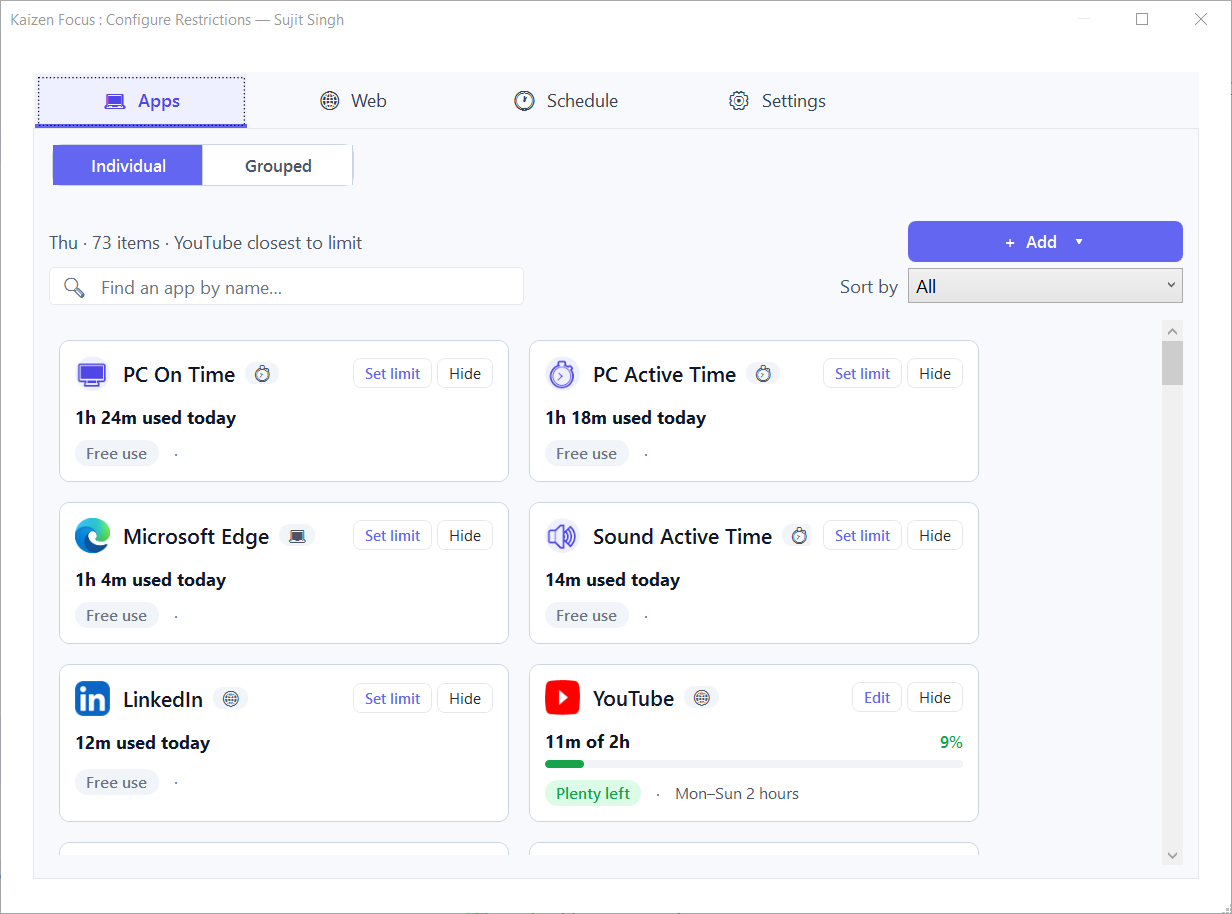
If an outright ban feels too strict, give Instagram a daily time budget instead. Set a per-app limit — for example 30 minutes a day — and Focus tracks usage in real time, then blocks it for the rest of the day once the budget runs out and resets at midnight. Instagram is one of the apps Focus knows out of the box, and every weekday can have its own value, so you can be strict Monday to Friday and relaxed at the weekend.
Screenshots, email reports and an admin PIN
For parents, Focus can take optional periodic screenshots (kept on-device, admin-only to delete) and send daily, weekly or monthly email reports on Pro, so you can see how the rules are holding up without standing over the PC. Crucially, every setting is locked behind a 4-digit admin PIN. Closing the window does nothing — Focus keeps enforcing rules in the background, a watchdog restarts it if it is killed, and uninstalling needs Windows admin rights. A standard user account can't simply remove it.
Blocking, limits, downtime, screenshots and activity tracking all work offline, and all your data stays on your device in a local database. Only email reports and license activation need internet — nothing about your browsing is uploaded to a server.
Step by step: block Instagram in about two minutes
- Download and install Kaizen Focus on the Windows PC using the button below. Set a 4-digit admin PIN during setup so the rules can't be changed without it.
- Block the app. Open the app blocklist and add Instagram. Focus will close it at the process level whenever it is launched during restricted hours.
- Block the website. Add
instagram.comto the site blocklist so the web version — feed, Reels, Stories and DMs — is blocked in every browser. - Add a schedule or a limit. Either create a downtime window for study or bedtime hours, or give Instagram a small daily time budget with a per-app limit.
- Lock it down. Confirm settings are PIN-protected. For a child's PC, turn on screenshots and, on Pro, email reports so you can review activity remotely.
Pricing
Kaizen Focus is free to start, with no sign-up. The free version blocks websites and apps, includes one downtime window, and shows your activity timeline — that alone is enough to block Instagram on a PC. Pro is $29 per year and adds per-app daily limits, up to four downtime windows, screenshot monitoring and email reports. A Lifetime licence is a one-time $149 with no renewals. Both paid plans are covered by a 3-day no-questions-asked refund.
Frequently asked questions
Yes. The free version of Kaizen Focus blocks both the Instagram desktop app and the Instagram website (instagram.com), across all major browsers, with no sign-up. Free also includes one downtime window and the activity timeline. Per-app daily limits, extra downtime windows and email reports are part of Pro.
Yes. Blocking instagram.com stops the whole site in every browser — feed, Reels, Stories, Explore and DMs all load from the same domain, so there is nothing left to open. To cover the desktop app as well, add Instagram to the app blocklist; Kaizen Focus then closes it at the process level even if it is launched again.
Only loosely. The hosts file can be edited back in a minute by anyone with admin rights and is ignored once a VPN or DNS-over-HTTPS is switched on. Router blocks cover that one network only — switch to mobile data or another Wi-Fi and the block is gone. Neither can stop the Instagram desktop app or enforce a daily time limit.
Closing the window does nothing — Focus keeps running and enforcing rules in the background, and a watchdog restarts it if it is killed. Settings are locked behind a 4-digit admin PIN, and uninstalling requires Windows admin rights, so a standard user account can't simply remove it.
Yes. Use a downtime window to hard-block Instagram during set hours — for example 9 am to 4 pm on weekdays — or give it a small daily time budget with a per-app limit so it is allowed for a few minutes a day and then blocked. The free version includes one downtime window; Pro allows up to four, and each weekday can have its own limit.
Yes. Blocking, limits, downtime, screenshots and activity tracking all work offline, and all your data stays on your device in a local database. Only email reports and license activation need internet.
Block Instagram on Windows — free to start
Get a block that survives a VPN, a network change and a closed window. Kaizen Focus blocks the Instagram app and site, adds schedules and limits, and runs entirely offline so your data stays yours.
Free version included · Pro $29/yr · Lifetime $149 one-time · 3-day refund · Windows 10 / 11