
How to Block Facebook on Windows
Protect your child from Facebook's social pressures, messaging from strangers, and endless news feed scrolling. Learn how to block the Facebook website, Messenger app, and schedule allowed times with Kaizen Focus.
Why Parents Choose to Block Facebook
Facebook remains one of the largest social networks, and it presents several risks for children and teenagers.
Stranger Contact & Predators
Facebook and Messenger allow anyone to send friend requests and messages. Children can be contacted by strangers, scammers, and predators without your knowledge.
Cyberbullying & Drama
Facebook groups, comments, and Messenger chats are common venues for cyberbullying, peer pressure, and social drama that can harm your child's mental health.
Endless News Feed Scrolling
Facebook's algorithm-driven news feed is designed to keep users engaged for as long as possible. Children can waste hours scrolling through posts, videos, and stories.
How to Block Facebook with Kaizen Focus
Follow these simple steps to completely block Facebook on your child's Windows PC.
Step 1: Install Kaizen Focus
Download and install Kaizen Focus on your child's Windows PC. The installation takes less than 2 minutes. Once installed, create an admin password to prevent your child from changing or disabling the settings. Kaizen Focus runs as a background service that starts automatically with Windows.
Step 2: Block the Facebook Website
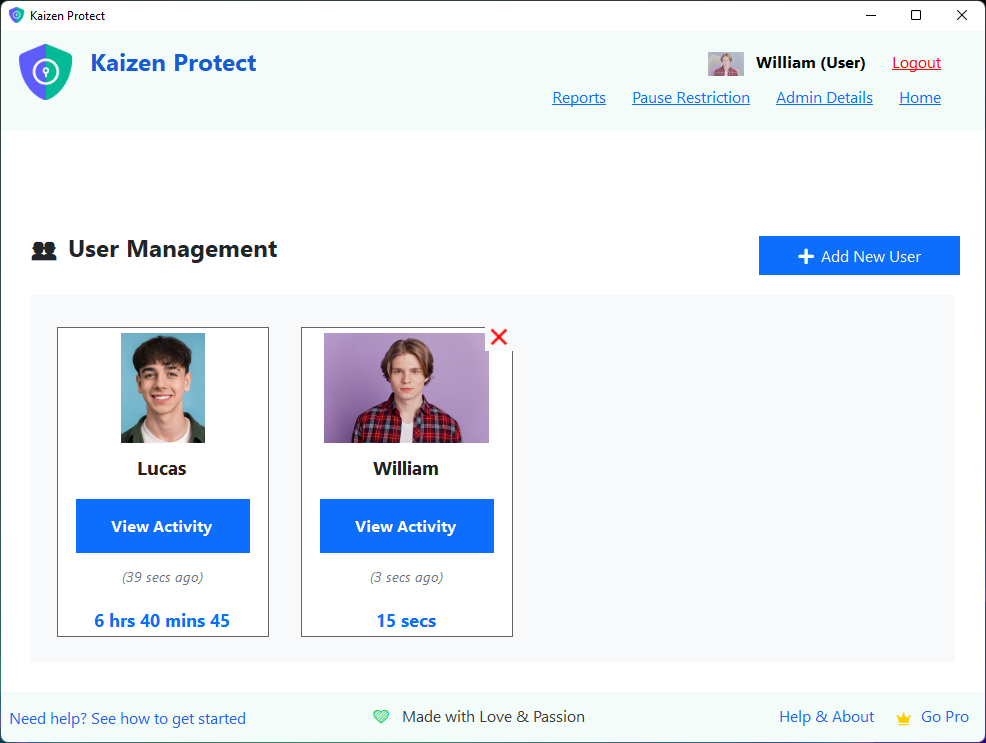
Open Kaizen Focus and navigate to My Rules > Block Sites. Add facebook.com to the blocked list. This prevents your child from accessing Facebook through any web browser, including Chrome, Firefox, Edge, and others. Also add messenger.com to block the standalone Messenger web app.
Step 3: Block the Facebook & Messenger Apps
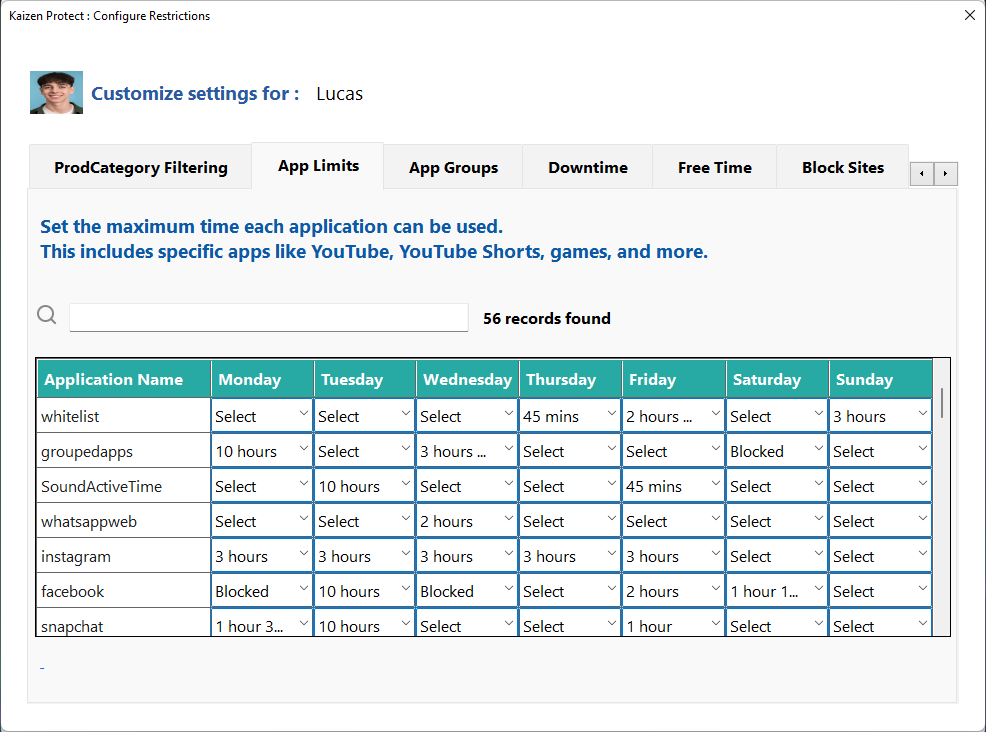
Go to My Rules > App Limits and find Facebook and Messenger in the application list. Click "Select" under the day(s) you want to block and choose "Blocked" from the dropdown. This prevents your child from using the Facebook desktop app or the Messenger app on Windows.
Step 4: Schedule Allowed Times (Optional)
If you want to allow limited Facebook access, use the Downtime feature instead of a full block. Go to My Rules > Downtime and create a schedule that blocks Facebook during homework hours, bedtime, and school days, but allows access for a window on weekends or after school. You can also set a daily time limit (e.g., 30 minutes) under App Limits.
Additional Tips for Managing Facebook Access
Block All Meta Platforms at Once
Facebook owns Instagram, Messenger, and WhatsApp. Consider blocking all Meta-owned platforms together for comprehensive protection. Use the Social Media category filter or add each domain individually.
Monitor with Email Reports
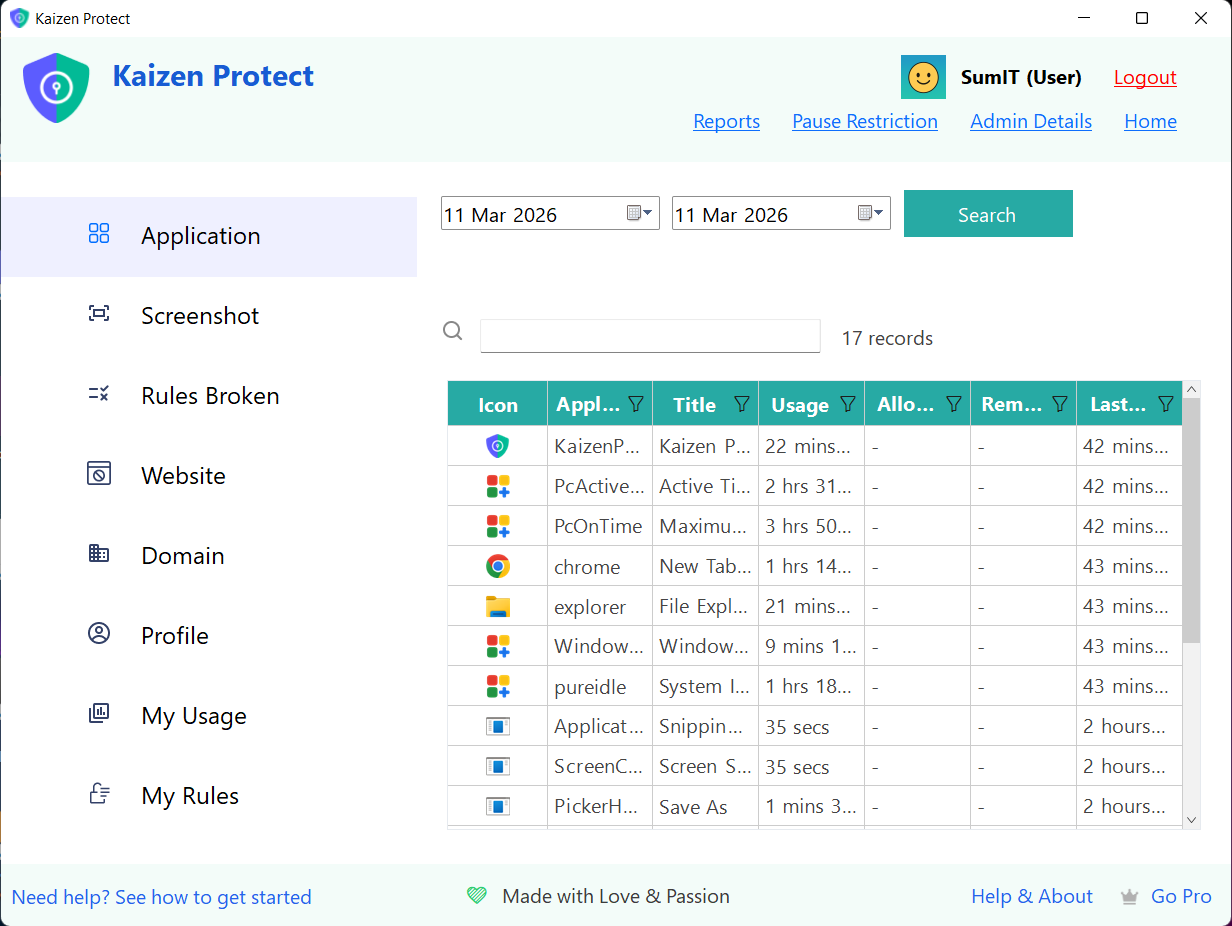
Enable email reports to receive daily summaries of your child's browsing activity. You will be notified if they attempt to access Facebook or similar blocked sites, helping you stay informed.
Use Category Filtering
Enable the "Social Media" category filter to automatically block Facebook and all other social networking sites. This catches new social platforms as they emerge without manual updates.
Talk to Your Child
Combine blocking with open communication. Explain to your child why Facebook restrictions are in place and discuss the risks of social media. This builds trust and helps them develop healthy digital habits.
Frequently Asked Questions
Block Facebook on Your Child's PC Today
Download Kaizen Focus and block Facebook in under 5 minutes. Free trial included.