- Kaizen Apps
- OCR & PDF
 Kaizen OCR & PDFWindows 10 and 11
OCR software for Windows that reads images, PDFs and screenshots
Drop in a scan, a photo, a PDF or a screen capture and get text you can copy or save. The OCR runs on your own PC, and the same app edits, merges and converts PDFs.
- Free to try: 7 uses of each tool
- OCR runs on your own PC
- Windows 10 and 11, 64-bit
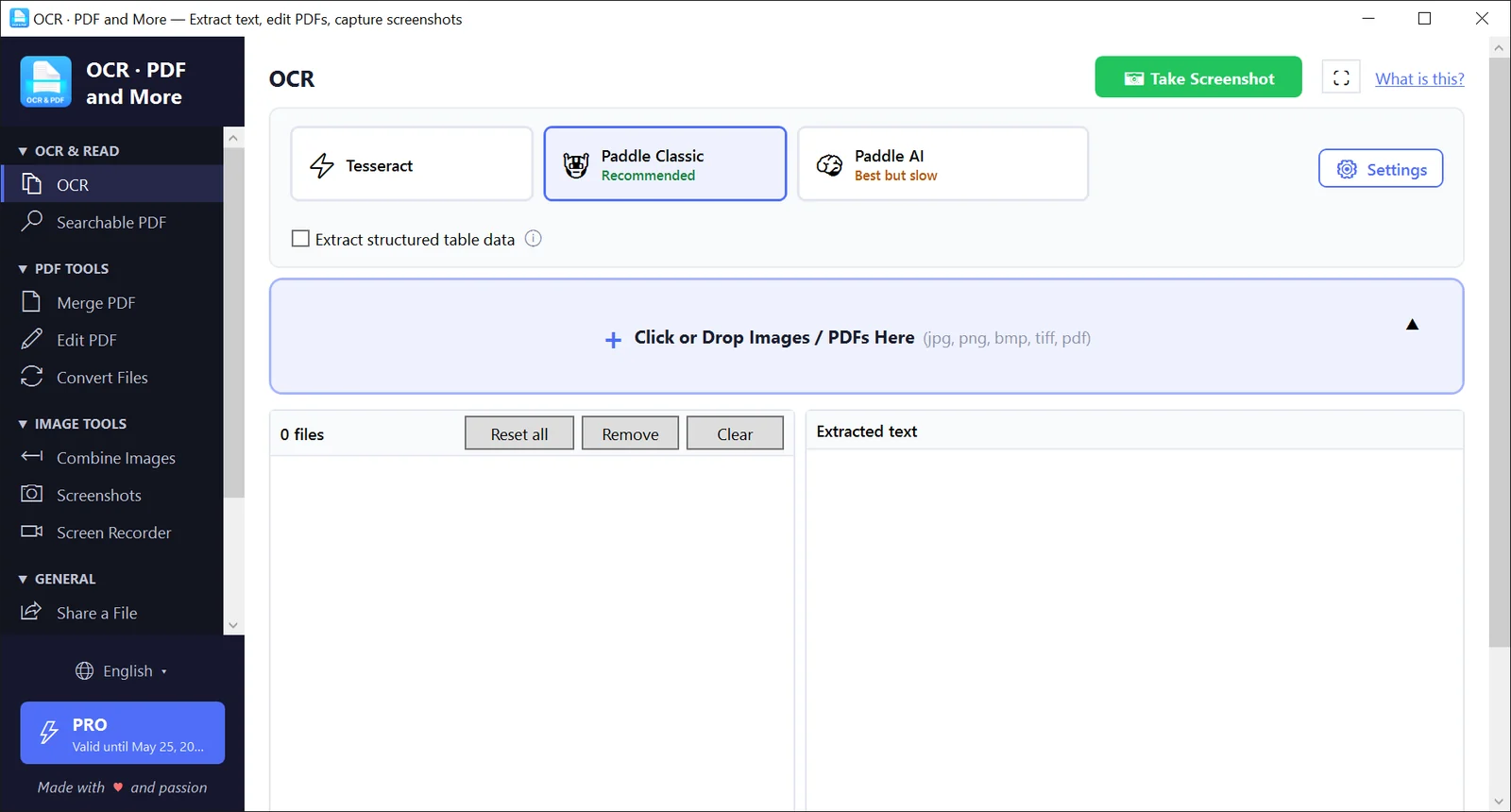
Edit a PDF: retype existing text, add your own, rearrange pages
Open a PDF and click the Edit Text tool to retype text that is already on the page. Add text boxes, rectangles, lines, freehand pen strokes and images, then move and resize them. Your original is never overwritten: the app always saves a new file.
- 7 tools: Select, Text, Rect, Line, Pen, Image and Edit Text
- Font, size, bold, italic, colors, fill opacity and border width
- Add a blank page, delete, rotate or move pages up and down
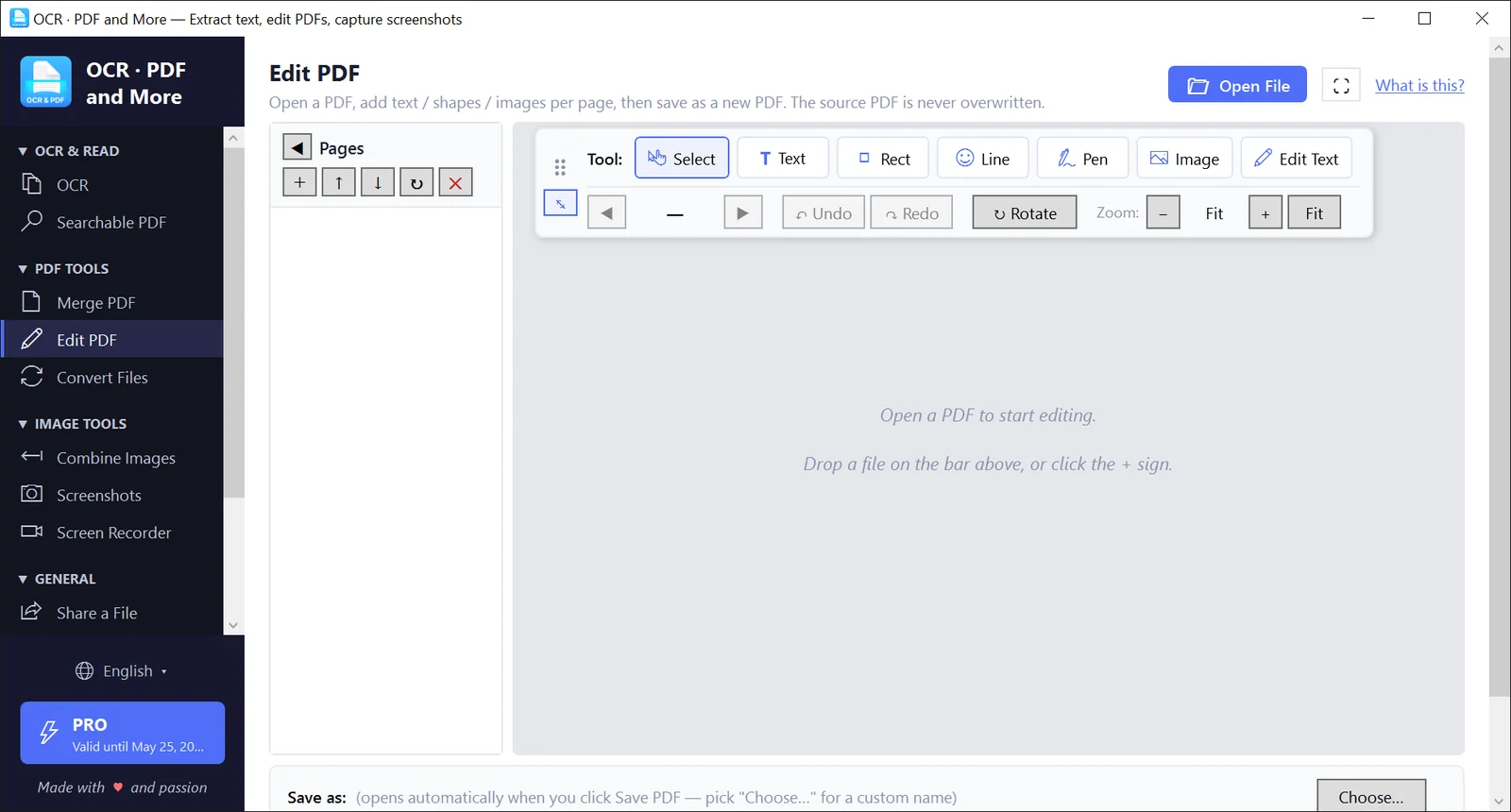
Merge PDF files, or only the pages you want from each
Load several PDFs or a folder of them and see every page as a thumbnail. Add whole files or selected pages to the merge order, arrange them, and save one new PDF.
- Pick single pages or all pages from each source
- Move pages up and down, rotate by 90 degrees, duplicate or remove
- Preview before you save
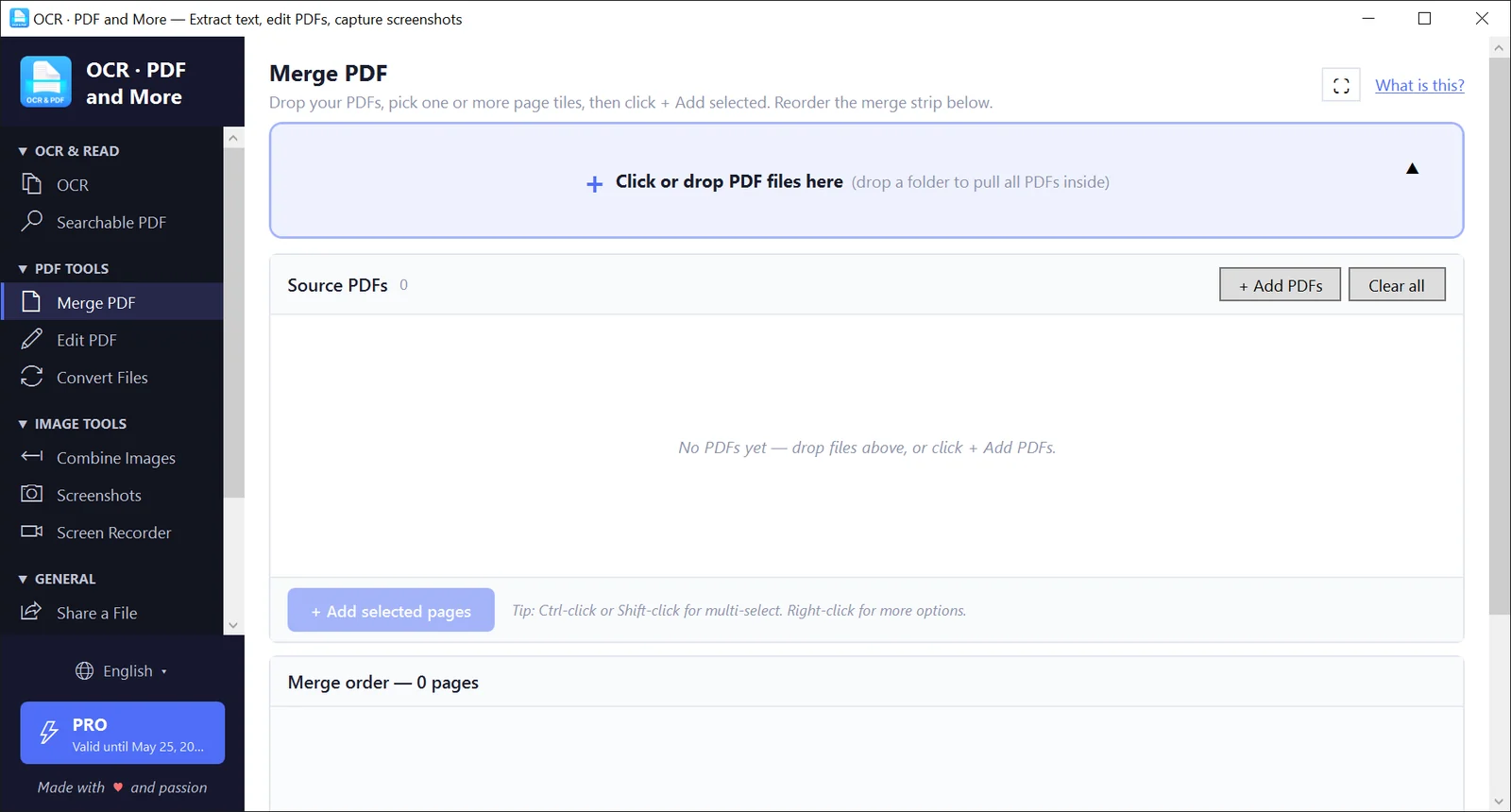
Convert documents and images in batches
Drop in PDF, Word (DOCX and DOC), RTF, HTML, TXT, ODT or EPUB files, or PNG, JPG, BMP, TIFF and GIF images. Choose one of 13 output formats and convert the whole batch. Document pages turned into images are rendered at 300 DPI.
- Output to PDF, DOCX, DOC, RTF, HTML, TXT, ODT or EPUB
- Or to PNG, JPEG, TIFF, BMP or GIF
- Save next to the source file or in a folder you choose
Screenshot to text, screen recording and more
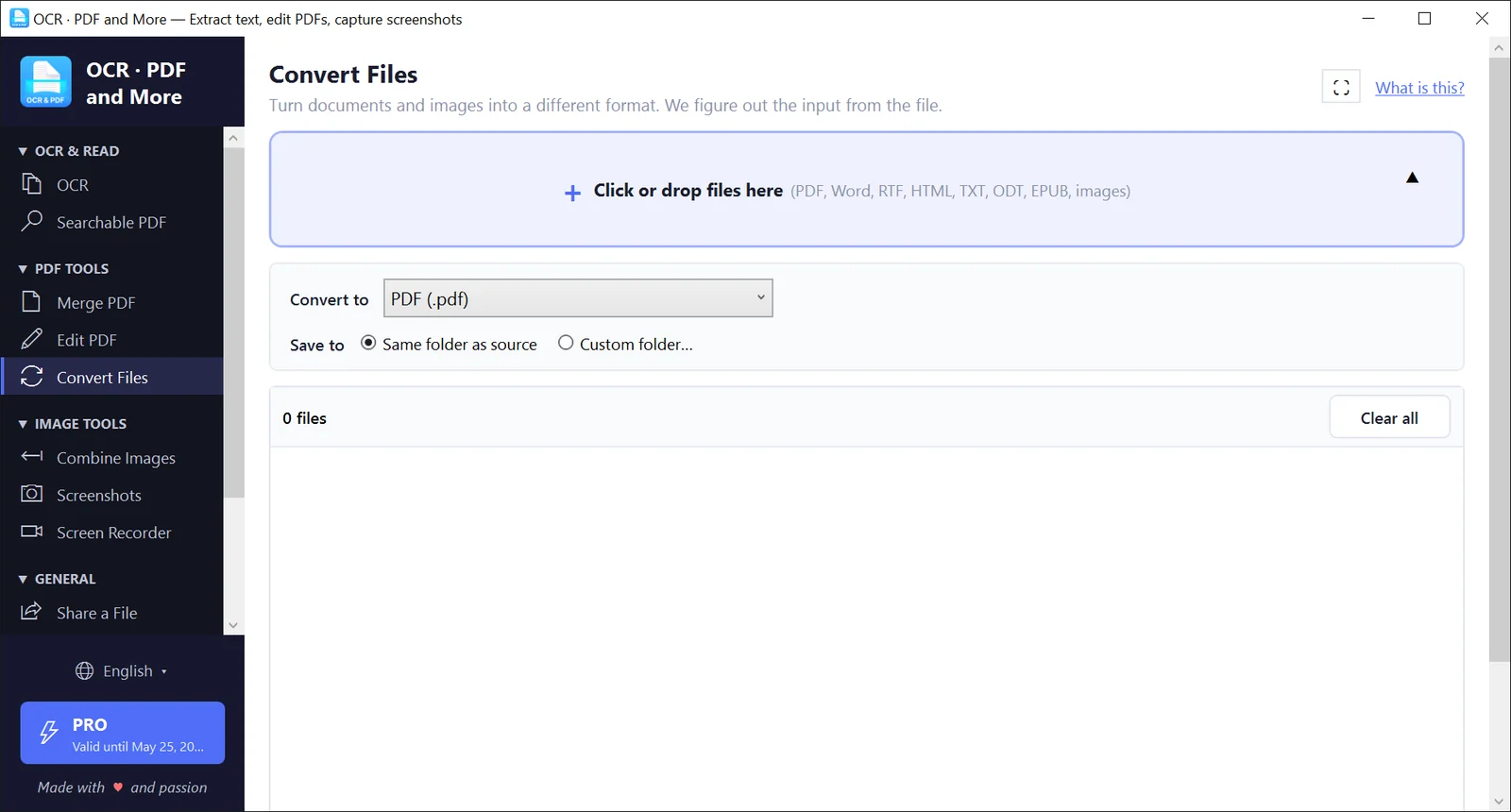
Extract text from images and PDFs, one file or a whole folder
Add JPG, PNG, BMP, TIFF or PDF files, or drop a folder, and press Run OCR.
Put several images on one canvas or one PDF page
Stack images side by side, top to bottom, or drag them into place in a free layout.
Screenshot to text
Choose Scan Region or Scan Full Screen from the tray menu and the text lands on your clipboard. A hotkey you set (Ctrl+Shift+F6 by default) opens the region picker from any program.
Burst capture
Snip several screen regions in a row. The app stacks them down or across into one image.
Screenshot editor
Mark up a capture with text, rectangles, lines, pen and blur. Crop it and save as PNG or JPEG.
Screen recorder
Record a region or the full screen to MP4 with microphone, system audio or both. Four quality presets from 5 to 60 frames per second, pause and resume, and a trim tool.
Try every tool free, pay once if you keep it
The free version has no time limit. It counts uses instead, separately for each tool.
7 uses of each tool, with a watermark
- 7 uses of each tool, counted separately, including 7 files per OCR engine
- The 7 uses are a lifetime total. They do not reset
- Screenshots, exported images and recordings carry a kaizen-apps.com watermark
One payment. Does not renew automatically
- No 7-use limit on any tool
- No watermark, or your own watermark text if you want one
- One key for one PC
Pay once, keep it
- Everything in Pro
- No expiry date
- One key for one PC
Sold through Paddle, our reseller. Your license key arrives by email. A key works on one PC and one Windows user account. One-year licenses do not renew automatically. Refunds within 3 days of purchase: write to [email protected].
Questions about Kaizen OCR & PDF
Is this OCR software free?
You can use every tool 7 times for free, counted separately per tool, so you get 7 files with Tesseract and another 7 with Paddle Classic. The 7 uses are a lifetime total and do not reset. Free screenshots, exported images and recordings carry a watermark. After that, a license costs $18 for one year or $49 for lifetime.
How do I extract text from an image?
Open the OCR screen, drop in a JPG, PNG, BMP or TIFF file, pick an engine and a language, and press Run OCR. The text appears next to the file with a confidence percentage. Copy it or save it as a .txt file.
Can it convert a PDF to text?
Yes. Add the PDF to the OCR screen. The app can read the text already embedded in the PDF, run OCR on scanned pages, or decide by itself page by page. The output is separated by page.
Can it turn handwriting into text?
The optional Paddle AI engine is the one built for handwriting. It is hidden until you turn it on in Settings, and it needs a one-time model download of about 0.9 to 3.6 GB depending on the size you choose. Results depend on how clear the handwriting is, so test it with your own pages during the free uses.
How do I get text from a screenshot?
Right-click the tray icon and choose Scan Region, then drag over the part of the screen you want. The text is copied to your clipboard. You can also take a screenshot from inside the OCR screen and add it to the file list.
Does it work without internet?
Not entirely. First launch needs internet to verify your email address with a 6-digit code, and each language or model downloads the first time you use it. The app also checks its license online at each launch. Once the files are on your PC, the OCR itself runs locally and your documents are not uploaded.
Good to know: It needs internet at times
First launch asks for your email address and a 6-digit code. The app checks its license online at each launch and sends usage data to our server: which tools you open, the app version, PC details and IP address. If the server cannot be reached the app still opens, and a paid license keeps working for 24 hours after its last successful check.
Good to know: Your files are processed on your PC
OCR, PDF editing, merging, converting, image tools, screenshots and recordings are processed locally. The one exception is Searchable PDF, which sends the PDF to your own Azure account.
Good to know: Downloads are large
The installer is about 451 MB. Each Tesseract language (about 10 MB) and each Paddle Classic model (about 10 to 80 MB) downloads the first time you use it. Paddle AI is off until you enable it in Settings, and its model is a one-time download of about 0.9, 1.2 or 3.6 GB. It can use an NVIDIA graphics card with a further 1.5 GB pack; on other PCs it runs on the processor.
Good to know: What it does not do
OCR results are copied or saved as plain text (.txt), not Word or Excel files. The built-in engines do not create searchable PDFs. Edit PDF retypes text inside existing text and adds content on top; it does not reflow paragraphs, fill forms or redact. Convert Files does not handle Excel or PowerPoint. It needs 64-bit Windows 10 (version 1809 or later) or Windows 11.
Get the text out of your next scan
Download Kaizen OCR & PDF and try each tool 7 times for free, with no time limit.