
Set Screen Time Limits for Kids
Take control of your child's screen time on Windows. Set daily time limits for individual apps, configure bedtime schedules, and create different rules for weekdays and weekends -- all with Kaizen Focus.
Recommended Screen Time by Age
Health experts recommend the following daily screen time limits for children, excluding school-related use.
Ages 2-5
1 hour per day of high-quality content. Avoid screen time before bed. Focus on educational apps and co-viewing with parents.
Ages 6-12
1-2 hours per day of recreational screen time. Ensure physical activity balances screen use. Set homework hours as screen-free.
Ages 13-17
2-3 hours per day of recreational screen time. Teens need more flexibility but still benefit from clear boundaries and bedtime rules.
How to Set Screen Time Limits with Kaizen Focus
Follow these steps to configure comprehensive screen time controls on your child's Windows PC.
Step 1: Set Per-App Time Limits
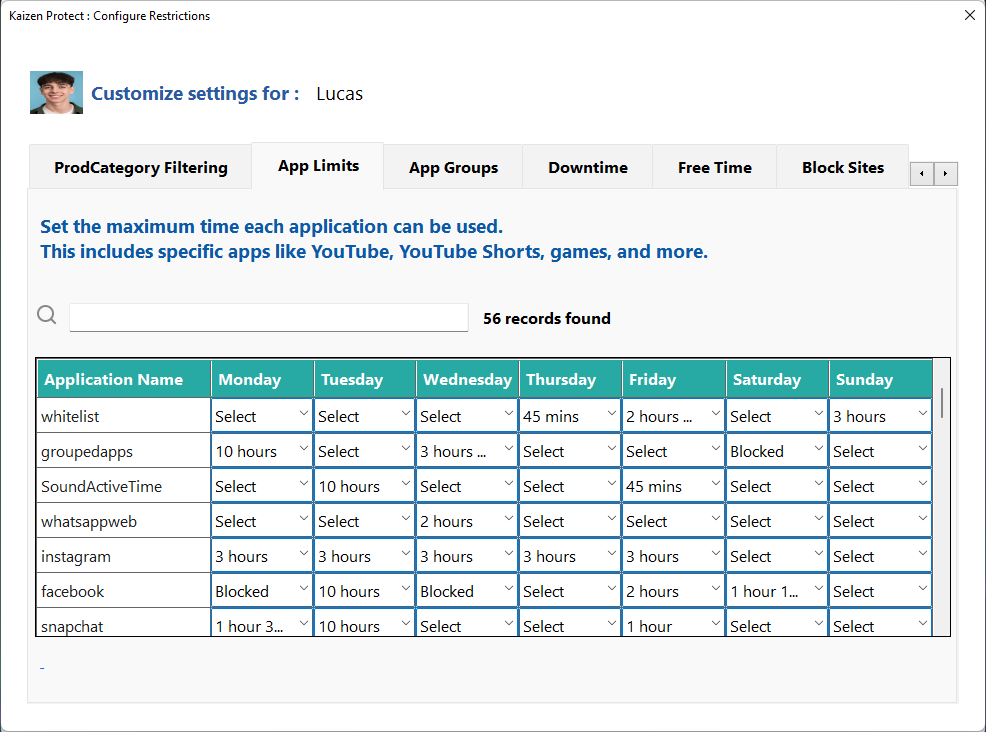
Open Kaizen Focus and go to My Rules > App Limits. For each app you want to limit, click "Select" and choose "Time Limit". Set the daily allowed time -- for example, 30 minutes for YouTube, 1 hour for Minecraft, 30 minutes for Instagram. Once the time limit is reached, the app will be automatically blocked for the rest of the day.
Step 2: Configure Bedtime Scheduling
Navigate to My Rules > Downtime and create a bedtime schedule. Set the PC to lock or block all entertainment apps during sleeping hours -- for example, from 9:00 PM to 7:00 AM on school nights and 10:00 PM to 8:00 AM on weekends. This ensures your child is not using the computer late at night when they should be sleeping.
Step 3: Set Weekend vs Weekday Rules
Kaizen Focus allows you to set different limits for each day of the week. In App Limits, you can configure stricter limits for Monday-Friday (e.g., 30 minutes of gaming) and more relaxed limits for Saturday-Sunday (e.g., 2 hours of gaming). This gives your child something to look forward to on weekends while keeping weekdays focused on school.
Step 4: Monitor Usage with Reports
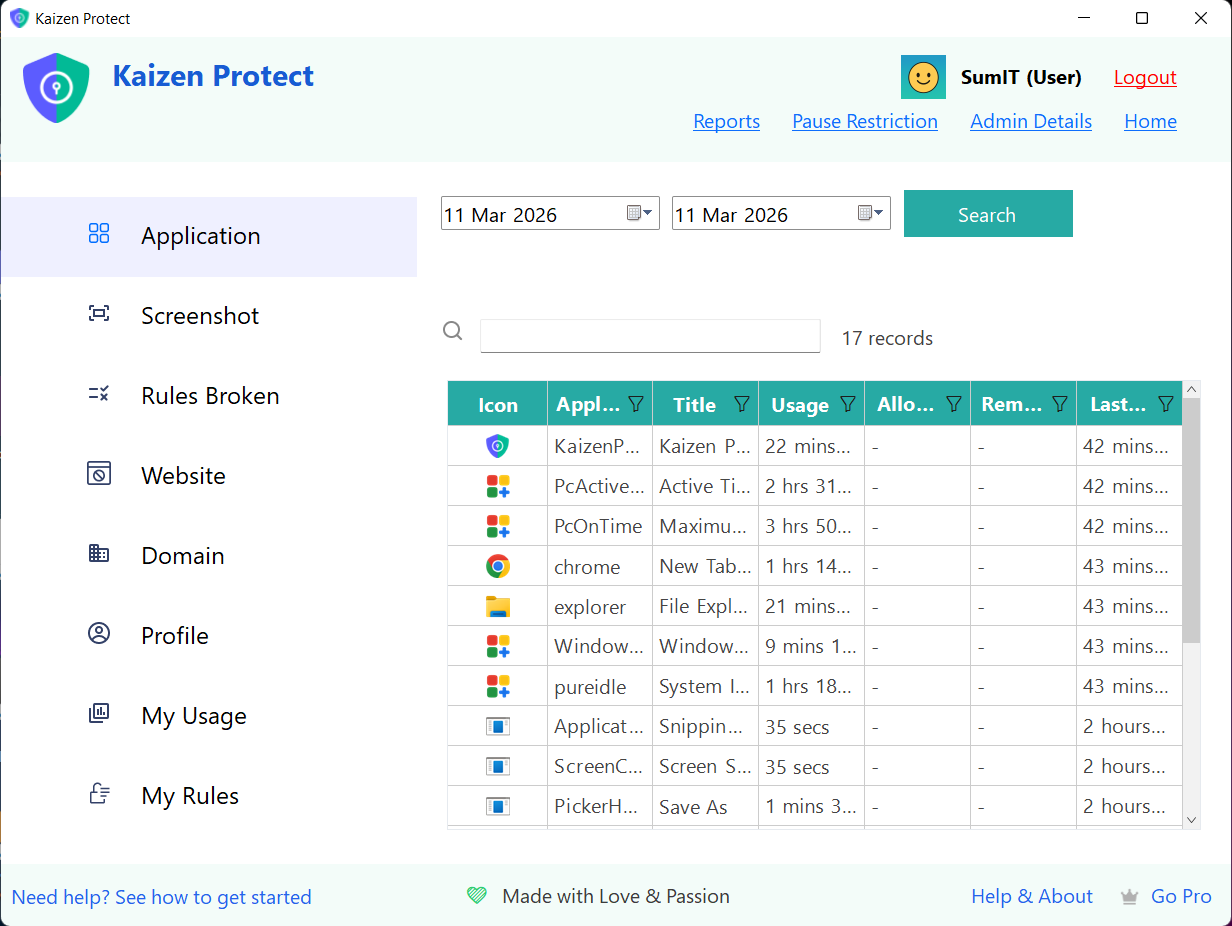
Enable email reports to receive daily summaries of your child's screen time. See which apps they used the most, how much time they spent on each, and whether they hit any time limits. Use this data to adjust limits over time. You can also view detailed app usage logs directly within Kaizen Focus to track daily, weekly, and monthly trends.
Frequently Asked Questions
Set Healthy Screen Time Limits Today
Download Kaizen Focus and configure screen time limits in under 5 minutes. Free trial included.