
Set Up Safe Browsing for Children
Keep your children safe online with comprehensive content filtering. Kaizen Focus offers 47 website categories, whitelist-only mode for younger children, and safe search enforcement across all major search engines.
Content Category Filtering
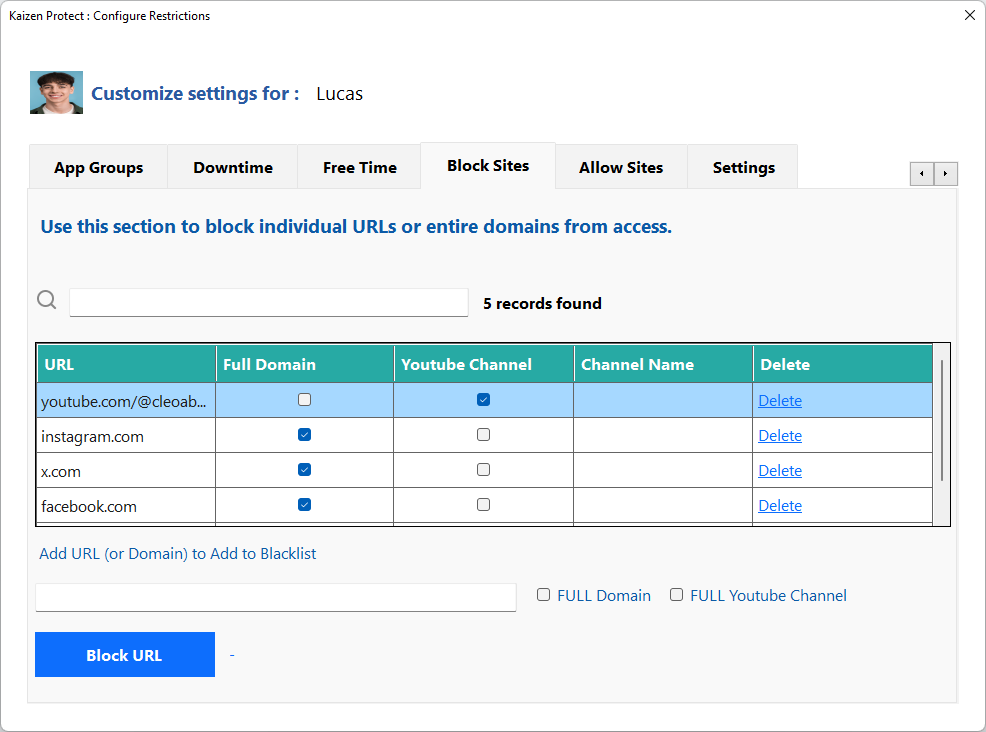
Kaizen Focus classifies millions of websites into 47 categories. Simply toggle on the categories you want to block.
Adult Content
Block pornography, adult entertainment, and sexually explicit material. This is the most critical category for child safety and covers millions of websites.
Gambling
Block online casinos, sports betting, and gambling-related websites. Protect children from developing gambling habits at a young age.
Violence & Gore
Block websites containing violent or graphic content, including gore sites, violent media, and disturbing imagery not suitable for children.
Social Media
Block all social networking platforms including Facebook, Instagram, TikTok, Snapchat, Twitter/X, and Reddit in a single toggle.
Gaming
Block gaming portals, online game sites, game download platforms, and browser-based games that consume children's time.
42 More Categories
Including drugs, weapons, hate speech, malware, phishing, proxy/VPN, streaming media, file sharing, and many more. Full control over what your child can access.
How to Set Up Safe Browsing with Kaizen Focus
Follow these steps to configure comprehensive safe browsing on your child's Windows PC.
Step 1: Enable Category Filtering
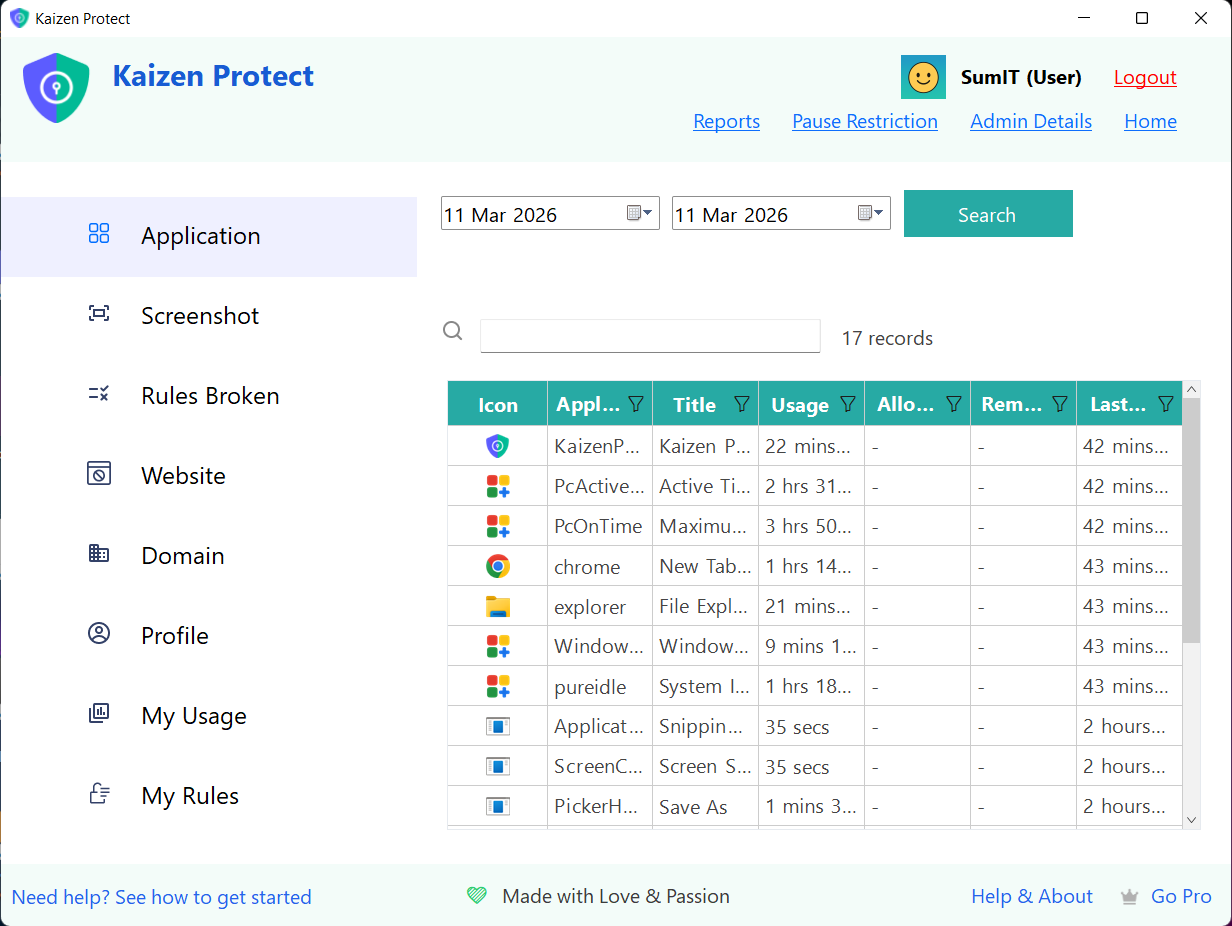
Open Kaizen Focus and navigate to My Rules > Category Filtering. You will see a list of all 47 website categories. Toggle on the categories you want to block. For most parents, we recommend starting with: Adult Content, Gambling, Violence, Drugs, Weapons, Malware/Phishing, and Hate Speech. You can always add more categories later.
Step 2: Configure Whitelist-Only Mode (Optional)
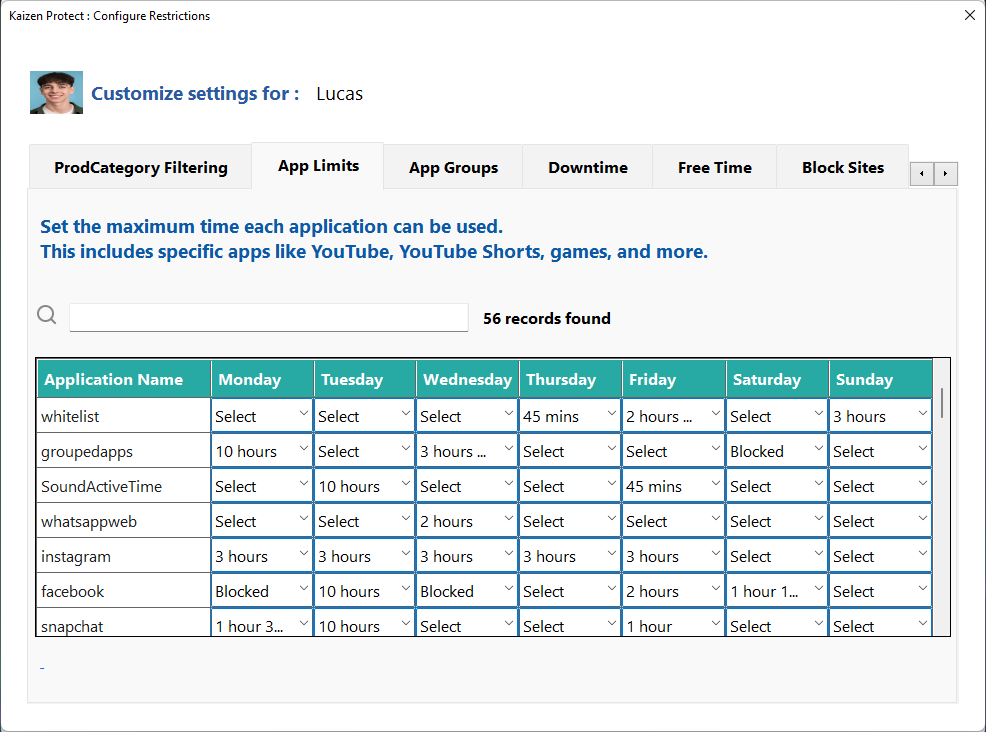
For younger children (under 8), consider enabling whitelist-only mode. In this mode, all websites are blocked by default except the ones you specifically approve. Add your child's school website, educational platforms (Khan Academy, PBS Kids, National Geographic Kids), and other trusted sites to the allowed list. This provides maximum protection for the youngest internet users.
Step 3: Enforce Safe Search
Even with category filtering enabled, children can sometimes find inappropriate content through search engines. Kaizen Focus can enforce Safe Search on Google, Bing, and other search engines, filtering out explicit results from search queries. This adds an extra layer of protection when your child is researching homework topics or exploring the internet.
Step 4: Review and Adjust
After setting up safe browsing, monitor the blocked attempts log in Kaizen Focus. If your child reports that a legitimate educational site is being blocked, you can add it to the allowed list (whitelist) to override the category filter for that specific site. Enable email reports to receive daily summaries of browsing activity and blocked attempts so you can fine-tune the settings over time.
Frequently Asked Questions
Set Up Safe Browsing for Your Family Today
Download Kaizen Focus and configure safe browsing in under 5 minutes. Free trial included.