- Kaizen Apps
- Auto Mouse Auto Click
 Kaizen Auto Mouse Auto ClickWindows, 64-bit
A mouse jiggler for Windows that stops when you come back
Kaizen Auto Mouse Auto Click is a software mouse mover. It waits until your PC has been idle, then moves the cursor, clicks, scrolls or presses keys at random intervals. Touch the mouse and it stops.
- 7-day free trial
- Runs only while you are away
- One-year license does not auto-renew
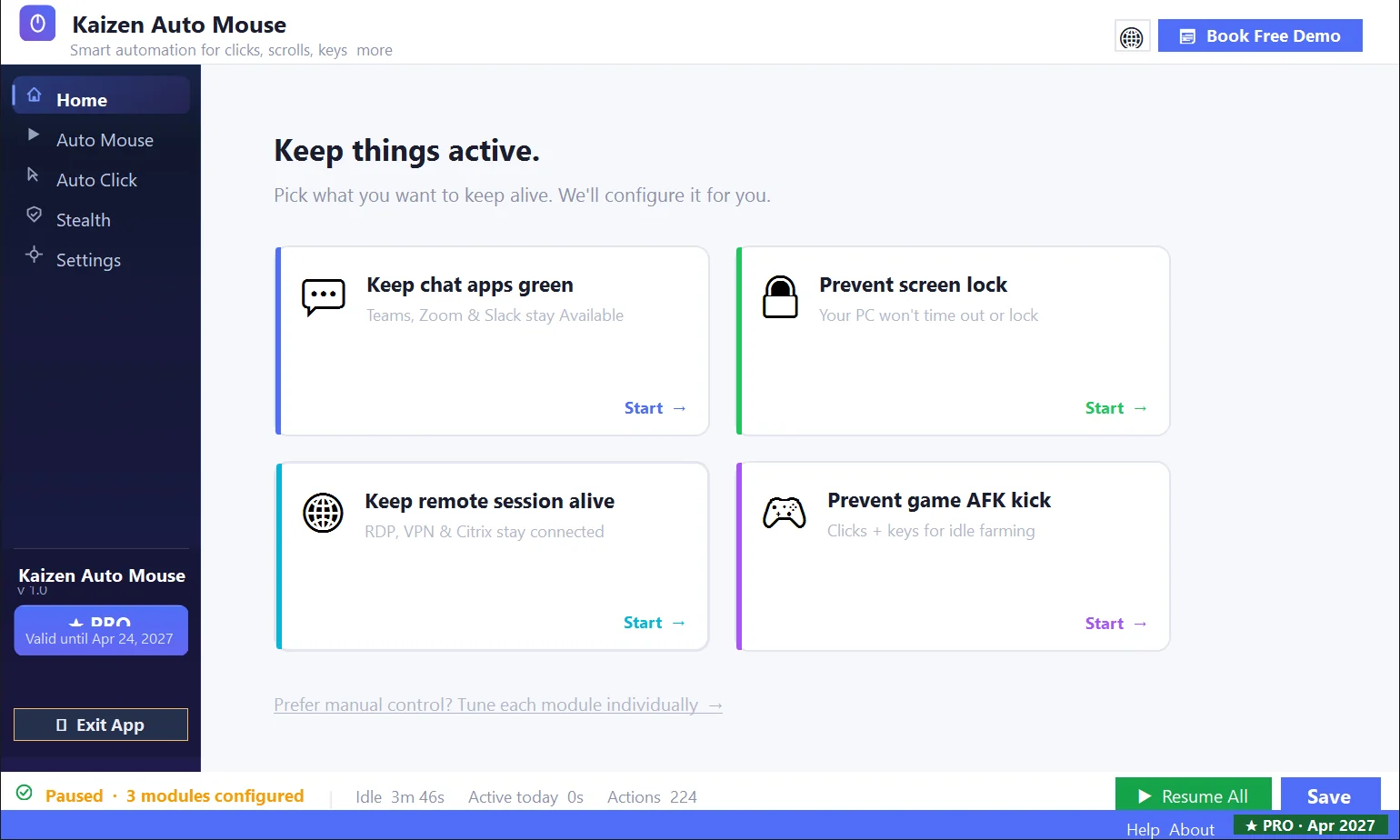
Moves the cursor like a hand would, not on a fixed beat
Each time window, the app picks a random number of moves from your range and spreads them out. The cursor glides to a random point with ease-in and ease-out over 0.2 to 1 second. Every move also asks Windows to keep the system and display awake.
- Five intensity levels from Very Low to Very High, or set exact numbers
- Count range from 1 to 90,000, every 1 to 1,000 seconds, minutes or hours
- Pro: choose from 8 movement regions, such as near the cursor, screen center or a corner
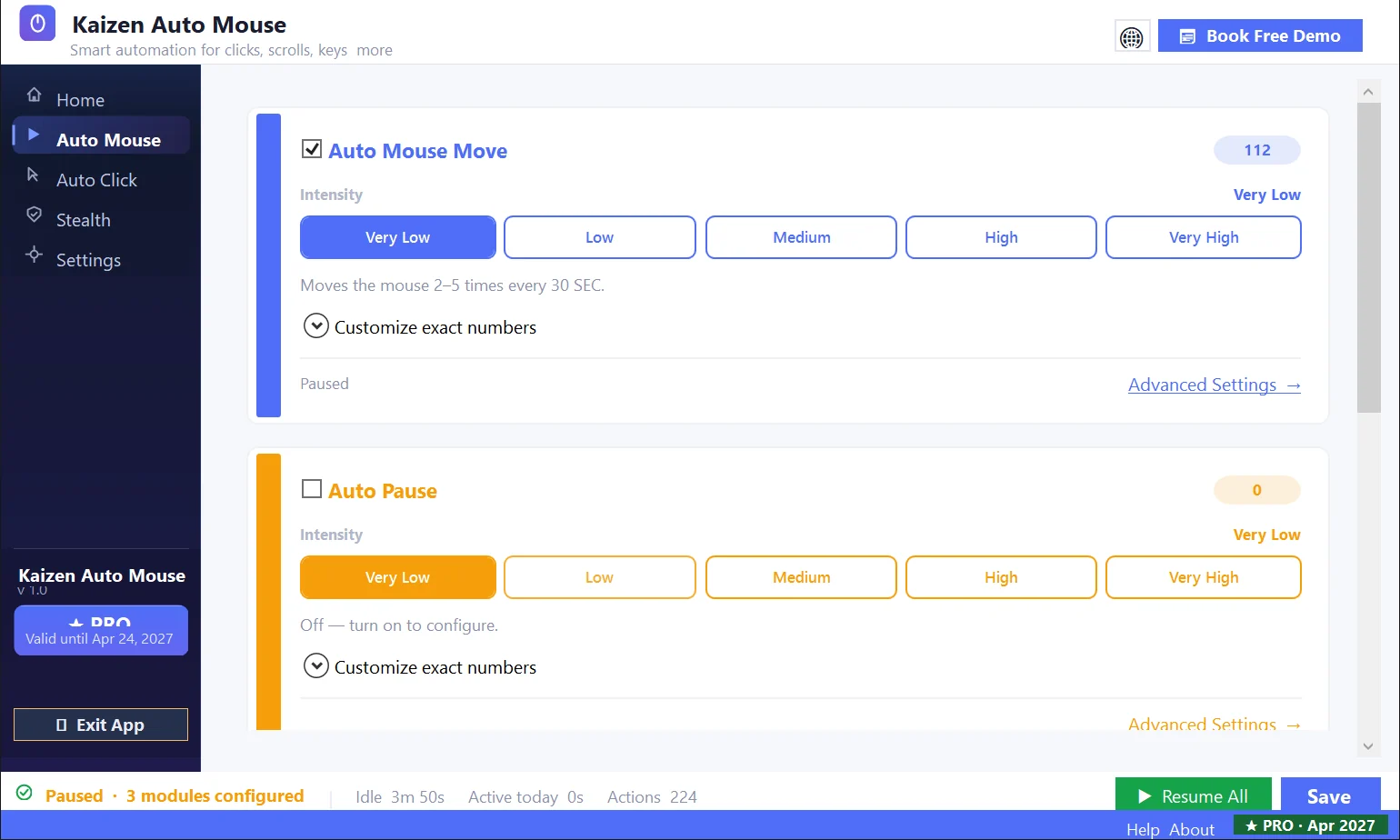
Left and right clicks on a timer, where your cursor already is
Turn on Auto Left Click or Auto Right Click and pick an intensity. Clicks land at the current cursor position, so park the cursor somewhere harmless first. If a right click opens a context menu, the app presses Esc about a second later to close it.
- Left, right and double click, each with its own switch and counter
- The same count range and time window as mouse movement
- Pro: Super Safe Click moves the cursor to the edge of the active window before clicking
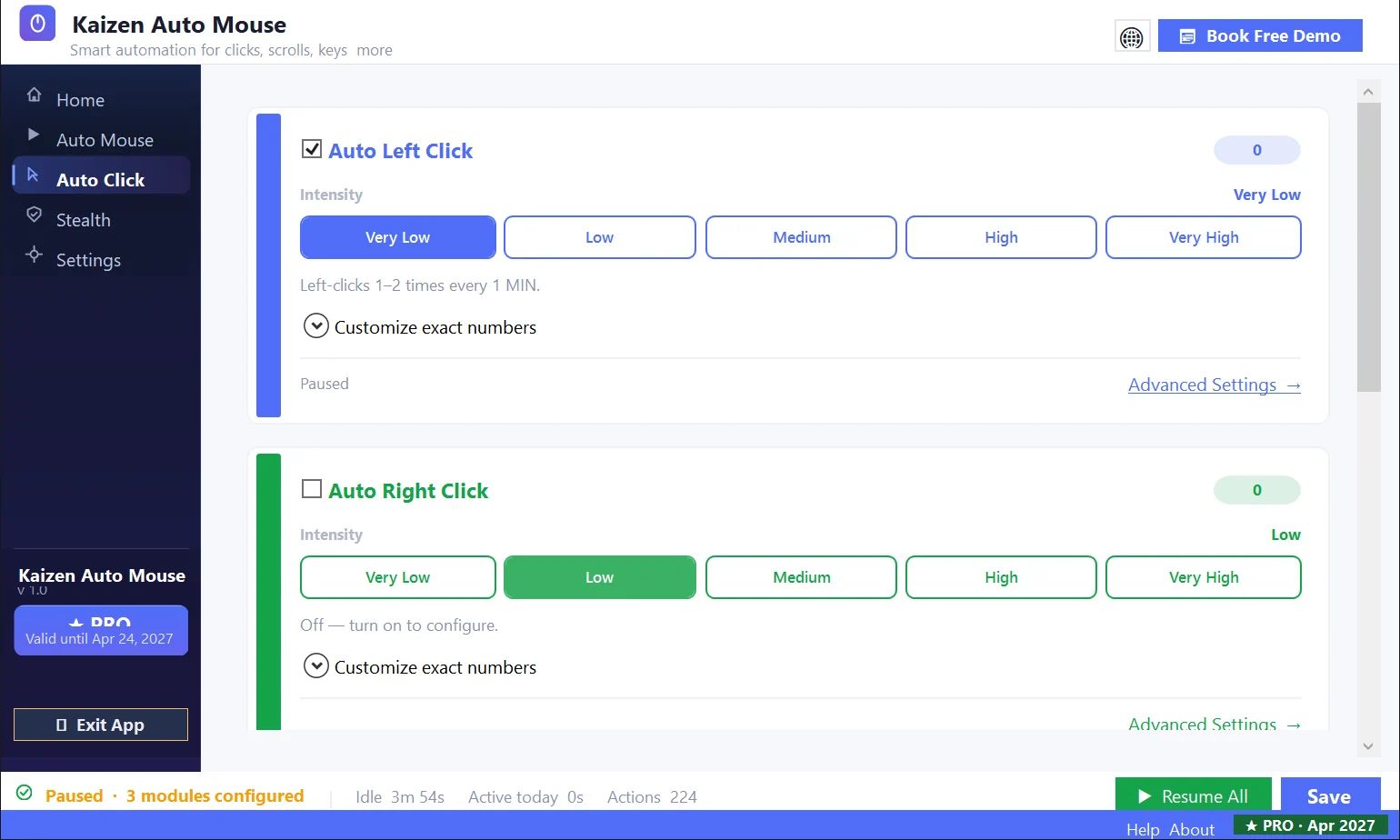
Decide when it may run and how much it may do
Activity starts only after the PC has been idle for your chosen delay, 10 seconds by default. It stops as soon as you use the mouse or keyboard, and nothing is sent while Windows is locked. The Stealth tab adds day, time and volume limits for Pro users.
- Idle activation delay from 1 to 1,000 seconds, minutes or hours
- Pro: run only on the weekdays you tick
- Pro: one daily allowed window and one daily blackout window
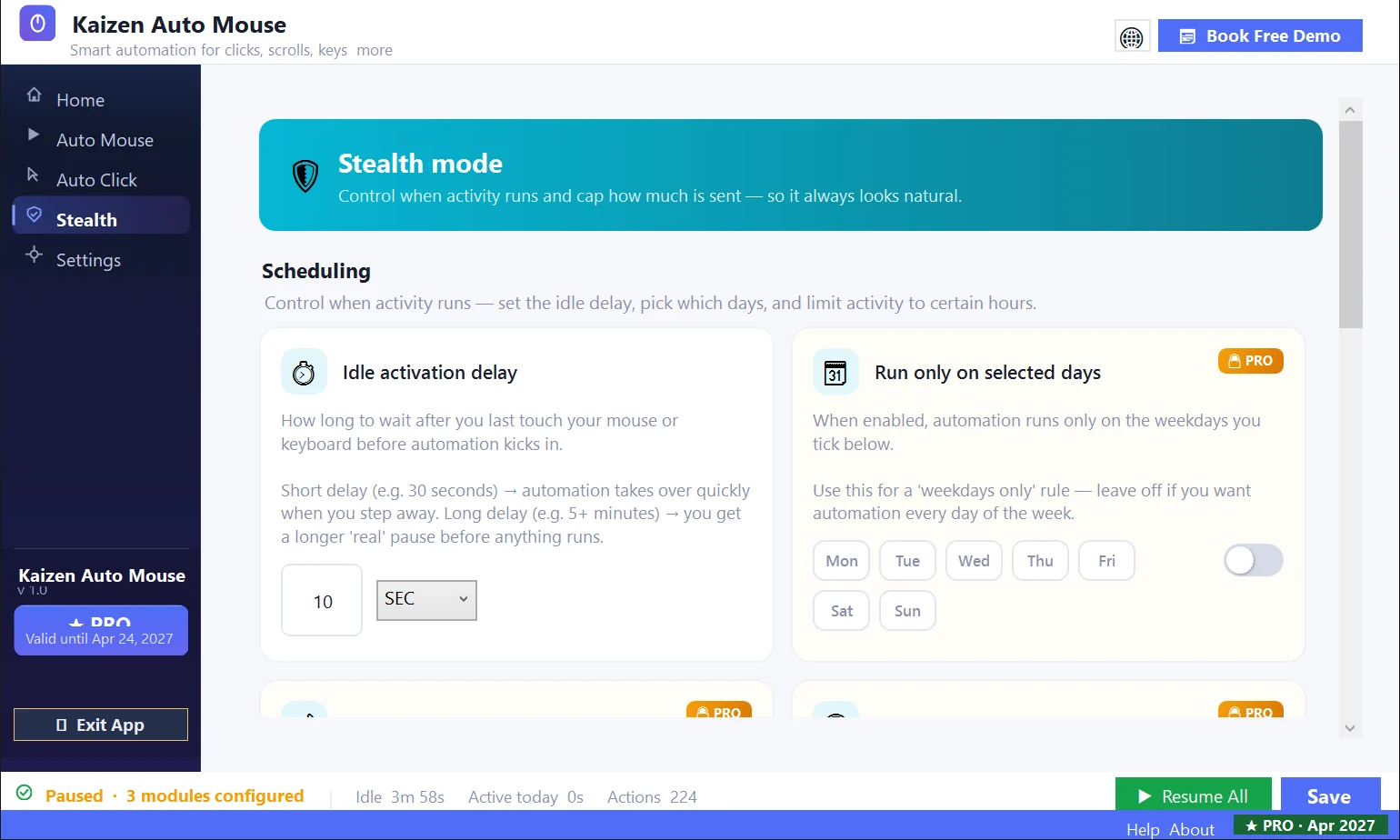
More than a cursor wiggle
Auto scroll
Sends mouse-wheel scrolling to the active window. With Pro you choose from 6 scroll directions and set the scroll amount.
Auto keyboard
Sends key presses to the active window. With Pro you choose the input types, from modifier and arrow keys to your own text of up to 10,000 characters.
App switching (Pro)
Brings the apps you pick to the front in shuffled order. In Chrome, Edge and Firefox it can also press Ctrl+Tab to cycle the tabs you already have open.
Per-app rules (Pro)
Allow or block each kind of action while a given application is in the foreground.
Window and tray options (Pro)
Remove the taskbar button or the tray icon, set the window title and icon, and require a 4-digit PIN to open the app.
Five fixed hotkeys
Win+Alt+S starts activity, Win+Alt+P pauses everything, Win+Alt+V shows the window, Win+Alt+I hides it and Win+Alt+E exits.
Simple pricing, paid once
Pro and Lifetime include the same features. The only difference is how long the license lasts.
Try the core modules. Settings marked PRO need a license.
- Four one-click scenarios on Home
- Mouse move, clicks, scroll and keyboard with count, frequency and intensity
- Idle activation delay and pause-all hotkey
- After 7 days a license key is required
All features for one year. Does not renew automatically.
- Everything in the trial
- Auto Pause and Auto App Switch
- Advanced settings: movement regions, scroll directions, keyboard input types, per-app rules
- Scheduling, daily caps, window and tray options, PIN
The same features as Pro, with no expiry date.
- Everything in Pro
- Pay once, no yearly purchase
- Shown in the app as Premium, lifetime access
Payment is handled by Paddle, our reseller. Your license key arrives by email. One-year licenses do not renew automatically. Refunds are available within 3 days of purchase: write to [email protected].
Questions about Kaizen Auto Mouse Auto Click
What is a mouse jiggler, and is this one software or a USB device?
A mouse jiggler moves the pointer so the computer keeps registering activity. This one is software for 64-bit Windows: nothing to plug in. Besides moving the mouse, it can click, scroll, press keys and switch apps.
Will it keep my Teams status active?
The Keep chat apps green scenario moves the mouse 3 to 8 times every 60 seconds once your PC is idle. Whether Teams, Zoom or Slack then shows you as available depends on those apps and how your organization has set them up, so we cannot guarantee it. Workplace policies vary, and following yours is your responsibility.
Can it prevent screen lock and keep the computer awake?
The Prevent screen lock scenario moves the mouse 1 to 3 times every 30 seconds, and each move also asks Windows to keep the system and display awake. A lock that is enforced by policy may still apply. The app sends nothing once the PC is locked.
Does it keep a remote desktop or VPN session alive?
The Keep remote session alive scenario moves the mouse 3 to 6 times every 2 minutes and scrolls 1 to 3 times every 5 minutes. Whether your RDP, VPN or Citrix session stays connected depends on that system's own timeout rules.
Can I use it as an anti AFK tool in games?
The Prevent game AFK kick scenario combines 2 to 5 mouse moves every 30 seconds, 1 to 2 left clicks a minute and 1 to 2 key presses every 2 minutes. Clicks land where the cursor is and keys go to the active window. Check the rules of your game before using it.
Can monitoring software tell that the input is automated?
It may. The app randomizes counts, timing and cursor targets, but it sends input through standard Windows functions, and Windows marks that input as software-generated. We make no promise that it goes unnoticed.
Good to know: It needs internet and an email
The first run requires an email address and a one-time code. The app also checks its license online and sends usage events to our server, including a device identifier, IP address and machine information. The mouse and keyboard activity itself is generated on your PC.
Good to know: It is not a macro recorder
There is no record and replay and no multi-step sequence builder. You cannot enter click coordinates, and the shortest time window is 1 second, so it is not a high-speed auto clicker.
Good to know: Input goes to whatever is in front
Clicks land where the cursor is, and scrolls and key presses go to the active window. Mouse movement uses the primary monitor only. Leave a harmless window in front before you step away.
Good to know: Results depend on your apps and your rules
The app sends ordinary software input through standard Windows functions. Whether a chat status, a screen lock policy, a remote session or a game timer responds to it depends on that software and how it is managed, and we do not claim monitoring tools cannot tell. Workplace policies vary, and you are responsible for following yours.
Try the mouse mover for 7 days
Install it, pick a scenario and step away. Buy a license only if it does the job on your PC.