Take back
your screen.
Block distracting sites and apps, set daily limits, and schedule downtime on Windows — then see exactly where your hours went. For yourself, your family, or your team. Fully offline; your data never leaves your PC.
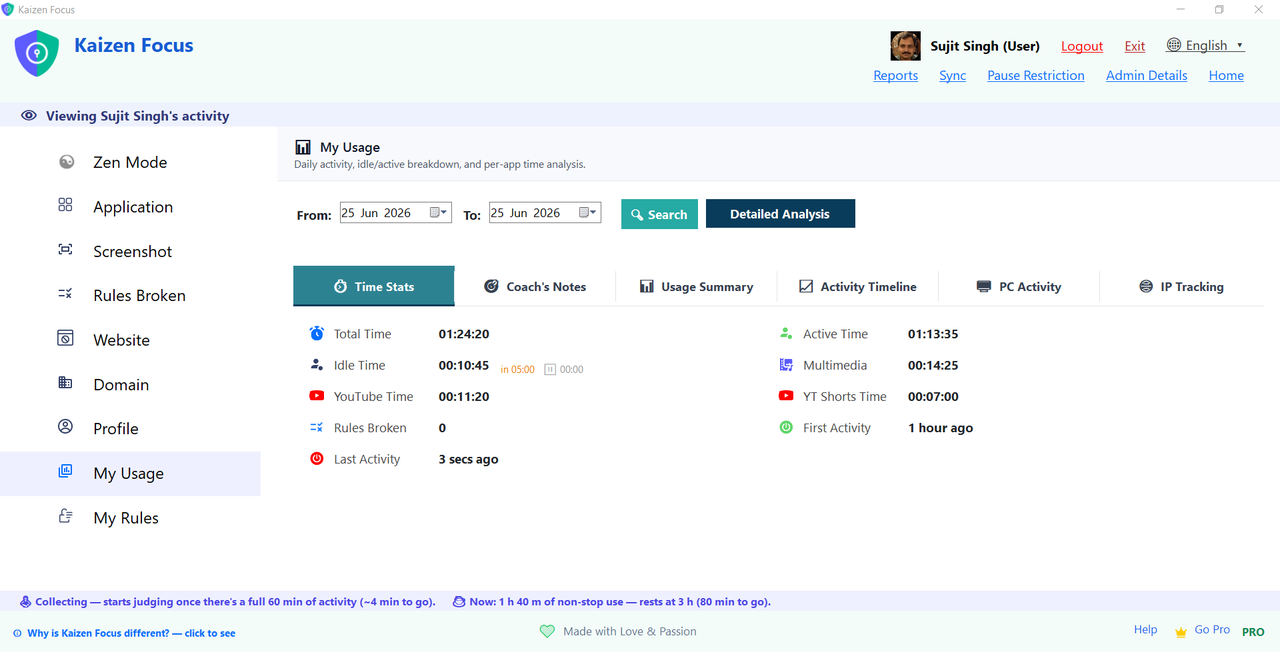
Block a site, an app, or one YouTube channel.
Add twitter.com to the blocklist and every browser on your machine refuses to load it. Block a single YouTube channel and the rest of YouTube still works. Block an app like Steam or Discord and Focus closes it during restricted hours.
- Reads URLs via the Windows UI Automation API — no extensions, works across all major browsers
- Block a full domain, a specific URL, or one YouTube channel (or just Shorts)
- Process-level blocking for desktop apps
- Full-screen lock on violation — resists Alt+F4, mutes audio, hides the taskbar
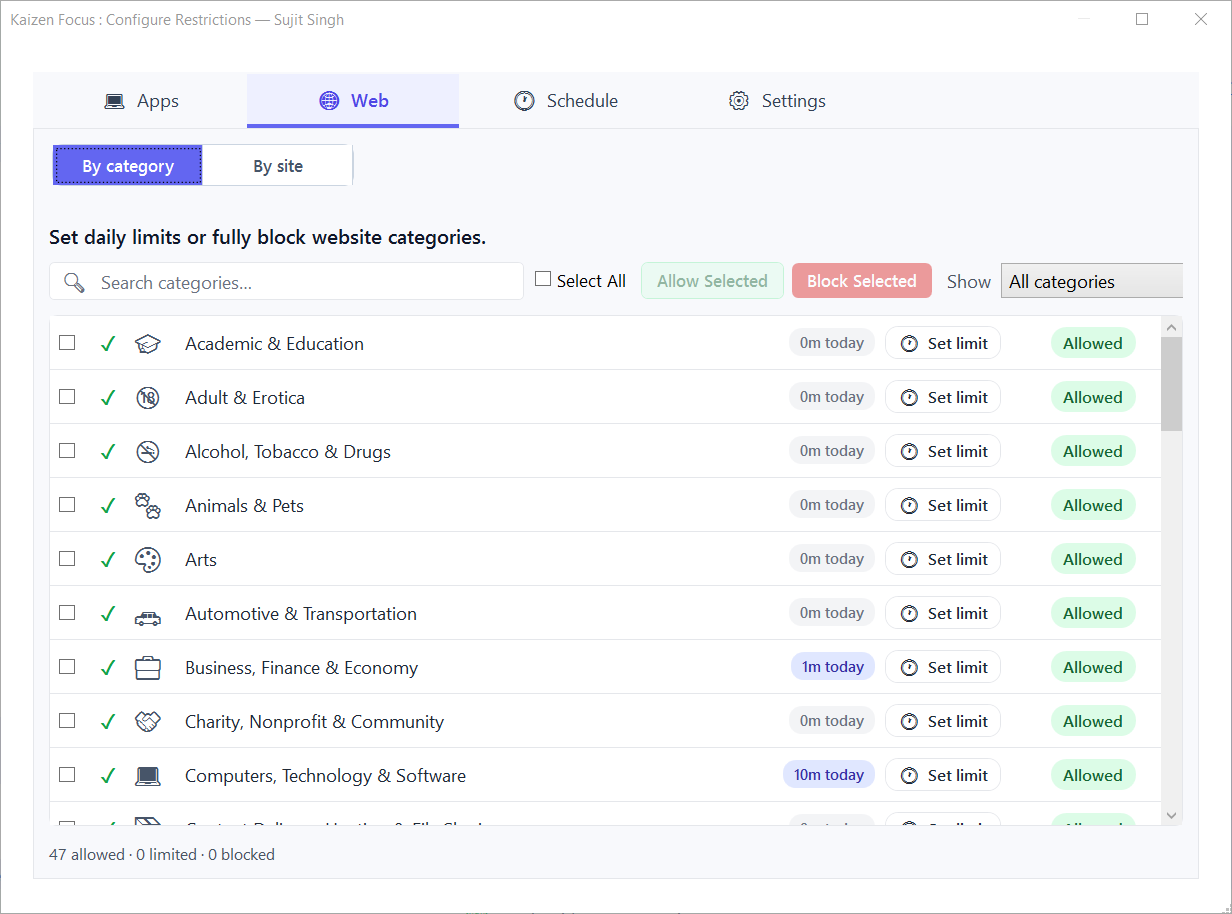
YouTube 60 min. Instagram 30. Netflix weekends only.
Give any app or website a daily time budget. Focus tracks usage in real time and blocks it for the rest of the day when the budget runs out — then resets at midnight. Every day of the week can have its own limit: strict on weekdays, relaxed on weekends.
- Per-app, per-website daily limits with a separate value for each weekday
- Group several apps into one shared budget (e.g. "Social: 45 min/day")
- Built-in for YouTube, Shorts, Instagram, TikTok, Facebook, Netflix, Reddit and more — add unlimited custom apps
- Watch remaining minutes count down live on the dashboard
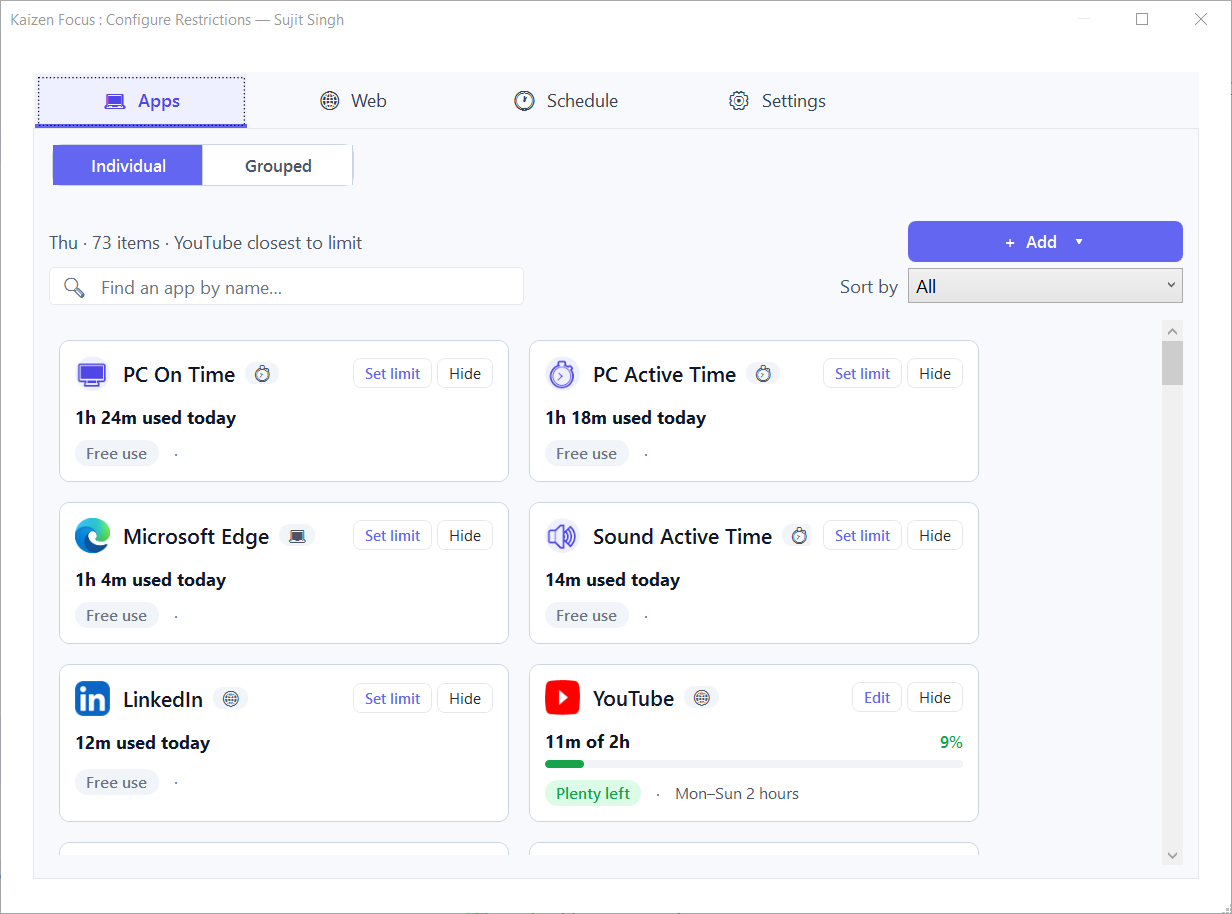
Hard-block everything from 9 pm to 7 am.
Downtime is a hard stop: during your scheduled window every app and site is blocked. Free Time carves out the exceptions — whitelist a meditation app, a reading app or a calculator so they stay open even during downtime.
- 1 downtime window free; up to 4 windows on Pro for multiple cut-offs a day
- Up to 4 Free Time windows that punch holes in downtime
- Windows wrap past midnight and re-check on the wall clock
- Sort every app and site into Productive / Neutral / Unproductive for cleaner reports
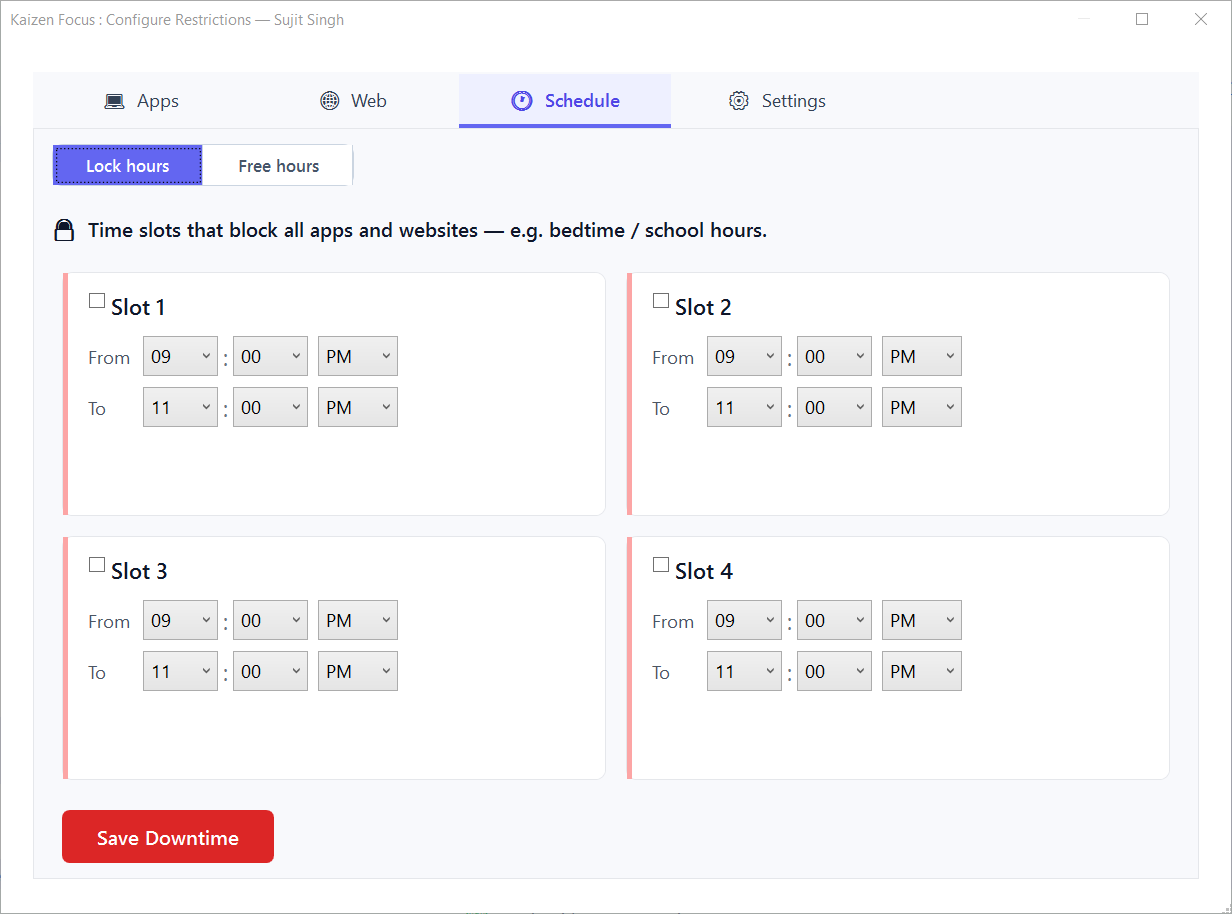
Know exactly where your hours went.
Focus quietly logs every app and website. The activity timeline breaks your day into 30-minute bars, and usage summaries roll up active vs idle time, YouTube, Shorts and rules broken — so the picture is impossible to argue with.
- Activity timeline at 30-minute resolution, with active-vs-idle detection
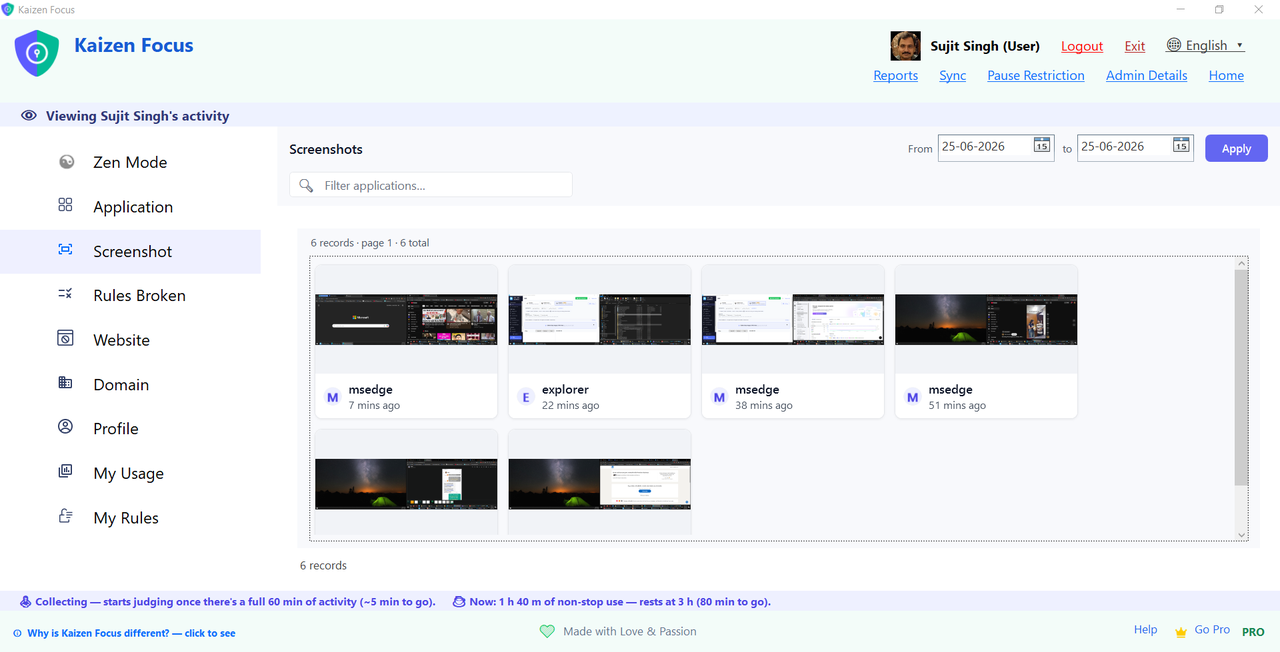
- Optional periodic screenshots — visual proof, kept on-device, admin-only to delete
- Daily / weekly / monthly email reports with charts (Pro)
- Attach screenshots to reports for parents or managers (Pro)
For yourself, your kids, or your team.
One admin holds a 4-digit PIN; rules apply to any number of user accounts. Built for real families after every cloud-based alternative fell short — lightweight, local-only, and granular enough to block a single channel.
Yourself
Be your own admin. Set up your restrictions, lock them behind a PIN, and trust your future self not to know it. Great for solo deep work.
Your family
Each child gets their own rules, timeline and limits. Pause requests can flow to you for one-click email approval — no shared password.
Your team
Set minimum working hours, define tracked hours, and get reports. Accountability for small in-house or remote teams, without per-seat cloud fees.
Your data never leaves your PC. Period.
Focus watches every app and website and how long each is used — but none of it is ever sent anywhere. Everything is stored locally on your device. No tracking, no ads, no model-training on your activity. Rules that hold, too: closing the window doesn't stop enforcement, a watchdog restarts Focus if it's killed, and settings stay locked behind the admin PIN.
Start free. Upgrade when you're ready.
Free covers website & app blocking and screenshot monitoring. Pro adds daily limits, extra downtime windows, and email reports.
Free
- Website & app blocking
- Block YouTube channels & Shorts
- 1 downtime window
- Activity timeline & usage
- Daily limits & email reports
Pro
- Everything in Free
- Per-app & per-website daily limits
- Up to 4 downtime + 4 Free Time windows
- Screenshot monitoring & app groups
- Daily / weekly / monthly email reports
- Priority email support
Lifetime
- Everything in Pro
- No renewals, ever
- Lifetime updates
- Use across your devices
- Priority support