How to block games on Windows in 2026
Whether it's a child losing hours to Roblox and Fortnite or your own focus slipping during study and work, here's how to actually block games on Windows — the built-in options, their limits, and the robust way to do it with Kaizen Focus.
Games are engineered to keep you playing. Launchers auto-update, friends are always online, and titles like Roblox, Fortnite and Minecraft have no real "end" — so a quick session quietly becomes three hours. If that's wrecking a child's study time or your own deep work, blocking games at the source is the fix. This 2026 guide walks through every practical method on Windows, where each one falls short, and how to make blocking actually stick.
Why block games on Windows?
There are three reasons this keeps coming up, and they apply to adults and kids alike:
- Study and focus. A game is one Alt-Tab away while you're meant to be revising or working. Removing the temptation entirely is far more effective than relying on willpower — the most reliable way to not play is to make the game refuse to open.
- Children's screen time. Open-ended, highly engaging games crowd out sleep, homework and time outdoors. Clear, enforced limits ("school nights are game-free; an hour at weekends") work better than nagging.
- Productivity at work. On a shared or work PC, a quietly installed game or a browser game tab can swallow a surprising amount of the day. Blocking it keeps the machine for what it's for.
The built-in ways to block games — and their limits
Windows gives you a few levers out of the box. They're free and worth knowing, but each has a gap that a determined player (or a curious kid) can slip through.
1. Microsoft Family Safety
If everyone uses Microsoft accounts, Family Safety can set screen-time limits and block specific apps and games on a child's account. It's a reasonable starting point. The catch: it leans on the child being signed into their Microsoft account and using Microsoft Edge for web filtering. A local Windows account, a second browser, or a portable game that doesn't need installation can sidestep it, and the controls are coarse — you don't get fine per-app daily budgets that differ by weekday.
2. The hosts file or router-level blocks
You can add game and store domains (for example store.steampowered.com or roblox.com) to the Windows hosts file, or block them on your router. This stops some downloads and browser games. But it does nothing about games already installed on the PC, it's trivial to undo if the user has admin rights, and maintaining a domain list by hand is a losing battle as games shift servers.
3. Standard user accounts and uninstalling
Making the child a standard (non-admin) user stops new installs, and you can uninstall existing games. It helps, but it's all-or-nothing: there's no "an hour a day" middle ground, browser games still load, and any game that runs without installation — or a reinstall during a moment of admin access — puts you back to square one.
The pattern: the built-in tools either block websites but not the installed game app, or they're easy to switch off, or they only offer a blunt all-or-nothing block. To reliably block games on Windows you want something that stops the actual game and launcher processes, covers every browser for web games, allows scheduled or limited play, and can't be casually disabled. That's the gap Kaizen Focus fills.
Block games properly with Kaizen Focus
Kaizen Focus is a Windows app blocker built for exactly this. Here's what makes it stick where the built-in options leak.
Block the game, the launcher, and the store site.
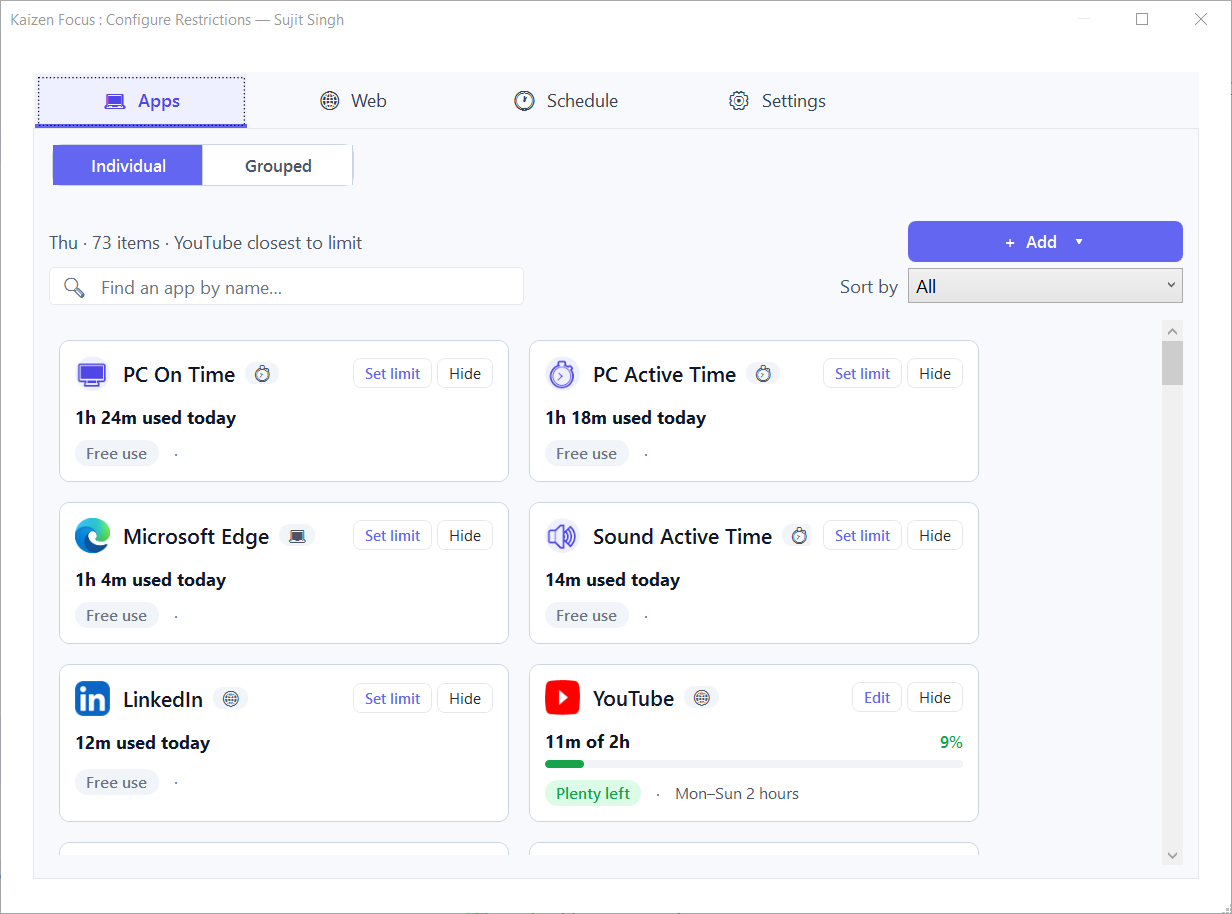
Add Steam, the Epic Games Launcher, Roblox or Minecraft to the blocklist and Focus closes the app the moment it opens during restricted hours — it blocks at the process level, not just the website. For browser games it reads the active URL from every major browser, so blocking poki.com or a store page holds in Chrome, Edge, Firefox, Brave and more.
- Closes game & launcher processes (Steam, Epic, Roblox, Minecraft, Riot and any custom app)
- Reads URLs via the Windows UI Automation API — no extensions, no browser-hopping loophole
- Block a full domain or one specific URL for browser games and game stores
- Full-screen lock on violation — resists Alt+F4, mutes audio, hides the taskbar
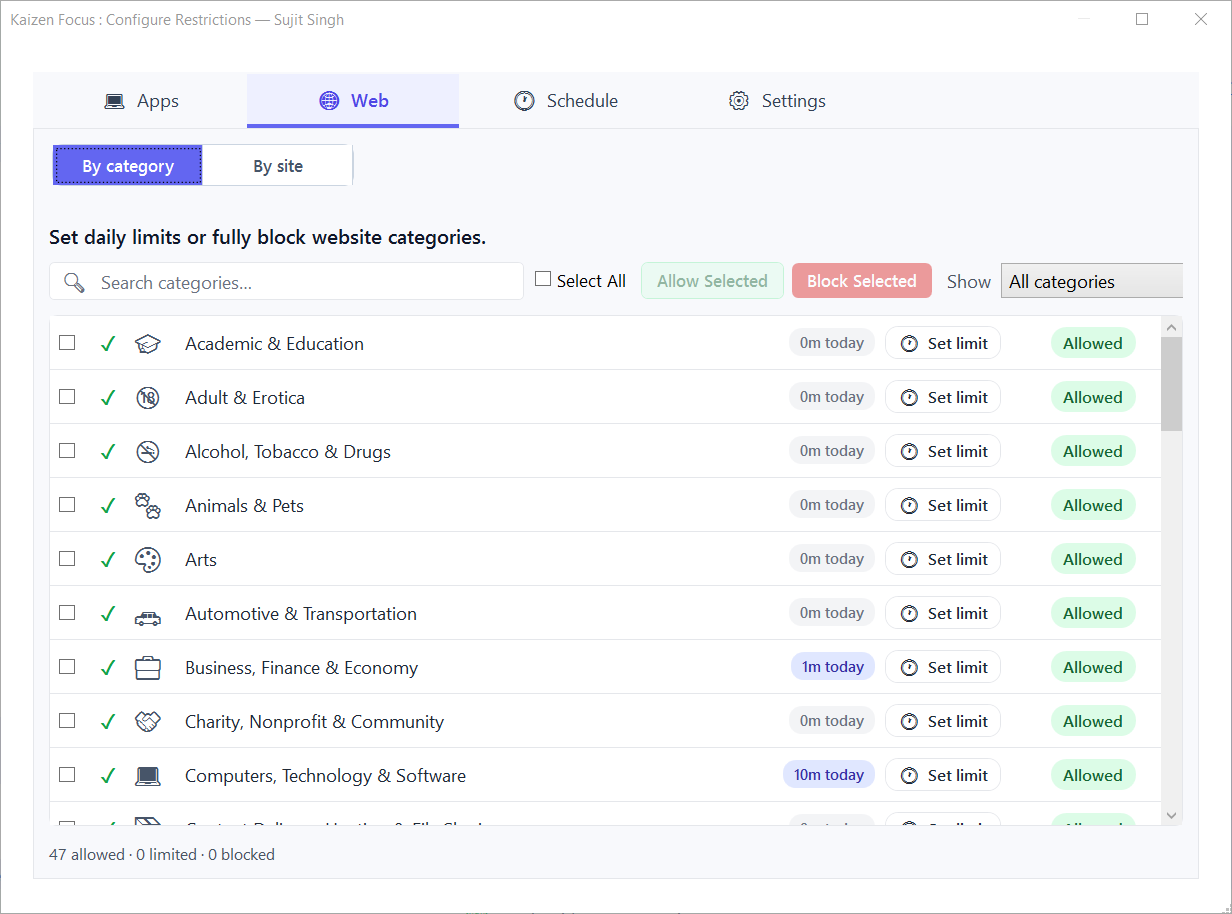
One hour on weekdays. Two at weekends. Off after 9 pm.
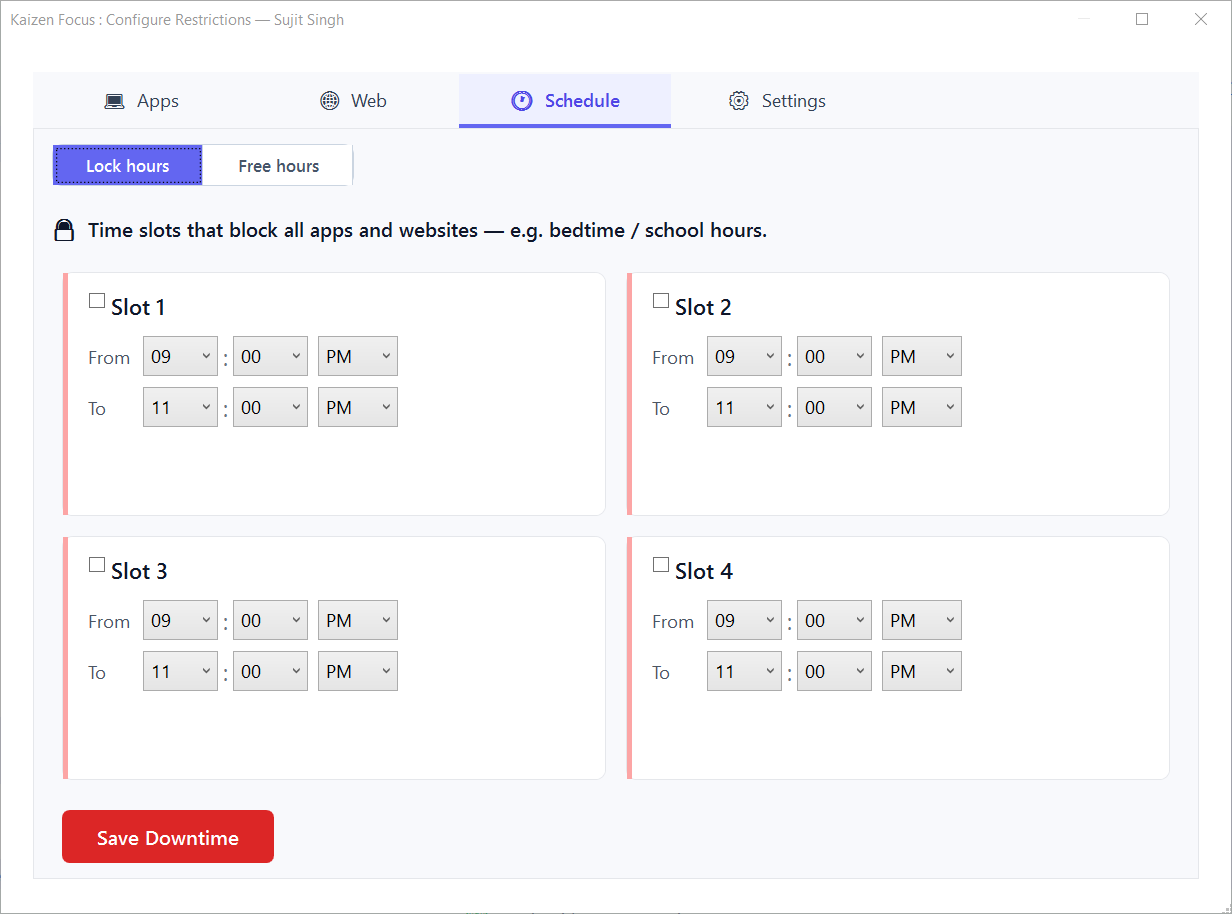
A full ban isn't always the goal. Give any game a daily time budget — and a different value for each weekday — so play is strict on school nights and relaxed at weekends. When the budget runs out the game is blocked for the rest of the day, then resets at midnight. Downtime adds hard cut-offs around homework hours and bedtime.
- Per-app daily time limits with a separate value for every weekday
- Group games into one shared budget (e.g. "Games: 60 min/day")
- Scheduled downtime — 1 window free, up to 4 on Pro — for study and bedtime
- Remaining minutes count down live on the dashboard
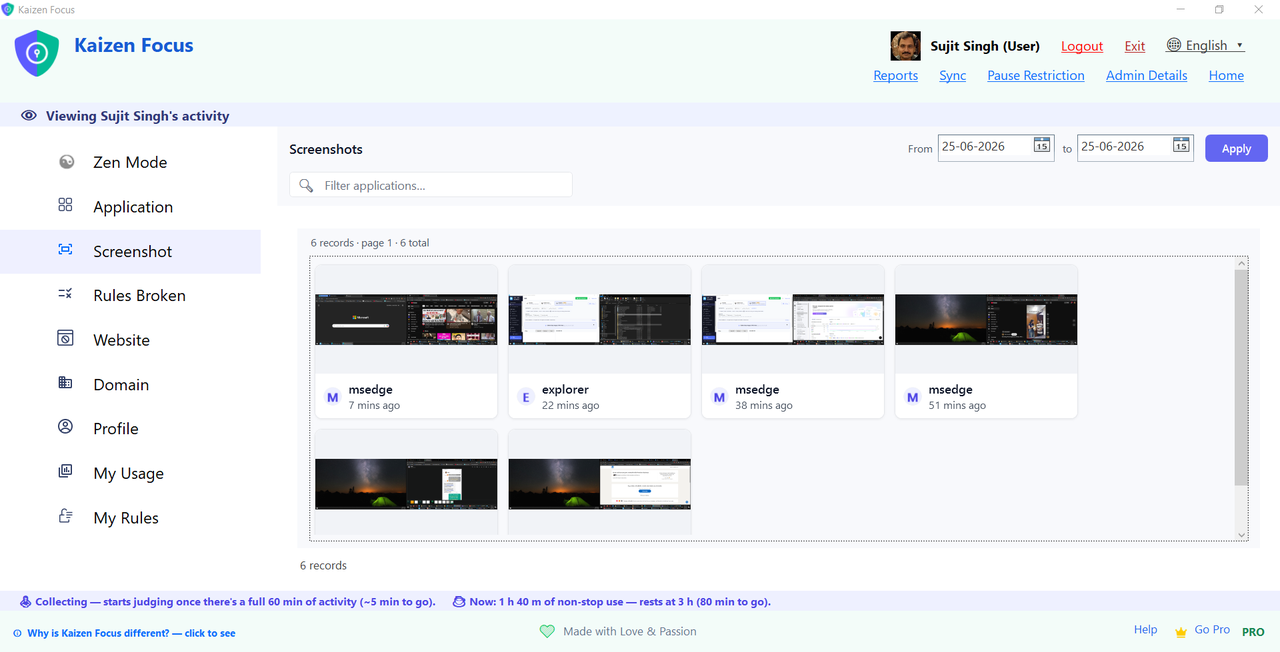
See exactly what was played — and lock it down.
Focus logs every app and site, breaks the day into a timeline, and can take periodic screenshots as visual proof — kept on-device and admin-only to delete. Parents and managers can get daily, weekly or monthly email reports. And because closing the window doesn't stop it (a watchdog restarts it) with settings behind an admin PIN, a standard user can't simply switch the blocking off.
- Activity timeline plus active-vs-idle detection
- Optional periodic screenshots — visual proof, stored locally
- Daily / weekly / monthly email reports (Pro)
- 4-digit admin PIN, background watchdog, uninstall needs Windows admin rights
How to block games with Kaizen Focus (step by step)
- Download and install Kaizen Focus on the Windows PC using the button below — the free version installs in a couple of minutes and starts with Windows.
- Set an admin PIN. Pick a 4-digit PIN so only you can change the rules; a child's standard account can't undo them.
- Block the game apps and launchers. Add Steam, the Epic Games Launcher, Roblox, Minecraft, the Riot Client and any other installed game to the app blocklist. Focus closes them during restricted hours.
- Block the game stores and browser games. Add domains like
store.steampowered.com,epicgames.com,roblox.comandpoki.comso new downloads and web games are blocked across every browser. - Add limits or downtime (optional). Prefer some play? On Pro, set a daily limit per game with weekday-specific values, or schedule downtime over homework hours and after bedtime.
Start free. Upgrade only if you need limits & reports.
Free already blocks games, launchers and gaming sites. Pro adds per-app daily limits, extra downtime windows and email reports.
Free
- Block game apps, launchers & sites
- Block YouTube channels & Shorts
- 1 downtime window
- Activity timeline & usage
- Daily limits & email reports
Pro
- Everything in Free
- Per-game daily limits (per weekday)
- Up to 4 downtime + 4 Free Time windows
- Screenshot monitoring & app groups
- Daily / weekly / monthly email reports
- Priority email support
Lifetime
- Everything in Pro
- No renewals, ever
- Lifetime updates
- Use across your devices
- Priority support